How to Use AirDrop and Nearby Share to Share Files Between Phones in Australia
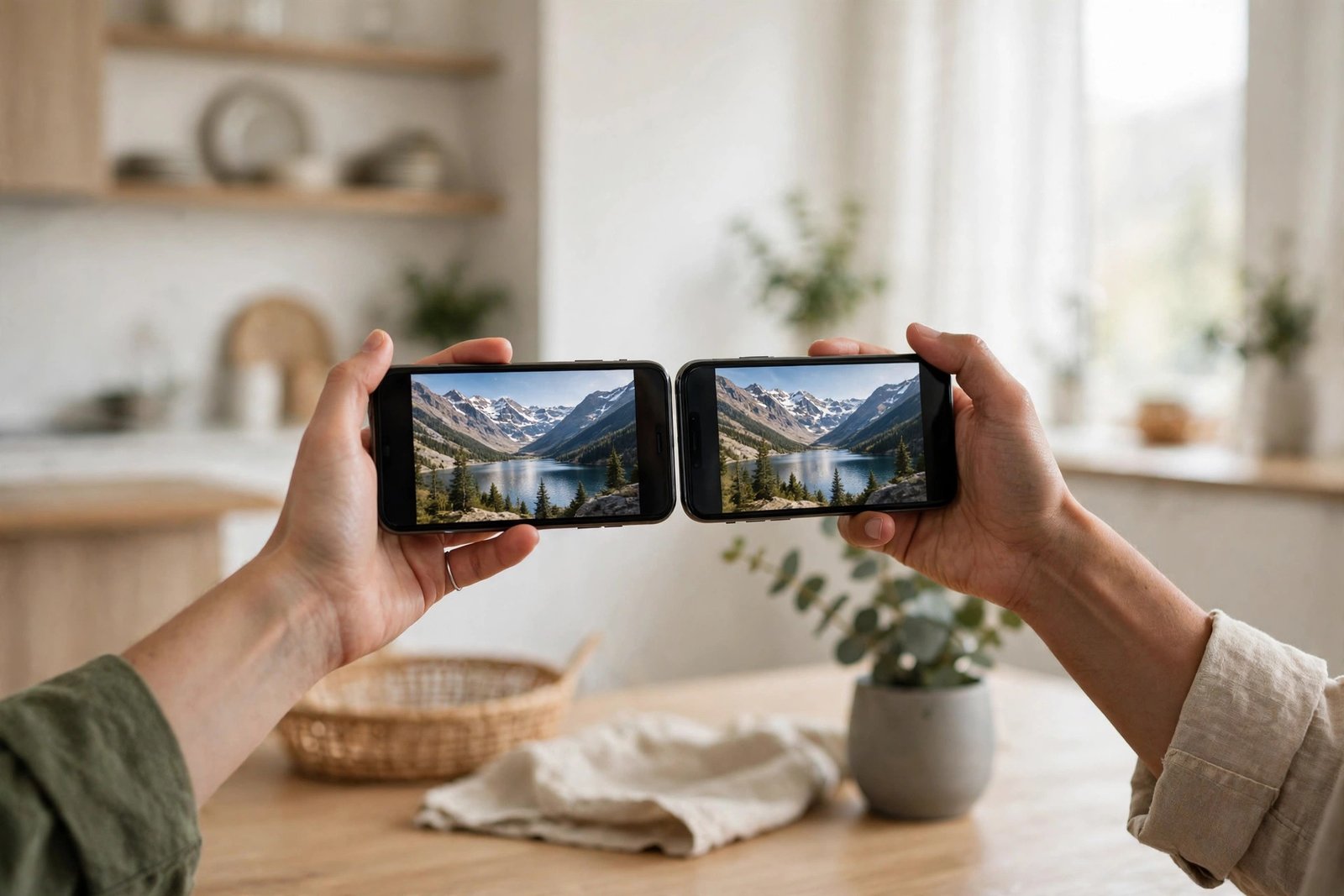
AirDrop and Nearby Share are the fastest way to move a photo, video or file from one phone to another when you are standing nearby. They use Wi-Fi and Bluetooth to send files directly between devices, so you usually do not need a cable, an email attachment or your mobile data. They also come with privacy settings that matter, because a device set to accept files from everyone can receive unwanted content from strangers.
This guide covers both systems: AirDrop for iPhone to iPhone, and Nearby Share, now often called Quick Share on newer Android phones, for Android to Android. It also covers what to do when the two systems need to talk to each other, which is the part that trips most people up.
Step 1: Set your receiving option before you share anything
Start with privacy, before you send or receive a single file. On iPhone, open Settings, then General, then AirDrop. You will see three options: Receiving Off, Contacts Only and Everyone for 10 Minutes. Contacts Only is the safest everyday choice, since only people in your contacts can see your phone. Everyone for 10 Minutes is useful at an event or in a classroom, but it switches back to Contacts Only after ten minutes, which is a sensible safety net.
On Android, open Settings, then Connected devices or Google, depending on your phone, and look for Quick Share or Nearby Share. Choose who can share with you: your devices, your contacts, or everyone. Contacts only is again the safest default. If you choose everyone, use it only for the few minutes you need it, then switch back.
This one setting prevents most unwanted file requests. If you ever get a strange AirDrop request from someone you do not know, decline it and switch your receiving option back to Contacts Only straight away.
Step 2: Share a file with AirDrop on iPhone
Make sure Wi-Fi and Bluetooth are switched on, and that both phones are close together, ideally within a few metres. The phones do not need to be on the same Wi-Fi network, since AirDrop creates its own direct connection, but Wi-Fi and Bluetooth both need to be on for it to work.
Open the photo, video, file or link you want to share, then tap the Share button, which looks like a square with an arrow pointing up. In the share sheet, tap AirDrop. Nearby iPhones with AirDrop switched on should appear as circles with names or photos. Tap the person you want to send to, and they will see a prompt to accept or decline. Once they accept, the file transfers directly, and photos usually land in the Photos app while other files open in the matching app or in Files.
If the other phone does not appear, check the basics first. Both phones should have AirDrop receiving switched on, Personal Hotspot should be off on both devices, and both phones should be unlocked with the screen on.
Step 3: Share a file with Quick Share on Android
On Android, the process is very similar. Open the photo, video or file you want to share, tap Share, then tap Quick Share. Nearby Android phones with Quick Share switched on should appear on screen. Tap the device you want to send to, and the other person will be asked to accept.
If you are sending to your own tablet or Chromebook signed in to the same Google account, the transfer may go through without an extra accept step, depending on your visibility setting.
Large videos can take a little while, and the transfer may pause if either phone locks or moves too far away. Keep both phones awake, close together and charged, and avoid switching apps during a big transfer.
Step 4: Share between iPhone and Android
AirDrop does not send directly to Android, and Quick Share does not send directly to iPhone, in most recent versions. That is the main limitation of both systems, and it catches people out at weddings, work events and family gatherings.
When you need to cross from one system to the other, use a shared link instead. Upload the file to Google Drive, iCloud Drive, Dropbox or a similar service from one phone, then share the link with the other person by message or email. For a single photo, sending it through WhatsApp or another messaging app is often faster, though messaging apps may compress the photo and reduce its quality.
For full-quality photos, a cloud link is the better choice. Upload the original, set the link sharing to the people who need it, and send the link. The other person can then download the original file on their own phone, regardless of whether they use iPhone or Android.
Step 5: Fix the most common problems
If a device does not show up, work through this short checklist. First, confirm Wi-Fi and Bluetooth are on for both phones. Second, confirm the receiving option is not set to Receiving Off. Third, turn Personal Hotspot off, since it can interfere with AirDrop on iPhone. Fourth, restart both phones if the problem persists, which clears temporary connection issues more often than people expect.
If transfers keep failing, try sending a small photo before a large video, and keep the phones within a metre or two. Finally, check that both phones are running a reasonably recent software version, since older versions may not support the newest sharing features or may use different menu names.
One last safety habit is worth building. After you finish sharing at a public event, switch your receiving option back to Contacts Only. It takes five seconds, and it stops strangers from sending you files later while your phone is still set to accept from everyone.
Frequently Asked Questions
Does AirDrop or Quick Share use my mobile data?
No, not normally. Both systems send files directly between devices over Wi-Fi and Bluetooth, so they do not count against your mobile data allowance in most cases.
Can I AirDrop from an iPhone to an Android phone?
No, not directly in most recent versions. Use a cloud link from Google Drive, iCloud Drive or Dropbox, or send the file through a messaging app, to move files between iPhone and Android.
Why does my phone not appear for AirDrop or Quick Share?
The most common causes are Wi-Fi or Bluetooth switched off, receiving set to off, Personal Hotspot running on iPhone, or the phones being too far apart. Check those settings, move the phones closer together, and try again.


Post Comment