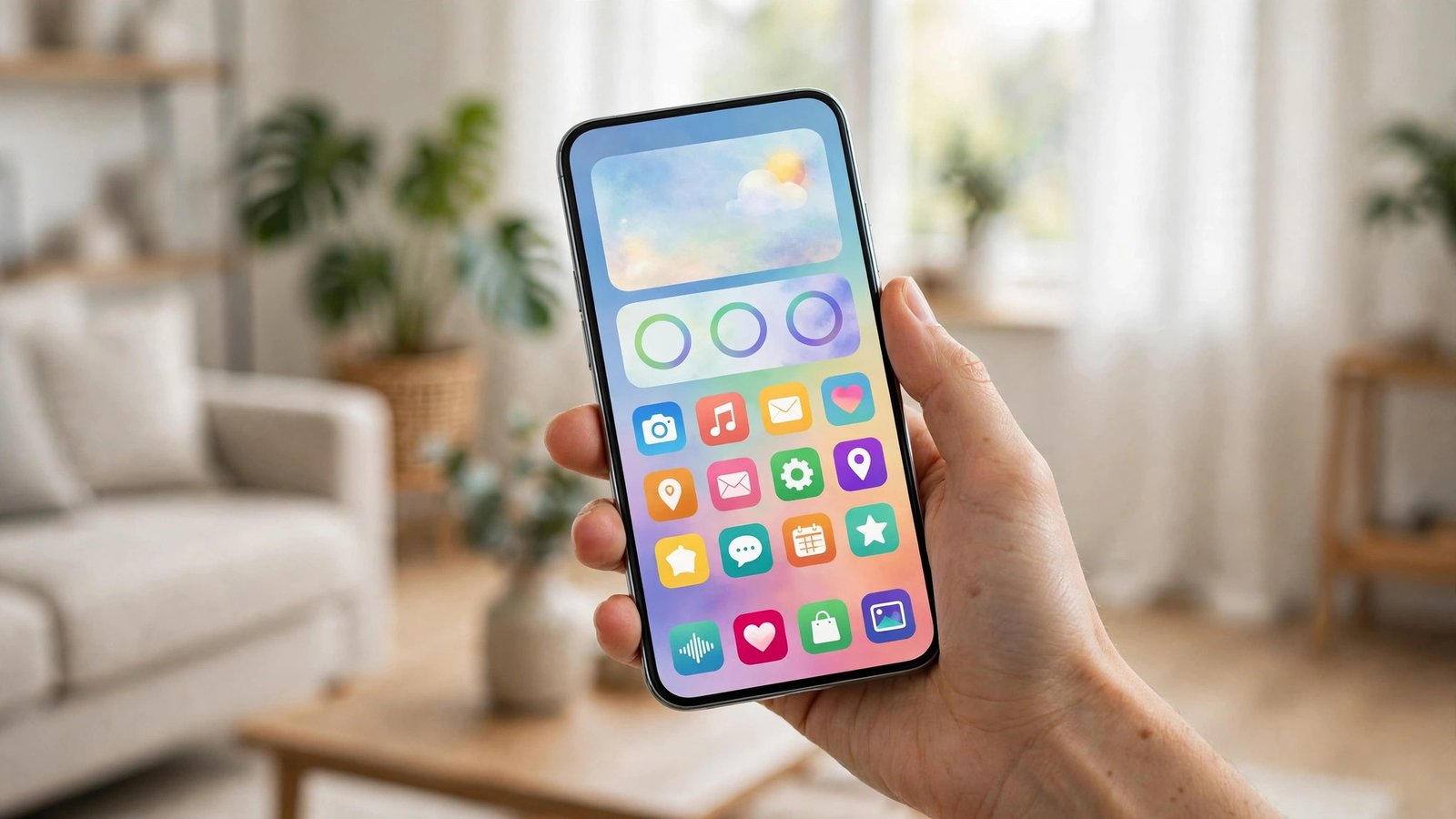
How to Use the Shortcuts App on iPhone in the US: Build Automations That Save You Time
Your iPhone can do a surprising amount of work on its own, if you tell it what to do once. The Shortcuts app, which comes preinstalled on every iPhone, lets you chain small tasks into a single tap, or set them to run on their own: a morning routine that checks the weather and starts your playlist, a low battery mode at 20 percent, a drive mode that texts your family when you leave work.
None of this needs coding. You build shortcuts by picking actions from a list, in plain English. This guide takes you from your first shortcut to automations that run while you are not looking.
What the Shortcuts app is
Shortcuts is Apple’s automation app, built into iOS. A shortcut is a saved sequence of actions, such as taking a photo, sending a message, or changing a setting, and the iPhone performs each one in order when you run it.
There are three tabs. Shortcuts holds the shortcuts you have built or added. Gallery holds ready-made shortcuts from Apple that you can add with one tap. Automation holds automations, which start on their own when a trigger fires, such as a time of day, a place, or your battery level.
If you deleted the app, get it back free from the App Store. It works on iPhones running recent versions of iOS, and menu names can vary slightly between versions.
Build your first shortcut
Start small. A good first shortcut turns on Do Not Disturb and starts a sleep playlist with one tap.
- Open the Shortcuts app and tap the plus icon in the top corner.
- Tap Add Action. A list of action categories appears: Apps, Media, Scripting, and more.
- Search for “Set Focus” and tap it, then choose Do Not Disturb and set it to turn on.
- Tap Add Action again, search for “Play Music,” and pick the playlist you want.
- Tap the shortcut name at the top, give it a clear name such as “Wind Down,” and choose an icon and color.
- Tap Done. Your shortcut now appears in the Shortcuts tab.
Tap it to run it. If an action asks for permission, such as access to your music library, tap Allow; Shortcuts ask once and remember your answer.
Add a shortcut to your Home Screen or ask Siri
Put the shortcuts you use daily where you can reach them.
- Home Screen: open the shortcut, tap the share icon, then tap Add to Home Screen. Pick an icon and a name, then tap Add. It now sits on your Home Screen like any app.
- Widget: long-press your Home Screen, tap the plus icon, and add a Shortcuts widget.
- Siri: give your shortcut a short, distinct name, then say “Hey Siri, run Wind Down.”
- Control Center: in most recent versions of iOS, add a Shortcuts control to Control Center from Settings.
Set up an automation that runs by itself
Automations start on their own when a trigger fires, so you set them up once and forget about them.
- Open Shortcuts and tap the Automation tab at the bottom.
- Tap the plus icon, then choose a trigger, such as Time of Day, Alarm, Arrive or Leave, Low Power Mode, Battery Level, an app opening or closing, or connecting to Wi-Fi or Bluetooth.
- Pick the trigger details: a time and days for Time of Day, or a percentage such as 20 percent for Battery Level.
- Tap Next, then choose the actions you want. For a low battery automation, add “Set Low Power Mode” to on and “Set Brightness” to a lower level.
- On the summary screen, turn on Run Immediately to run without asking first. If it is off, your iPhone shows a notification and asks before running.
- Tap Done.
Try these: at work, turn on the Work Focus and silence notifications; in the car, open Maps and start your driving playlist; when your alarm goes off, read the weather and your first calendar event.
Three useful automations to copy
Morning briefing. Trigger: your wake-up alarm stops. Actions: get the weather, read your calendar for today, then play your morning news podcast.
Driving mode. Trigger: your iPhone connects to your car Bluetooth. Actions: turn on the Driving Focus, set a volume you like, and send a family member your estimated arrival time. A second automation turns it off when Bluetooth disconnects.
Bedtime wind-down. Trigger: 10 p.m. every night. Actions: turn on Do Not Disturb, set brightness low, and start a sleep playlist or white noise. Your phone quiets down on its own, every night.
Stay safe with shared shortcuts
Shortcuts can be shared, and the Gallery and the internet are full of them. Most are harmless, but a shortcut can read your photos, contacts, and messages if you let it, so treat shared shortcuts like any app you install.
- Only add shortcuts from people and sites you trust.
- Read the actions inside a shortcut before you run it; tap its three dots to see them all.
- Say no when a shortcut asks for access it does not need.
- Delete shortcuts you no longer use.
Fix the most common problems
An automation does not run. Check the trigger and that Run Immediately is turned on. Location triggers need Location Services on for Shortcuts, under Settings, then Privacy and Security, then Location Services.
A shortcut asks for permission every time. In Settings, then Shortcuts, grant the access the shortcut needs once, and it should stop asking.
Siri cannot find your shortcut. Shortcuts with similar names confuse Siri. Rename yours to something short and distinct.
An action is missing. Some actions depend on your installed apps and iOS version. If an action does not appear, update iOS and check that its app is installed.
Frequently Asked Questions
Is the Shortcuts app free?
Yes. Shortcuts comes preinstalled on iPhone at no cost. If you deleted it, download it again free from the App Store.
Can automations run without asking me first?
Yes, in most recent versions of iOS. Turn on Run Immediately on the summary screen and it runs on its own when the trigger fires. If that option is off, your iPhone asks before running.
Do shortcuts work on Android phones?
No. Shortcuts is an Apple app for iPhone, iPad, and Mac. Android phones have their own options in most recent versions, such as Routines in the Google Home app and Modes and Routines on Samsung Galaxy phones.



Post Comment