How to Record Voice Memos on iPhone and Android in Canada
Voice memos are one of those phone features most people ignore until they suddenly need one. A quick recording can capture a lecture, a meeting, a song idea, or an interview for a school project. Both iPhone and Android have solid built in tools for this, and you do not need to pay for an app to get started. This guide walks through how to record, tidy up, transcribe, and share voice memos on both platforms.
Step 1: Record a voice memo on iPhone
On iPhone, the app is called Voice Memos, and it comes installed with iOS. If you deleted it, you can get it back free from the App Store.
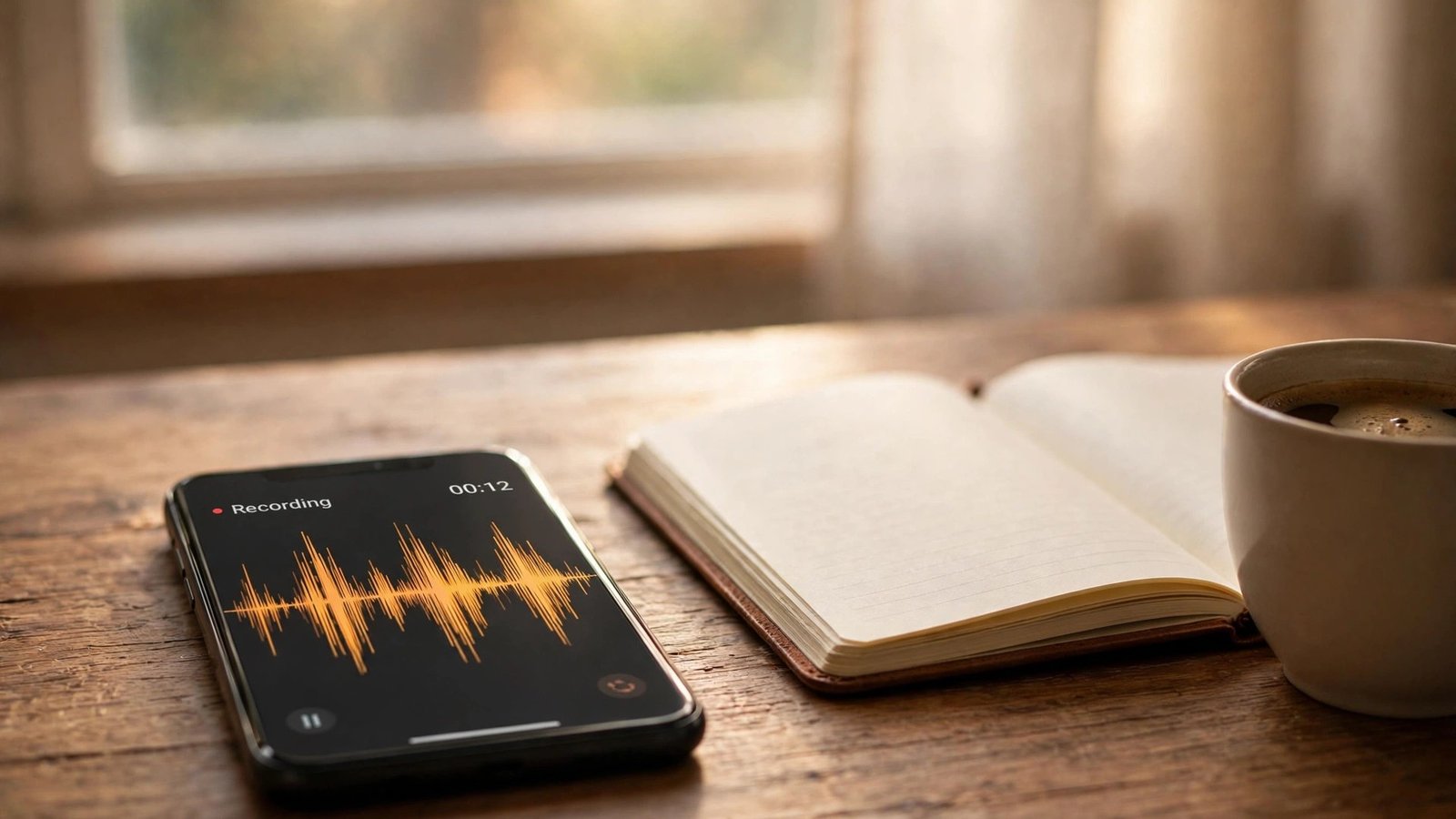
Open Voice Memos and tap the big red record button at the bottom of the screen. Speak normally, holding the phone about 15 to 30 centimetres from your mouth. The waveform on screen shows that audio is being captured, and the timer counts up as you go. Tap the square stop button when you are done, and the recording is saved automatically with a name based on your location or the date.
A few habits make a real difference to sound quality. Record in a quiet room where you can, and avoid handling the phone while recording, since the microphone picks up every rustle. If you are recording someone else, place the phone on a table between you rather than holding it. The main microphone sits at the bottom edge of the phone, so keep that end pointed toward the speaker and do not cover it with your hand.
Step 2: Record a voice memo on Android
Android is a little less uniform because every manufacturer ships its own recorder. On Samsung phones, look for Voice Recorder in your app drawer. On Google Pixel phones, the app is called Recorder, and it is one of the best free options on any phone. On other brands, the app may be called Sound Recorder or something similar, and if your phone does not have one, Google’s Recorder app is available free on the Play Store for most recent Android phones.
The process is the same in all of them: open the app, tap the record button, and speak. Pixel’s Recorder has one advantage worth knowing about. It transcribes your recording as you speak, on the device, and it can tell different speakers apart, which makes it genuinely useful for lectures and meetings.
Step 3: Edit and tidy up your recording
Nobody wants to keep the false starts and the long silence at the beginning of a recording. Both platforms let you trim the ends without any extra software.
On iPhone, open the recording in Voice Memos, tap the three dots, then choose Edit Recording. Drag the yellow handles at the start and end of the waveform to cut off the parts you do not need, then tap Trim and Save. You can also use the Enhance Recording option in the same menu, which reduces background noise and echo with one tap. It works well for voice, though it can make music sound odd, so use it only for speech.
On Android, Samsung Voice Recorder has a trim option in its menu, and Pixel Recorder lets you select a section of the transcript and delete the matching audio. If your built in app does not offer editing, there are free editors on the Play Store, but for simple trimming the built in tools are usually enough.
It is worth renaming important recordings right away. On iPhone, tap the recording name to edit it. On Android, long press the file or use the rename option in the menu. A name like “Biology lecture Nov 13” is far more useful than “New Recording 47” when you are searching for it weeks later.
Step 4: Transcribe your voice memos
A transcript turns a recording into text you can search, quote, and skim. On iPhone, Voice Memos in most recent versions of iOS can transcribe recordings automatically. Open a recording, tap the waveform, then tap the transcript button to see the text. The transcription happens on the device, so your audio is not sent anywhere for processing.
On Pixel phones, transcription is built into the Recorder app and appears as you record. On Samsung and other Android phones, transcription is not always built in, but you can upload a recording to a transcription service as a workaround.
Transcription is not perfect. Accents, background noise, and technical words can all trip it up, so treat the transcript as a good draft rather than a word for word record. For anything that matters, like an interview you plan to quote, listen back to the key sections and fix the transcript by hand.
Step 5: Organise, back up, and share your memos
Voice memos pile up fast, and a phone that is lost or broken can take them all with it. On iPhone, Voice Memos syncs through iCloud if you have iCloud Drive turned on, which means your recordings appear on your iPad and Mac as well. On Android, Pixel Recorder can back up to your Google account, and Samsung Voice Recorder files live in your phone storage, where you can copy them to Google Drive or another cloud service.
Sharing is straightforward on both platforms. Open the recording, tap the share button, and choose how to send it: text message, email, WhatsApp, or AirDrop on iPhone. A long lecture can be tens of megabytes, so email may refuse it. In that case, upload it to Google Drive, iCloud, or OneDrive and share a link instead.
Frequently Asked Questions
Where are voice memos stored on iPhone and Android?
On iPhone, Voice Memos stores recordings in the app and syncs them through iCloud if iCloud Drive is turned on. On Android, recordings are saved as audio files in the recorder app’s storage, and Pixel Recorder can back them up to your Google account.
Can I transcribe a voice memo for free?
Yes. iPhone Voice Memos in most recent iOS versions transcribes recordings on the device at no cost, and Pixel’s Recorder app transcribes as you record. On other Android phones you can use free transcription tools or your school or workplace service.
Is it legal to record a conversation on my phone in Canada?
It depends on the province and the situation, and the rules are not the same everywhere in Canada. The safest approach is to tell the other person you are recording and get their agreement before you start, especially for interviews or anything you plan to share.




Post Comment