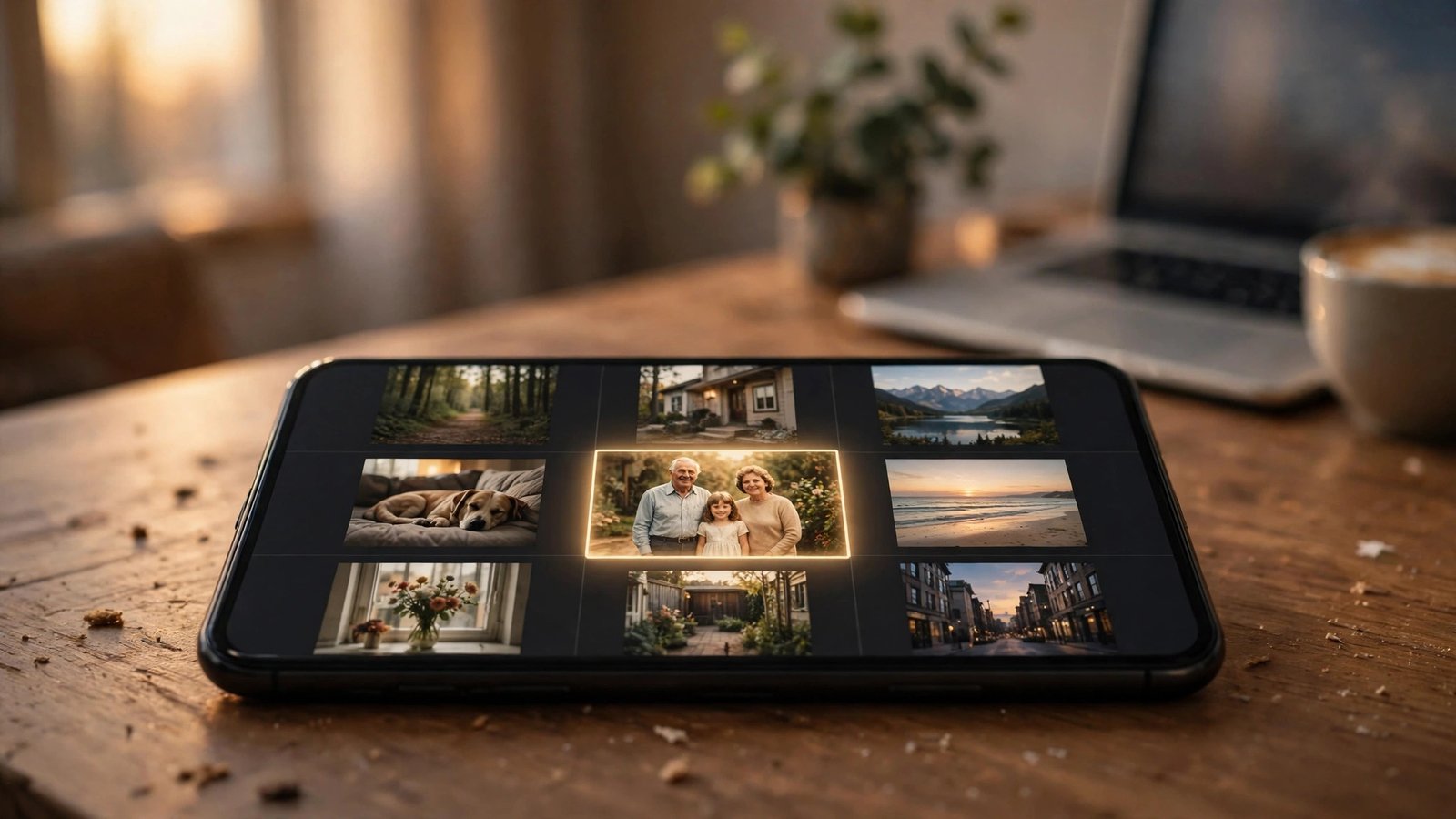
How to Recover Deleted Photos on iPhone and Android in Canada
Few moments are worse than realizing the photo you just deleted was the one you wanted to keep. The good news is that deleting a photo on a modern phone rarely destroys it right away. Both iPhone and Android keep deleted pictures in a trash folder for weeks, and cloud backups often hold another copy. If you act quickly and check the right places in order, most people get their photos back.
This guide covers iPhone and Android, step by step, starting with the fastest recovery and moving to the options that take more time.
Step 1: Check Recently Deleted on iPhone
On iPhone, deleted photos go to the Recently Deleted album, where they stay for 30 days. Open the Photos app, tap Albums, scroll to Utilities, and open Recently Deleted. You will need to unlock it with Face ID or your passcode in most recent versions. Find the photo, tap it, and choose Recover. It returns to the album it came from.
If the photo is not there, check whether it was in a shared album. Photos deleted from a shared album behave differently, and a photo that was never saved to your camera roll may live only in the app that created it, such as WhatsApp or Instagram.
Also check iCloud.com. Sign in with your Apple ID, open Photos, and look in Recently Deleted there. Sometimes a photo that has vanished from the phone still shows up on the website.
Step 2: Check the trash in Google Photos on Android
Android phones usually rely on Google Photos. Open the app, tap Library or Collections, then Trash. Deleted photos stay here for up to 30 days, or 60 days if backup was turned on for them. Tap the photo and choose Restore, and it goes back to your library.
Samsung phones have a second trash folder. Open the Gallery app, tap the menu, and look for Recycle Bin. Photos deleted from Samsung Gallery sit there for 30 days, separately from Google Photos. If you use both apps, check both, because the photo may have been deleted from one and not the other.
Other Android brands have their own gallery apps with similar trash folders, usually under a menu called Trash, Recycle Bin, or Recently Deleted.
Step 3: Look in your cloud backups
If the trash folders are empty, your cloud backup is the next place to look. On iPhone, open Settings, tap your name, then iCloud, and check that Photos is on. If iCloud Photos was on when the photo was taken, a copy may still exist on iCloud.com even after the phone copy was deleted. Check the website's Recently Deleted folder as well as the main library.
On Android, open Google Photos and confirm backup is on and that the photo appears on photos.google.com from a computer. Also check other services you may have used: OneDrive, Dropbox, and Amazon Photos all back up camera rolls if you turned the feature on, and each keeps its own recycle bin.
Do not restore a full device backup just to get one photo back unless you have no other option. Restoring an old backup can overwrite newer photos, messages, and settings.
Step 4: Check messaging apps and shared albums
Photos often live in more than one place. If the deleted photo was sent to someone, it may still sit in the chat. Open the conversation in WhatsApp, Messenger, or iMessage, tap the contact or group name, and look at the shared media.
Shared albums are another hiding spot. On iPhone, check Albums under Shared Albums. On Google Photos, check Sharing. A photo you shared with family may still exist in the shared copy even if your own copy was deleted.
Email is worth a quick search too. If you ever emailed the photo to yourself or someone else, the attachment is still in your sent mail.
Step 5: Check the SD card and your computer
If your Android phone uses a microSD card, photos saved to the card may still be there. Remove the card, put it in a card reader, and browse it on a computer. Stop using the card the moment you realize photos are missing: every new photo you take can overwrite the deleted ones.
Also check any computer you have synced with. If you ever imported photos to a Mac or a Windows PC, a copy may sit in a folder you forgot about. Search the computer for the file name or the date the photo was taken.
Recovery apps that promise to bring back deleted photos deserve caution. They sometimes work on older Android phones and memory cards, but on modern phones with encrypted storage they rarely recover anything. Never pay for one before checking the free recovery options in this guide.
Step 6: Set up backup so it does not happen again
Once your photos are back, take ten minutes to make sure the next accident is harmless. Turn on iCloud Photos on iPhone or Google Photos backup on Android, and confirm that backup is actually running.
Free storage matters too. iCloud gives a small amount free and charges for more, while Google Photos backup counts toward your Google storage. If either is full, new photos stop backing up silently. Check your storage once a month.
Finally, learn the habit that saves most photos: when you want to remove a picture from your phone but keep it, archive it instead of deleting it. Google Photos has an Archive feature, and iPhone lets you hide photos in the Hidden album.
Frequently Asked Questions
How long do deleted photos stay recoverable on iPhone?
Deleted photos stay in the Recently Deleted album for 30 days. After that they are removed permanently, unless a copy exists in iCloud, a shared album, or another backup.
How long does Google Photos keep deleted photos?
Google Photos keeps deleted items in Trash for up to 30 days, or 60 days for photos that were backed up. Samsung Gallery has its own Recycle Bin with a 30-day limit. Once those periods pass, the photos are gone from the trash, so check your cloud backup next.
Can I recover photos after emptying the trash?
Once the trash is emptied and no cloud backup holds a copy, recovery is very unlikely on a modern phone. Your best hope is a second copy somewhere else: a messaging app, an email attachment, a shared album, a computer, or a memory card.





Post Comment