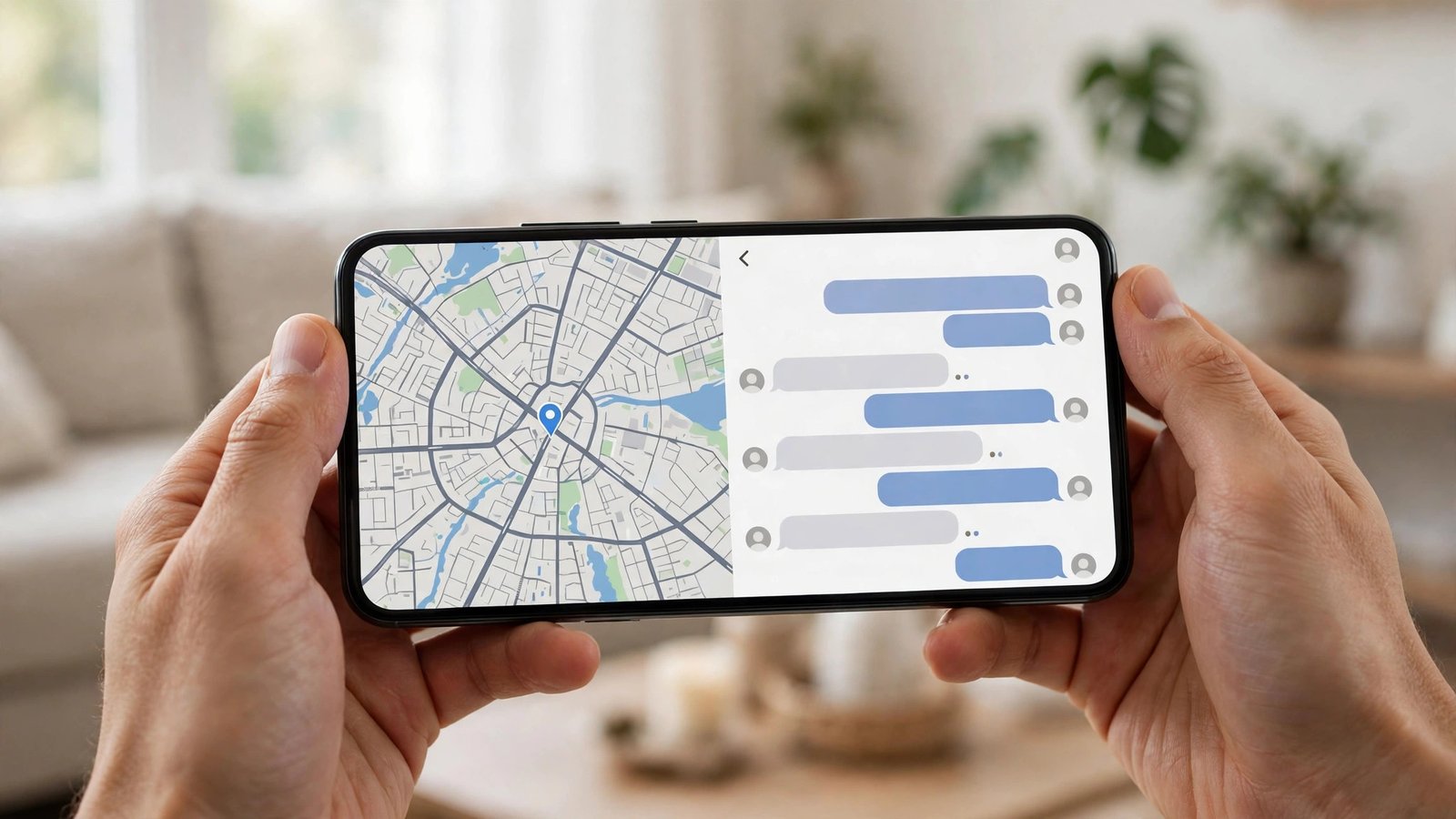
How to Use Split Screen on iPhone and Android in the US
Watching a video while answering messages, or comparing prices in two apps at once, is much easier when your screen is split in two. Android phones and iPads handle this well, while the iPhone takes a different approach. The steps below cover each device, so you can pick the method that matches the phone or tablet in your hand.
One thing to know up front: not every app supports split screen. Some apps, especially certain banking and streaming apps, block it for security or licensing reasons. If an app refuses to split, that is usually the app's own rule, not a problem with your phone.
Split screen on Android phones
Most Android phones running a recent version of Android support split screen, and the steps are nearly the same on Samsung, Google Pixel and other brands.
First, open the first app you want to use, such as YouTube or Chrome. Then open the recent apps screen. On most phones you do this by swiping up from the bottom of the screen and holding for a moment, or by tapping the square recent apps button if your phone still shows navigation buttons.
Next, find the first app in the recent apps list and tap its icon at the top of its preview card. A small menu appears. Tap Split screen. The first app moves to the top half of the screen, and the recent apps list stays open on the bottom half. Now tap the second app, and it fills the bottom half.
You can drag the divider bar between the two apps to give one side more room. To close split screen, drag the divider all the way to the top or bottom of the screen, or open the recent apps screen and swipe one app away.
Split screen on Samsung Galaxy phones
Samsung adds a few extras on top of the standard Android steps. The edge panel is the fastest way in: swipe in from the right edge of the screen to open the edge panel, then drag one app from the panel onto the screen while another app is open. The dragged app opens in the lower half automatically.
You can also save an app pair. Once you have two apps open in split screen, tap the divider bar and look for the star icon or the option to save the pair to the edge panel or home screen. Next time you tap that shortcut, both apps open together in the same layout. This is useful for pairs you use often, such as a notes app with a browser, or maps with a music app.
Split View on iPad
The iPad is the Apple device where true split screen lives. Open the first app, then swipe up slightly from the bottom to show the Dock. Find the second app in the Dock and drag it toward the left or right edge of the screen. When a thin vertical strip appears, let go, and the second app opens beside the first.
You can drag the divider between the two apps to change how much space each one gets. To replace one side, drag a different app from the Dock onto that side. To close Split View, drag the divider all the way to one edge of the screen, or tap the three dots at the top of one app and choose Close.
What iPhone users can do instead
The iPhone does not offer split screen multitasking. Apple has kept the iPhone to one full screen app at a time, and there is no setting that turns split screen on. If you have seen split screen on an iPhone in a video, it was almost certainly an iPad or an Android phone.
Picture-in-picture is the closest iPhone option for video. While a video is playing in a supported app such as YouTube, Safari or FaceTime, swipe up to go to the home screen. The video shrinks into a small floating window that stays on top while you open another app. You can drag it to a corner or resize it with two fingers.
For text and notes, the fastest iPhone workaround is the app switcher. Swipe left or right along the bottom edge of the screen to jump between your two most recent apps. It is not the same as seeing both at once, but it is quick enough for copying a confirmation code or checking a price while you type.
Tips to make split screen work better
Start with apps that split well. Browsers, notes apps, email, maps and messaging apps are usually safe. Video apps work, but some block splitting when a video is playing, so try the picture-in-picture option in that case.
Keep an eye on battery and performance. Two apps running side by side use more power and memory than one, and a video plus a map can drain a battery faster than usual. If your phone feels warm or slow, close one side and try again later.
If split screen stops working after a software update, check that the feature is still turned on. On Android, look in Settings under the multitasking or gesture options for your phone brand. On iPad, check Settings, then Multitasking and Gestures, and make sure Allow Multiple Apps is on.
Frequently Asked Questions
Does the iPhone have split screen?
No. The iPhone does not offer split screen multitasking, and there is no setting to turn it on. iPad users can use Split View, and iPhone users can use picture-in-picture for video while another app stays open.
Why does split screen not work for some apps?
Some apps block split screen on purpose. Banking apps, certain streaming apps and some games refuse to run in a split window, usually for security or licensing reasons. If the Split screen option is missing from an app's menu, that app does not support it. Try a different app, or use picture-in-picture for video instead.
How do I exit split screen on Android?
Drag the divider bar between the two apps all the way to the top or the bottom of the screen, and the remaining app takes over the full screen. You can also open the recent apps screen and swipe one of the two apps away. On Samsung phones, tapping the divider bar shows a menu with an option to close one side.


Post Comment