How to Change the Language on Your Phone in the UK
A phone set to the wrong language can turn a simple task into a puzzle. Maybe you bought a second-hand handset, helped a relative set up a new phone, or tapped the wrong option during setup. Whatever the reason, changing the language back is quick once you know where the setting lives. This guide covers iPhone and Android, plus how to change the language for a single app and what to do if the menus are stuck in a language you cannot read.
Change the language on iPhone
On an iPhone, the language setting sits in the Settings app. Open Settings, then tap General, then Language and Region. At the top of the screen you will see iPhone Language. Tap it and choose the language you want from the list, for example English (UK). Tap Done in the top right corner, then confirm by tapping the option that switches the language.
The phone will restart its interface in the new language. This usually takes a few seconds. Your apps, messages and photos are not affected, and nothing is deleted. The change only affects the words shown in menus and system apps.
If you want the phone to use a different region as well, for example to get the right date format and local spelling, you can change the Region setting on the same screen. Tap Region, choose United Kingdom, and the phone will adjust date formats, the first day of the week and similar details to match.
In most recent versions of iOS, you can also add a second language to the preferred languages list. This is useful if you read two languages and want the phone to fall back to the second one when an app does not support the first.
Change the language on Android
On Android, the steps vary slightly by brand, but the setting is always in the same place. Open Settings, then tap System, then Languages and input, then Languages. On Samsung phones, the path is Settings, then General management, then Language. On other brands the wording may differ a little, but look for Language in the System section.
Tap Add a language and choose the one you want, for example English (United Kingdom). Then drag it to the top of the list, or tap it and choose to set it as the default. The phone will switch its menus to the new language right away.
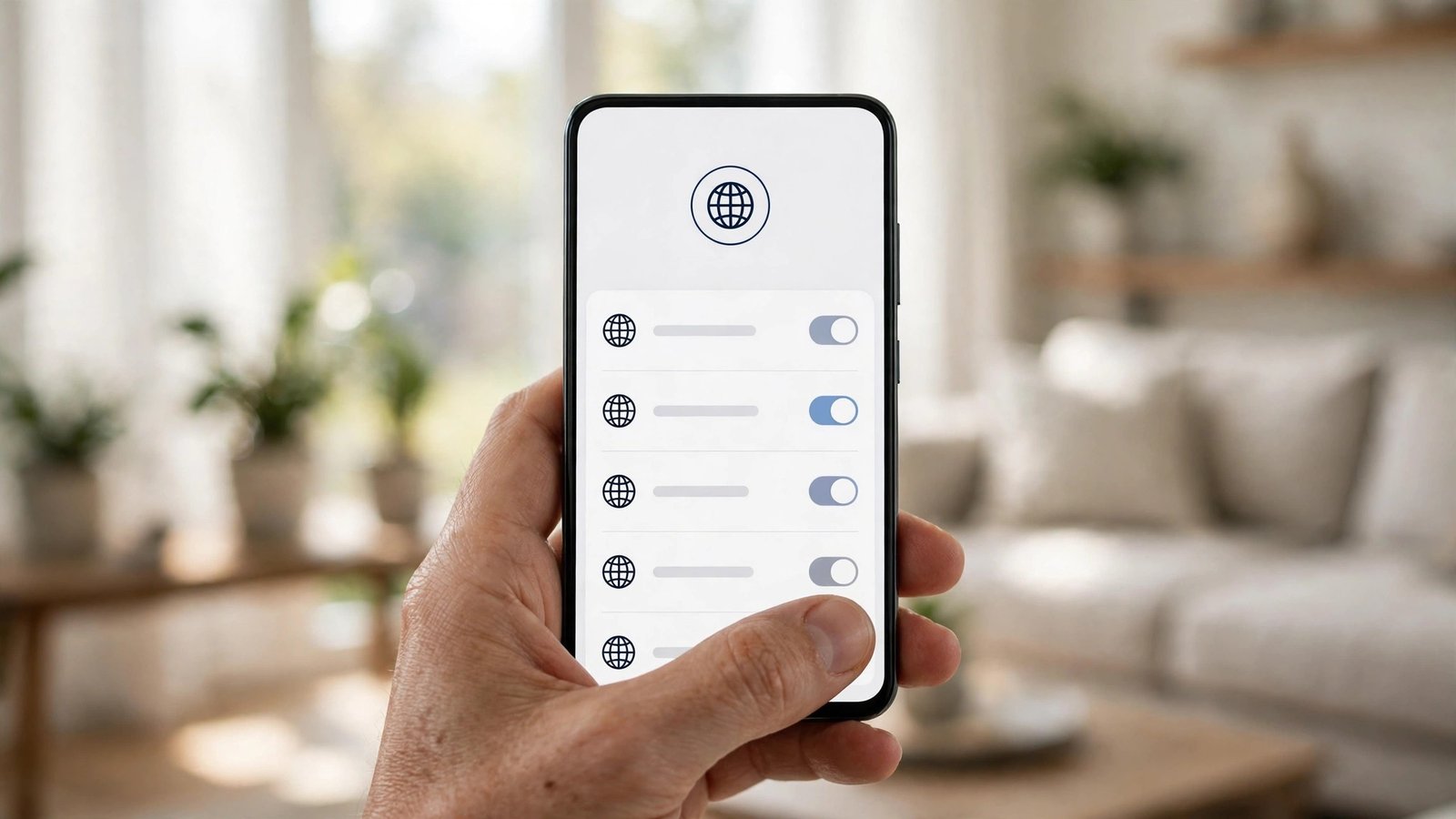
If the phone is currently set to a language you cannot read, you can still find the setting by its icon. Open Settings, look for the globe icon or the section labelled System, and tap through until you see a list of languages. The language names are shown in their own script, so English appears as English even when the rest of the menu is in another language. That makes it possible to pick the right one without reading the rest of the screen.
Change the language for one app only
Sometimes you want one app in a different language while the rest of the phone stays the same. For example, you might want WhatsApp in Spanish but everything else in English.
On iPhone, open Settings, scroll down to the app you want to change, and tap it. If the app supports it, you will see a Language option. Tap it and pick a language. The app will switch the next time you open it, while the rest of the phone stays unchanged.
On Android, open Settings, then Apps, then choose the app. Tap Language, or look for App languages under the System section in newer versions of Android. Pick the language you want for that app only. Not every app offers this option, but most popular apps do, including WhatsApp, Facebook and Google Maps.
This per-app setting is handy for families who share a phone, or for anyone learning a new language and wanting extra practice in one app at a time.
Change the keyboard language
Changing the phone language does not always change the keyboard. If your keyboard still types in the wrong language, you need to change that separately.
On iPhone, open Settings, then General, then Keyboard, then Keyboards. Tap Add New Keyboard and choose the language you want. You can add more than one keyboard and switch between them while typing by tapping the globe icon on the keyboard.
On Android, open Settings, then System, then Languages and input, then On-screen keyboard. Choose your keyboard app, usually Gboard or the Samsung keyboard, then Languages, and add the one you want. You can switch keyboards while typing by tapping the globe icon or holding the space bar.
What to do if the menus are stuck in a language you cannot read
If the whole phone is in a language you do not understand, do not panic. The layout of the Settings app stays the same in every language, so you can navigate by position and icons.
On iPhone, open the grey Settings app with the gear icon. Tap the item near the top that has a globe icon, which is General, then tap the globe item again near the top of that list, which is Language and Region. The first item is iPhone Language. Tap it, choose your language from the list, and confirm.
On Android, open the Settings app, scroll to the System section near the bottom, and look for the globe icon. Tap it, then tap the first item, which is usually Languages. Add your language and drag it to the top.
If you are still stuck, ask a voice assistant for help. On iPhone, hold the side button and say "Change language to English". On Android, say "Hey Google, change language to English".
Frequently Asked Questions
Will changing my phone language delete anything?
No. Changing the language only changes the words shown in menus and system apps. Your photos, messages, contacts and apps stay exactly where they are.
Can I have two languages on my phone at once?
Yes. Both iPhone and Android let you add several languages to a preferred list. The phone uses the first one, and falls back to the next if an app does not support it. You can also set a different language for individual apps.
Why does my keyboard still type in the old language?
The keyboard language is a separate setting from the phone language. Add the keyboard you want in the keyboard settings, then switch between keyboards with the globe icon while typing.



Post Comment