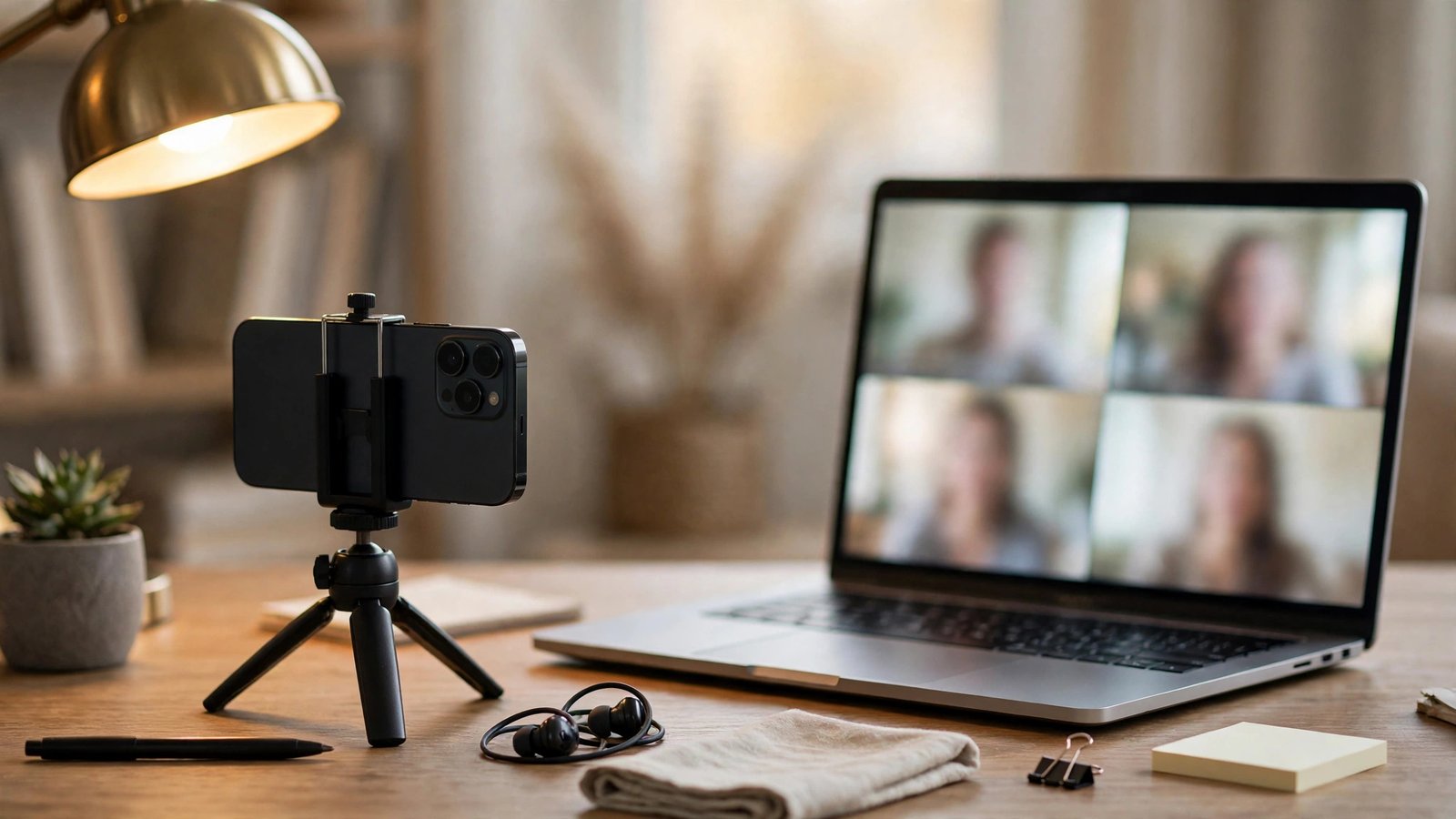
How to Use Your Phone as a Webcam for Your Computer in the US
The camera on your phone is almost certainly better than the one built into your laptop. If your video calls look soft, dark or grainy, you do not need to buy a new webcam. You can use the phone already in your pocket as your computer's camera, and in most cases the setup takes only a few minutes.
Use an iPhone as a webcam on a Mac
If you have an iPhone and a Mac, the easiest route is Continuity Camera, a built-in Apple feature that works wirelessly with no app and no cable.
First, check the requirements. You need an iPhone XR or later running a recent version of iOS, and a Mac running macOS Ventura or later. Both devices must be signed in to the same Apple ID, with Bluetooth and Wi-Fi turned on.
To use it, open a video app on your Mac, such as FaceTime, Zoom or Google Meet, and look in the video or camera settings. Your iPhone should appear as a camera choice, usually listed by its name. Select it and confirm on the phone the first time, and the phone's rear camera becomes your webcam.
You can mount the phone on top of your laptop screen with a small clip mount, or prop it up on a stand at eye level. Keep the phone plugged in if your calls run long, since using the rear camera drains the battery faster than normal use.
Continuity Camera also unlocks a few extra modes in FaceTime and supported apps. Center Stage keeps you framed as you move around, Portrait mode blurs the background, and Studio Light brightens your face in dim rooms.
Use an iPhone as a webcam on a Windows PC
Continuity Camera does not work with Windows, so you will need a third-party app. The most widely used options are Camo, EpocCam and DroidCam, and each offers a free tier that covers basic use.
The setup follows the same pattern for all of them. Install the app on your iPhone and the companion program on your Windows PC. Connect both to the same Wi-Fi network, or plug the phone in with a USB cable for a steadier connection and charging at the same time. Open the app on your phone and the companion program on your PC, and the phone should appear as a camera in Zoom, Teams, Meet or any other video app.
Use an Android phone as a webcam
Android phones have a built-in webcam option too. On recent versions of Android, including Android 14 and later on Pixel phones and many Samsung models, plug your phone into your computer with a USB cable and the phone will offer a webcam mode. Look for a notification about the USB connection, tap it, and choose the webcam option. Your computer should then see the phone as a camera, ready to pick in any video app.
If your phone does not offer that option, or you want to connect wirelessly, third-party apps fill the gap. DroidCam is the best-known choice on Android, with a free version that works over Wi-Fi or USB. Install DroidCam on your phone and its client on your computer, connect both to the same Wi-Fi network, and enter the address shown on the phone into the client. The phone then shows up as a camera in your video apps.
Pick the right setup for video calls
Once the phone is connected, a few choices make a visible difference. Use the rear camera, not the front camera, whenever the setup allows it. The rear camera has a larger sensor and a better lens, and it handles low light far better.
Lighting matters more than the camera itself. Face a window or put a lamp in front of you, not behind you. Light from behind turns you into a silhouette, and no camera can fix that. Eye level is the right height for the phone. A stack of books works as a stand in a pinch, but a small tripod or clip mount is steadier.
Sound is the other half of the call. A headset or earbuds with a mic will sound clearer than the phone's microphones, especially in a noisy room. Set the audio input to your headset in the video app's settings.
Fix common problems
If your phone does not appear as a camera, check the basics first. Both devices must be on the same Wi-Fi network for wireless setups, and the companion app must be open on the phone. Restarting the video app on the computer often fixes a camera that is not listed. On a Mac, make sure your iPhone is signed in to the same Apple ID and Bluetooth is on, since Continuity Camera uses Bluetooth to find the phone.
If the video freezes or lags, switch from Wi-Fi to USB. A cable removes the most common cause of stuttering. Close other apps on the phone too, since a phone running many apps at once has less power to spare for the camera feed.
If the picture looks too dark, add light in front of you before changing camera settings. Most webcam apps expose exposure and focus controls, but a lamp aimed at your face solves the problem faster. If the image is mirrored, look for a mirror or flip option in the video app or the camera app.
Finally, turn on Do Not Disturb before the call so notifications do not interrupt the feed, and keep the phone charged or plugged in.
Frequently Asked Questions
Is it free to use my phone as a webcam?
Yes, in most cases. Continuity Camera on iPhone and Mac and the built-in webcam mode on recent Android phones cost nothing. Third-party apps like DroidCam have free versions, with paid upgrades that add higher resolution, more controls and no watermark.
Which is better, the front camera or the rear camera?
The rear camera is better in almost every case. It has a larger sensor, a better lens and stronger low light performance. Use the rear camera when you can mount or prop the phone facing you, and use the front camera only when the setup makes the rear camera impractical.
Will using my phone as a webcam drain the battery?
Yes, running the camera continuously uses a lot of power. Plug the phone into a charger or use a USB connection to the computer during long calls, and the battery will hold up fine.


Post Comment