How to Pair Bluetooth Headphones on iPhone and Android in the US (and Fix Connection Problems)
Bluetooth headphones are only useful when they connect quickly and stay connected. Most pairing problems come from a small set of causes: the headphones are not in pairing mode, the phone is still holding an old connection, or the two devices need a fresh start. Here is how to pair on iPhone and Android, and how to fix the problems that show up most often.
Before you start: charge and reset
Charge your headphones to at least 20 percent before you pair them for the first time. Low battery is a common reason a new pair refuses to show up in the Bluetooth list, and it can also cause random dropouts later.
If the headphones were paired with another device before, they may connect to that device instead of yours. Turn off Bluetooth on the other devices before you start. If you bought the headphones used, reset them first. Most models reset when you hold the power button and a volume button together for about 10 seconds.
How to pair Bluetooth headphones on iPhone
Put the headphones in pairing mode. For most models, hold the power or Bluetooth button until a light blinks blue and white, or until you hear a voice prompt that says pairing. Some models pair automatically the first time you switch them on. If nothing blinks, plug the headphones in for a few seconds and try again.
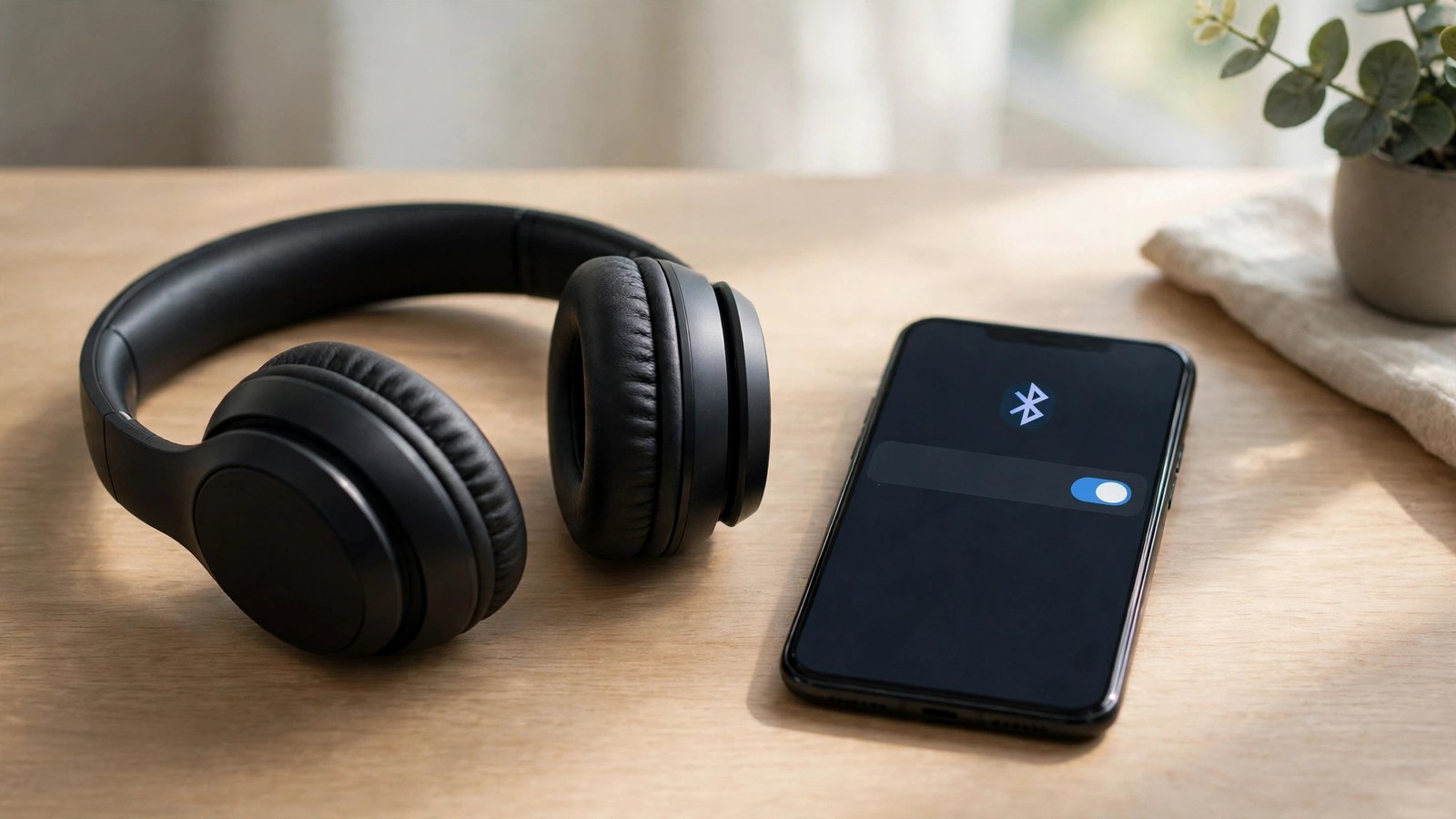
On your iPhone, open Settings, then tap Bluetooth, and make sure the switch is on. Your headphones should appear under Other Devices within a few seconds. Tap the name to connect, and confirm any code that appears. Once connected, your iPhone will reconnect to them automatically next time they are switched on and nearby.
For AirPods, hold the case near your unlocked iPhone with the lid open. A setup card should appear on screen. Tap Connect, then Done.
How to pair Bluetooth headphones on Android
Put the headphones in pairing mode first. On your phone, open Settings, then tap Connected devices, then Pair new device. On Samsung phones the path is Settings, then Connections, then Bluetooth. Tap the name in the list, confirm any code, and wait for the Connected label.
In most recent versions of Android, the phone may also show a Fast Pair popup when it spots a supported pair of headphones nearby. Tap Connect on the popup and the phone handles the rest. Once paired, your phone will reconnect automatically when you switch the headphones on.
What multipoint is, and when it helps
Multipoint lets headphones stay connected to two devices at once, for example your phone and your laptop. A call on your phone can pause the video playing on your laptop and switch the audio over automatically. Not every pair supports it, and the feature is usually listed on the box or the product page as multipoint or dual-device connection.
To use it, pair the headphones with the first device, then put them back in pairing mode and pair with the second device.
Fix 1: the headphones do not appear in the Bluetooth list
Confirm the headphones are really in pairing mode and not simply switched on. Many models leave pairing mode after a minute or two, so you may need to start it again. Check that the headphones are not already connected to another device nearby, such as a laptop or a smart TV. Then move the headphones close to the phone, within a few feet, and away from other wireless gear such as a router or a microwave.
If they still do not appear, restart your phone. A restart clears the Bluetooth service and fixes many pairing failures.
Fix 2: the headphones pair but the sound still comes from the phone
This usually means the audio is routing to the wrong output. On iPhone, open Control Center, tap the AirPlay icon in the music panel, and pick your headphones. On Android, pull down the notification shade and look for the media output switcher. Also check the volume on both devices, since headphones and phones keep separate volume levels.
Fix 3: the connection keeps dropping, or one earbud stops working
Dropouts often come from distance or interference. Bluetooth works best within about 30 feet with a clear line of sight, and walls and crowded Wi-Fi networks shorten that range. Keep the phone in the same room, and try moving it from a back pocket to a front pocket, since your body absorbs the signal. If dropouts happen in one place only, such as a busy gym, interference is the likely cause. If they happen everywhere, forget the headphones on your phone and pair them again.
With true wireless earbuds, a single dead earbud is often just a charging problem. Put both earbuds back in the case, confirm the case itself is charged, and check that the charging contacts are clean. A bit of pocket lint on a contact can stop one earbud from charging. Wipe the contacts gently with a dry cloth and try again. If both earbuds charge but only one plays, reset the earbuds and pair them again. If the problem follows one earbud after a reset, that earbud may have a hardware fault, and it is worth checking the warranty.
When to stop troubleshooting and return the headphones
If a new pair will not pair with any phone, will not enter pairing mode, or dies within minutes of a full charge, the unit is likely faulty. US retailers generally accept returns within 15 to 30 days, and a straight swap is faster than any further fix. Keep the receipt and the box until you are sure the headphones work the way you need them to.
Frequently Asked Questions
Why do my Bluetooth headphones keep connecting to the wrong device?
Headphones usually reconnect to the last device they were paired with. Turn off Bluetooth on the device you do not want, or forget the headphones on that device.
How do I put headphones in pairing mode?
Most models enter pairing mode when you hold the power or Bluetooth button for a few seconds until a light blinks blue and white, or until you hear a voice prompt. The exact button combination varies by brand, so check the manual if a long press does nothing.
How far can Bluetooth headphones work from my phone?
In most recent versions of the Bluetooth standard, the practical range is about 30 feet with a clear line of sight. Walls, your body, and crowded wireless environments shorten it.



Post Comment