How to Manage iCloud and Google Storage on iPhone and Android in the US
Few phone warnings are as annoying as the one that says your cloud storage is full. Photos stop backing up, emails bounce back, and new backups fail at the worst moment. The fix is rarely to buy more storage right away. In most cases, a short cleanup frees enough space to get backups running again, and it shows you what is actually eating your quota.
This guide covers both major systems: iCloud on iPhone, and Google storage on Android and iPhone users who back up to Google. The steps below work in most recent versions of iOS and Android, though menu names can vary slightly by device and software version.
Step 1: Check what is using your storage
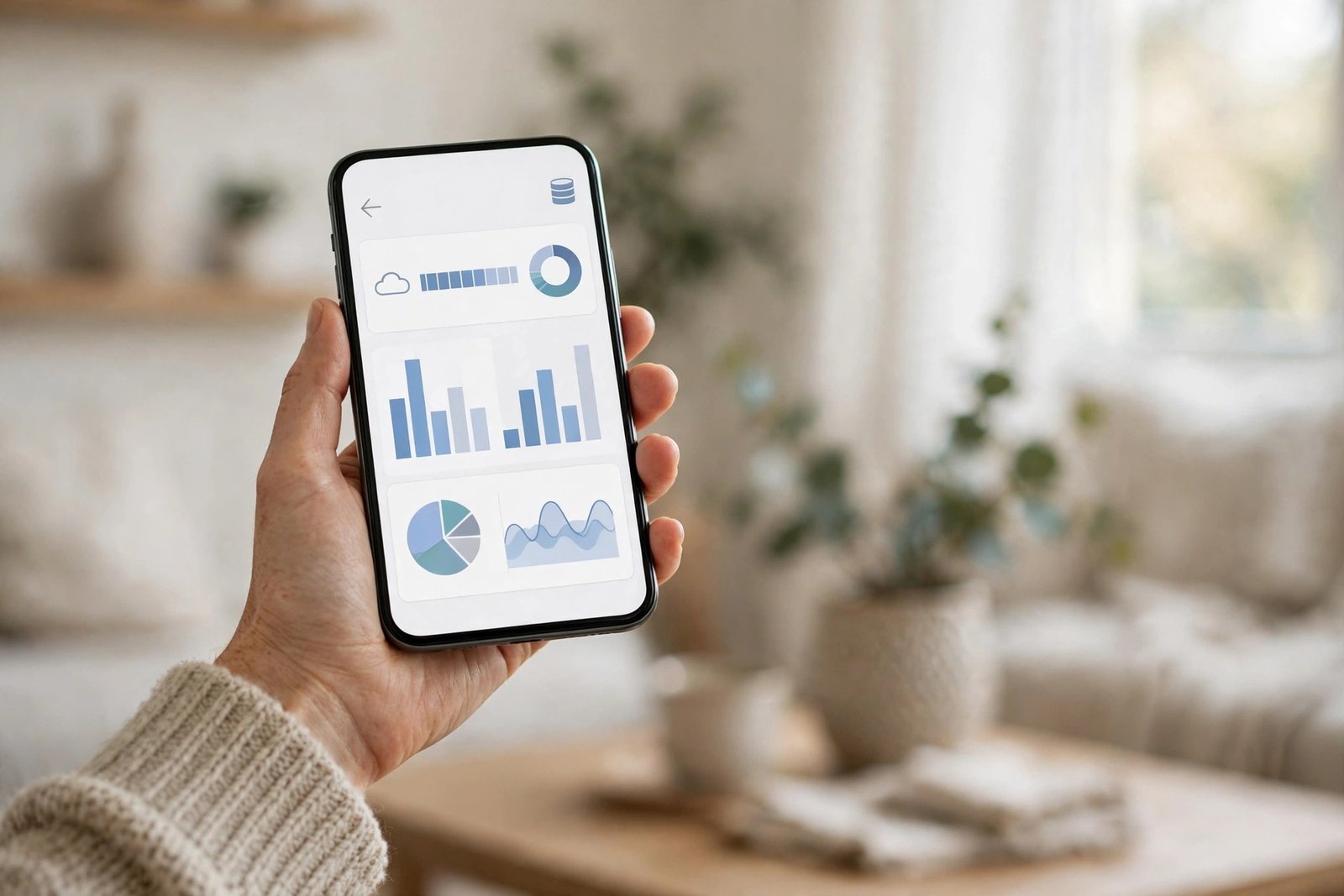
Start with the facts, not a guess. On iPhone, open Settings, tap your name at the top, then tap iCloud. You will see a storage bar showing how much space Photos, Backups, Mail, Messages and other items use. Tap Manage Account Storage for a detailed breakdown by app.
On Android, open the Google One app or go to one.google.com while signed in. The storage page shows a breakdown across Google Drive, Gmail and Google Photos.
Note the top two or three items. Those are where cleanup will pay off most.
Step 2: Clean up photos and videos first
Photos and videos are the biggest storage hog for most people. On iPhone, the iCloud Photos library mirrors what is on your phone, so deleting from the phone also removes the cloud copy after a short delay. Before you delete anything, open Photos and check the Recently Deleted album, which holds deleted items for up to 30 days and still counts against storage until it is emptied.
Look for the easy wins first: duplicate photos, accidental burst sequences, long videos you will never rewatch, and screenshots you no longer need. In the Photos app, use the Albums view and look for Duplicates, if your version shows it, to merge copies quickly. On Android, open Google Photos, tap your profile picture, then check the storage management tools, which can suggest blurry photos, large videos and unsupported files for review.
Note that iPhone’s Optimize iPhone Storage option helps local storage, not iCloud usage. To truly free cloud space, delete items or move them to an external drive or a computer.
Step 3: Remove old backups and unused app data
Old device backups are a silent storage drain. If you have sold or replaced a phone, its backup may still sit in your account. On iPhone, go to Settings, tap your name, tap iCloud, then Manage Account Storage, then Backups. Tap any backup for a device you no longer own and delete it. For your current phone, you can also turn off backup for individual apps that do not need it, such as a game whose progress you do not care about.
On Google accounts, open Google One, then Settings, then Manage backup settings, or check Drive for the Backups section. Delete backups for old devices the same way. Also check WhatsApp and other messaging apps: if they are set to back up videos as well as chats, a single backup can be surprisingly large. In WhatsApp settings, under Chats and Chat Backup, you can choose whether videos are included. Turning video backup off often shrinks the backup a lot without losing your messages.
Step 4: Tame Gmail, Mail and Drive files
Email storage creeps up quietly. In Gmail, search for large attachments by typing has:attachment larger:10M in the search bar, then review and delete what you no longer need. Also search for old newsletters and promotions: a search like older_than:2y in Gmail, combined with a sender name, can surface years of mail you never open. Remember to empty Trash and Spam afterward, since deleted mail still counts until those folders are cleared or items expire.
In Google Drive, open Drive, sort by storage used, and look for large files you forgot about, such as old video exports, installer files or duplicate documents. Move anything you want to keep to a computer or external drive before deleting it from Drive.
Step 5: Decide whether a paid plan is worth it
After cleanup, check your free space again. Apple gives 5 GB of iCloud storage free, and Google gives 15 GB shared across Drive, Gmail and Photos. If you are still close to the limit after a real cleanup, a paid plan may be the practical answer, especially if your photo library keeps growing.
Before you pay, compare what you get. Paid iCloud and Google One plans in the US come in several tiers, and prices change from time to time, so check the current price in Settings or in the Google One app before subscribing. Consider sharing: both Apple and Google let you share a larger plan with family members in most cases, which can make a mid tier plan cheaper per person than separate small plans.
A useful rule: pay only after cleanup, when your data is genuinely growing. Do not pay to store duplicates, old backups and videos you will never watch, and repeat this cleanup every few months.




Post Comment