How to Use One-Handed Mode on iPhone and Android in the US
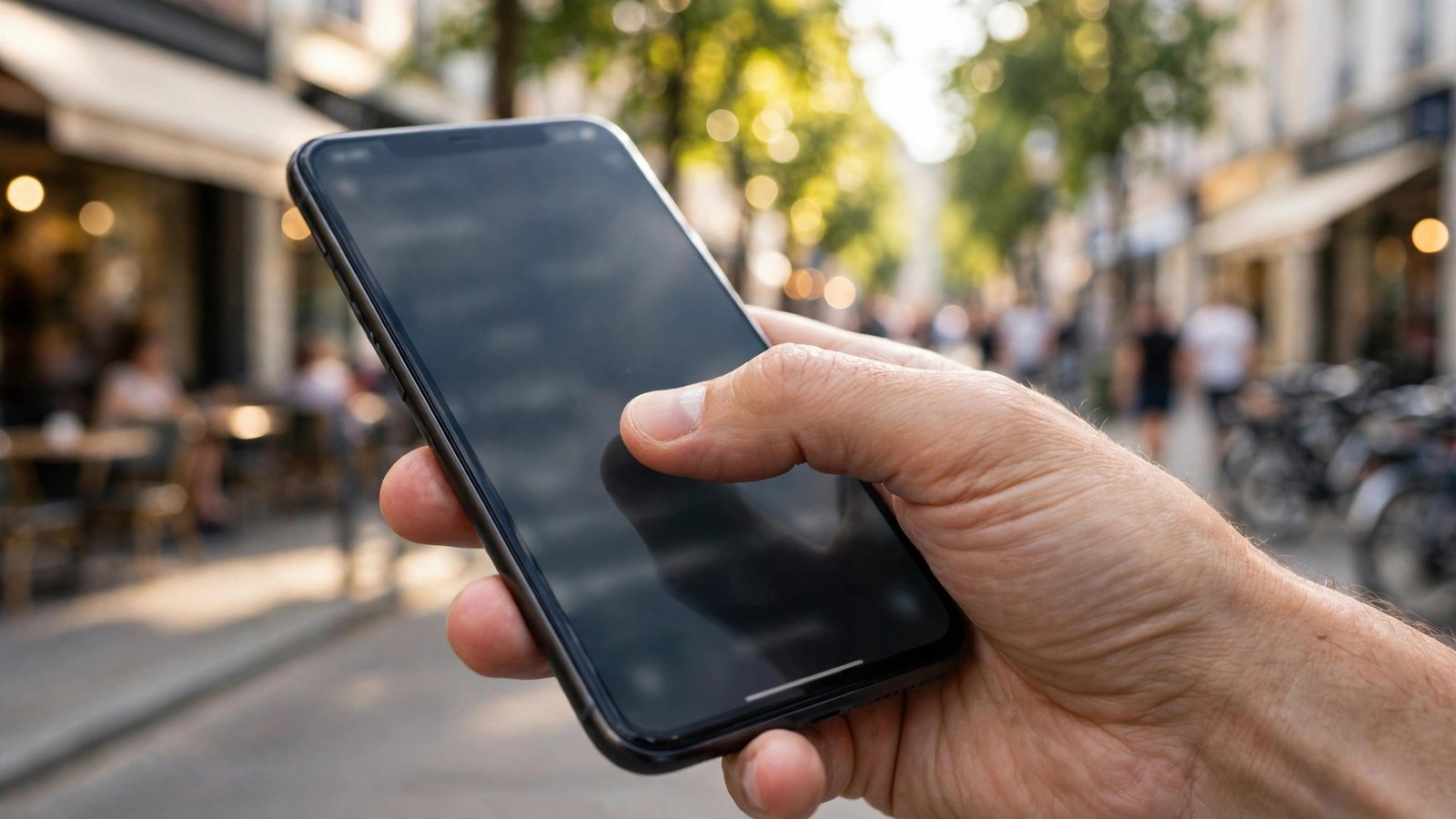
Phones keep getting bigger, and that is great for watching video and reading, but not so great when you are holding a coffee, a bag, or a subway rail with your other hand. One-handed mode solves this by shrinking the screen or sliding it down so your thumb can reach the top corners. It is built into most recent iPhones and Android phones, it costs nothing, and you can turn it off just as quickly.
This guide covers iPhone and Android in the US. The exact menu names vary a little by phone maker and software version, but the steps below follow the layout used in most recent versions. If a setting looks slightly different on your phone, search Settings for "one-handed" and you should land in the right place.
Turn on one-handed mode on iPhone
Apple calls this feature Reachability, and it pulls the top of the screen down to the middle so you can tap buttons near the top without stretching your thumb.
First, check that it is switched on. Open Settings, then Accessibility, then Touch, and make sure Reachability is on. On most recent iPhones this setting is on by default, but it is worth checking if the gesture below does nothing.
To use it on a phone with Face ID and no Home button, swipe down on the bottom edge of the screen, just above the thin bar at the very bottom. The whole screen should slide down. Tap what you need, then tap the empty space at the top, press the Side button, or swipe up from the bottom to return to the full screen.
On an iPhone with a Home button, double tap the Home button lightly, without pressing it all the way in. That distinction trips up a lot of people. A full press opens the app switcher or goes home, while a light double tap triggers Reachability.
Reachability is temporary by design. After you tap an item or after a short pause, the screen slides back up. That is normal. It is meant for quick reaches, not as a permanent smaller screen.
Turn on one-handed mode on Android
Android handles this differently depending on the maker, but most phones offer a similar mode under a name like One-handed mode.
On a Samsung phone, open Settings, then General management, then One-handed mode, and switch it on. You can usually choose whether to shrink the screen or move it to one side. To trigger it, swipe down in the center of the bottom edge, or triple press the Home button if you set that shortcut. A small arrow lets you move the shrunken screen left or right, which helps if you hold the phone in your left hand.
On a Google Pixel phone, open Settings, then System, then Gestures, then One-handed mode, and switch it on. You can pick whether the screen shrinks or slides down, and whether you exit by tapping outside it. Swipe down on the bottom edge to start it, the same gesture as on iPhone.
On other Android phones, look in Settings under System, Gestures, or Accessibility for "one-handed" or "mini screen." If your phone does not offer it, check for a software update first, since makers add and move this feature between versions.
Make one-handed use easier every day
One-handed mode helps most when you pair it with a few small habits. Start by moving your most used apps to the bottom rows of your home screen, or into the dock at the very bottom. That alone saves a lot of stretching, even when one-handed mode is off.
Next, turn on the keyboard version of the same idea. On iPhone, press and hold the globe or emoji key on the keyboard, then tap the left or right keyboard icon to shrink the keyboard to one side. On Android, most keyboards offer a similar resize option in the keyboard toolbar, often under a four arrow icon. A smaller keyboard is much easier to type on with one thumb, and it reduces typos.
Also consider your case and grip. A thin case with some texture is easier to hold securely than a smooth, bulky one. A grip on the back of the case can also stop the slow slide that ends with a dropped phone.
Fix it when one-handed mode will not start
If the gesture does nothing, work through these checks in order. First, confirm the setting is actually on, using the steps above for your phone. Second, restart your phone, since a stuck gesture is often fixed by a restart. Third, check for a software update, because gesture handling changes between versions.
On iPhone, remember the difference between a swipe and a tap. Swiping down from the very top opens notifications, while swiping down on the bottom edge triggers Reachability. If you keep opening notifications by mistake, start your swipe lower, right on the bottom bar.
On Android, the trigger varies, so check which gesture your phone uses. Some phones need a swipe down across the bottom bar, others need a swipe diagonally from a bottom corner. Open the one-handed settings page and read the description there, since it usually shows the exact gesture with a small animation.
If one-handed mode starts but exits too fast, that is usually by design. Tap the item you need right away, or use it for one action at a time. For longer one-handed sessions, the keyboard shrink and home screen layout tips above will help more than keeping the shrunken screen open.
Frequently Asked Questions
Does one-handed mode work on all iPhones and Android phones?
Most recent models support it, but the name and gesture vary. iPhones with Face ID use Reachability, while Android makers use their own versions under names like One-handed mode. Very old phones may not offer it at all, so check Settings and update your software first.
Will one-handed mode change my screen size permanently?
No. On iPhone it is temporary and the screen returns to full size after you tap or after a short pause. On Android you can usually exit by tapping outside the shrunken screen or using the same gesture again. Your apps and layout stay the same.
What is the fastest way to type with one hand?
Shrink the keyboard to one side using the keyboard settings, and turn on swipe typing if your keyboard supports it. Sliding your thumb across letters is often faster and more accurate than tapping each key when you only have one hand free.


Post Comment