How to Customise Your Home Screen With Widgets on iPhone and Android in the UK
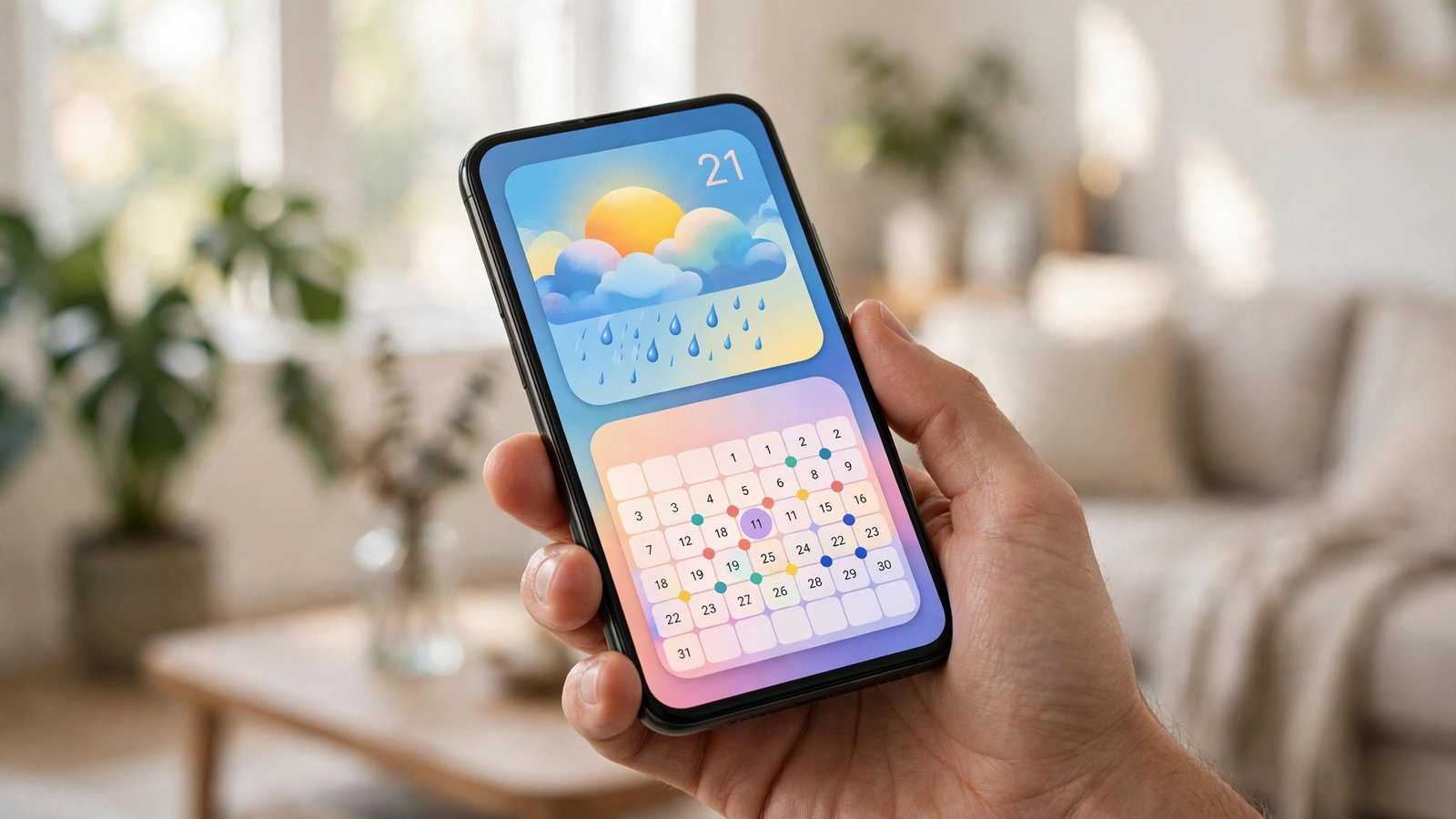
Your home screen is the first thing you see every time you unlock your phone, so it is worth setting it up to suit how you actually use it. Widgets are small live panels that sit on that screen and show useful information without opening an app. A weather widget can show today's forecast. A calendar widget can show your next appointment. Used well, widgets save taps. Used badly, they crowd the screen.
This guide covers iPhone and Android in the UK. The exact menus vary a little by phone model and software version, and in most recent versions the steps below will look very similar even if a label is worded slightly differently. Try one widget at a time. You can move or remove a widget in seconds if you change your mind.
Start with a clear plan
Before you add anything, look at your current home screen and ask what you check most often. For many people the answer is weather, calendar, messages, music and a notes list. Those are good widget candidates because they save you opening an app several times a day. Apps you open once a week, such as a banking app or a travel app, usually work better as normal icons tucked into a folder.
It also helps to decide where widgets should live. Many people keep one or two widgets on the first home screen and leave the rest of their apps on later screens. That keeps the main screen calm and easy to scan. If you fill every row with widgets, you may end up scrolling more, not less. Aim for a layout you can read in two seconds: the time, the weather, what is next, and the apps you use most.
Add a widget on iPhone
On iPhone, touch and hold an empty area of the home screen until the icons start to jiggle. Tap the plus button in the top corner. You will see a list of widgets from apps installed on your phone. You can search for an app by name, such as Calendar, Weather, Clock or Photos, and then swipe through the sizes on offer. Small widgets show one piece of information. Medium widgets show more detail. Large widgets take up more room but can show a fuller view, such as a week of weather or several calendar events.
Tap Add Widget, then drag it to the place you want while the icons are still jiggling. To finish, tap Done in the top corner, or tap an empty area, depending on your version. If a widget shows the wrong place or calendar, touch and hold it and look for Edit Widget. There you can often change the city, calendar or photo album it shows.
Add a widget on Android
On most Android phones, touch and hold an empty area of the home screen, then tap Widgets. You will see a list grouped by app. Find the app you want, then touch and hold the widget size you prefer and drag it onto the home screen. Release it where you want it to sit. If the widget can be resized, a border with handles will appear when you touch and hold it again. Drag a handle to make it wider or taller until it shows the information you need without pushing other icons into awkward places.
Android phones vary more than iPhones because makers such as Samsung, Google and others style their home screens differently. On a Samsung phone you may need to pinch the home screen first, while on a Google Pixel touching and holding an empty space usually brings up Widgets directly. If you cannot find the option, search in Settings for home screen or widgets.
Some Android widgets also let you change their settings by tapping the widget itself or by touching and holding it and choosing Settings or Edit. A clock widget might let you pick a style. A calendar widget might let you choose which calendars to show. A weather widget might let you set your home town so it does not keep showing a city you visited once on holiday.
Make the layout look tidy
Once you have added a couple of widgets, step back and check the whole screen. Do icons line up neatly? Is text easy to read against your wallpaper? A busy photo wallpaper can make widgets hard to read, so a plainer background often works better if you use several widgets. Group less used apps into folders by dragging one app icon on top of another, then name the folder clearly, such as Travel or Money.
Fix common widget problems
If a widget shows old information, first check that the app itself is up to date and that you have an internet connection. Weather and news widgets need data to refresh. Next, check that the app has permission to refresh in the background. On iPhone, look in Settings, then General, then Background App Refresh. On Android, look in Settings, then Apps, then the app name, then Battery, and make sure background use is not set to restricted for that app. Battery saving modes can also pause widgets, so if a widget only updates when you open the app, that setting is a likely cause.
If a widget disappears after a restart or an update, simply add it again using the steps above. If a widget is the wrong size, touch and hold it and use the resize handles or drag it to a clearer spot.
Frequently Asked Questions
Do widgets drain my battery?
Widgets use a little battery because they refresh information, but one or two well chosen widgets should have only a small effect. If battery life drops sharply after adding many widgets, remove the ones you rarely check and check background refresh settings for the apps behind them.
Why can I not find a widget for an app I use?
Not every app offers a widget. Check that the app is installed and up to date, then look again in the widget list under the app name. If it still does not appear, the developer may not have made a widget for that app yet.
Can I have different widgets on different home screens?
Yes. On both iPhone and Android you can place widgets on any home screen page. Many people keep daily widgets on the first page and put work or travel widgets on a second page that they check less often.


Post Comment