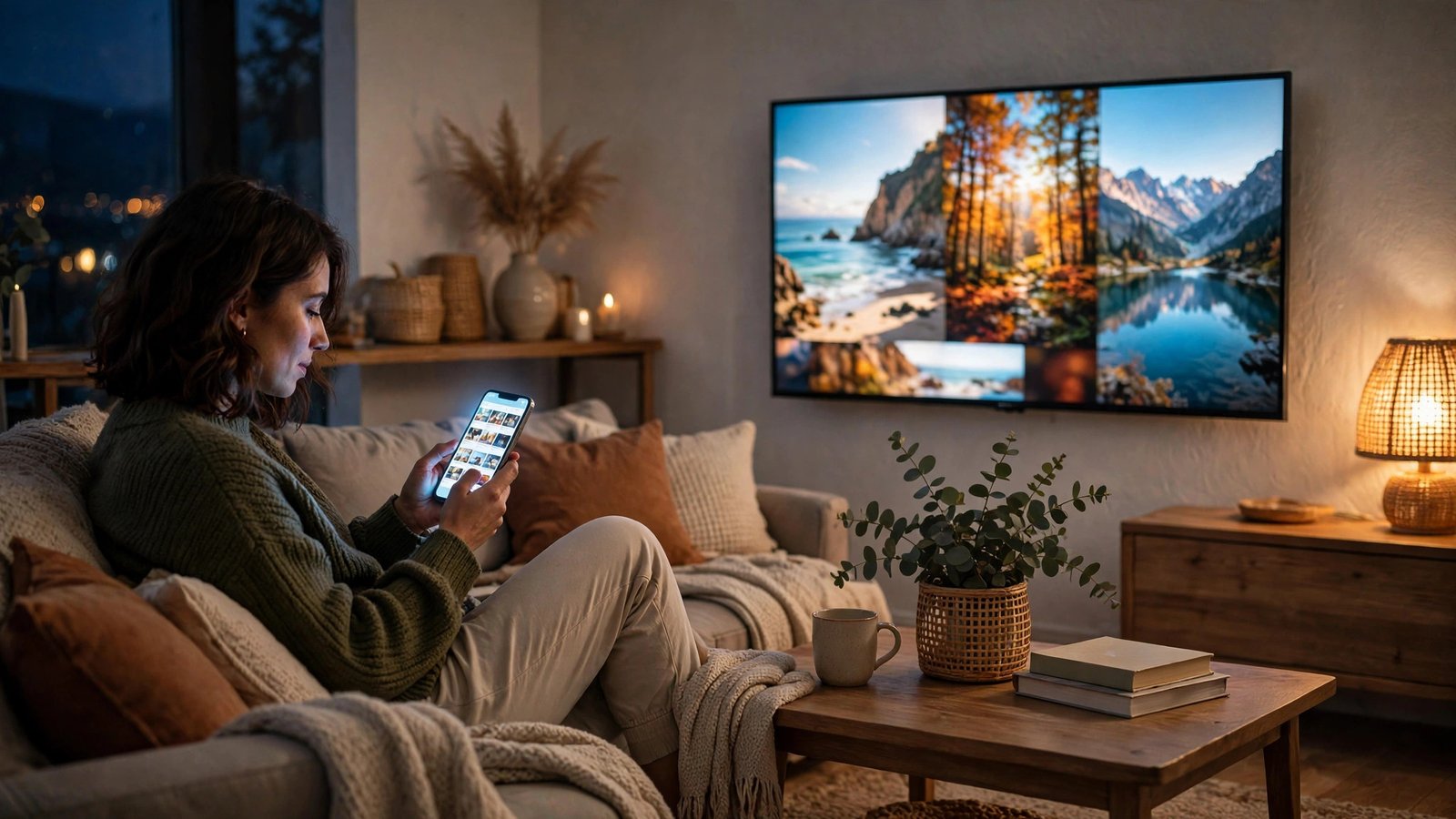
How to Cast Your Phone to Your TV in the US: Chromecast, AirPlay and Screen Mirroring
Casting puts whatever is on your phone onto the big screen: photos from a trip, a video from YouTube, a workout class, or a video call with family. You do not need an expensive setup. Most modern TVs already support one of the two main wireless systems, Chromecast or AirPlay, and a cheap cable covers the rest. Here is how each option works, and what to do when it refuses to connect.
First, check what your TV supports
Before you start, check which system your TV speaks. A TV with Chromecast built in, which includes most Android TVs and Google TVs sold in the US, takes casts from Android phones directly. An Apple TV box, or a smart TV that lists AirPlay support, which includes many recent Samsung, LG, Sony, and Vizio models, takes AirPlay from iPhones. If your TV supports neither, a streaming stick fixes the gap: a Chromecast with Google TV or an Amazon Fire TV Stick adds casting to any TV with an HDMI port.
The other requirement is Wi-Fi: in most cases, your phone and TV must be on the same network. A phone on the 5 GHz band and a TV on the 2.4 GHz band of the same network usually still works, but a guest network is a different network, and casting across it will fail. Keep both devices on your main home network.
Cast from an Android phone with Chromecast
Casting from Android is built into the system, and many apps have a cast button of their own.
- Connect your phone and your TV or Chromecast device to the same Wi-Fi.
- To mirror your whole screen, swipe down twice from the top to open Quick Settings, then tap Screen Cast (on Samsung phones, Smart View) and pick your TV.
- To cast a single app, open an app like YouTube or Netflix, tap the cast icon in the top corner, and pick your TV. The video plays on the TV while your phone becomes a remote.
- To stop, open Quick Settings again and tap Disconnect, or tap the cast icon and choose Disconnect.
Casting a single app is usually better for video, because the stream goes straight to the TV and your phone battery lasts longer. Full screen mirroring is better for photos, presentations, and apps with no cast button, but it shows everything on your phone, including notifications, so turn on Do Not Disturb first.
Cast from an iPhone with AirPlay
AirPlay is Apple's equivalent, and it works with Apple TV boxes and AirPlay-compatible smart TVs.
- Connect your iPhone and your TV to the same Wi-Fi.
- To mirror your whole screen, open Control Center by swiping down from the top right corner, tap Screen Mirroring, and pick your TV. You may be asked to enter a code shown on the TV.
- To stream one video, open it in an app like YouTube or Photos, tap the AirPlay icon, and pick your TV.
- To stop, open Control Center again, tap Screen Mirroring, and choose Stop Mirroring, or tap the AirPlay icon in the app and choose your iPhone.
Use a cable when Wi-Fi lets you down
Wireless casting is convenient, but a cable is the most reliable option, especially in a hotel, a classroom, or a home with weak Wi-Fi. For iPhone, you need a Lightning or USB-C to HDMI adapter, depending on your model, plus an HDMI cable. Plug the adapter into the phone, connect the cable to the TV, switch the TV to that HDMI input, and the phone screen appears. For Android, many phones support USB-C to HDMI directly with a simple adapter cable, while others need a USB-C hub with an HDMI port. Check your phone's specs for video output over USB-C before buying, since not every Android phone supports it.
A cable also removes lag, which matters for games and video calls where a half-second delay feels awkward. The trade-off: your phone is tethered to the TV, so it works best when the TV is close to the couch.
Fix the problems that come up most often
If your TV does not appear in the list, the usual cause is the network. Make sure both devices are on the same Wi-Fi network and not on a guest network or a VPN. Restarting the TV and the phone's Wi-Fi fixes most discovery problems, since both devices re-announce themselves on the network.
If the picture stutters or freezes, move closer to the router or switch the TV to the 5 GHz band if your router offers one. Casting a single app instead of mirroring also helps, because the TV pulls the video directly rather than receiving a live copy of your phone screen.
If there is sound but no picture, or picture but no sound, check the TV input and volume first, then restart the cast. On some TVs, an audio output setting can send sound to a soundbar that is off, which looks like a casting failure when it is really an audio routing issue.
If you see a "no signal" message with a cable, try a different HDMI port and make sure the adapter is plugged firmly into the phone. Some adapters also need power from a USB charger, so connect the charger cable to the adapter if it has a power port.
Frequently Asked Questions
Do my phone and TV have to be on the same Wi-Fi network to cast?
In most cases, yes. Chromecast and AirPlay discover devices on the same local network, so a phone on your guest network usually cannot see a TV on your main network. Put both devices on your main home Wi-Fi, and turn off any VPN on the phone, since a VPN can hide the phone from the TV.
Why does casting lag or stutter?
Lag usually comes from a weak Wi-Fi signal or from full screen mirroring, which sends a live copy of your phone screen to the TV. Move closer to the router, use the 5 GHz band if available, and cast a single app instead of mirroring for video, since the TV then streams the video directly.
Can I cast to a TV that has no Chromecast or AirPlay?
Yes. Plug a streaming stick, such as a Chromecast with Google TV or an Amazon Fire TV Stick, into an HDMI port, and cast to the stick instead. For a wired option, use a USB-C or Lightning to HDMI adapter, if your phone supports video output over its charging port.


Post Comment