How to Set Up Tap to Pay With Google Wallet and Apple Pay in the UK
Paying with your phone in the UK is now an everyday habit, from the coffee shop till to the bus reader. Once your card is added to Google Wallet or Apple Pay, you just hold your phone near the card reader and the payment goes through, usually without digging out your wallet. This guide walks through setup on iPhone and Android, plus the small checks that stop the most common problems at the till.
Before you start, you need a phone with NFC, the short range wireless tech that talks to the card reader. Most iPhones and modern Android phones have it, though some very cheap Android models leave it out. You also need a bank card that supports mobile payments. Most UK debit and credit cards from major banks do, but a few prepaid or business cards may not.
Set up Apple Pay on iPhone
Apple Pay lives in the Wallet app, and setup takes a few minutes. Open Wallet, tap the plus sign, then choose Debit or Credit Card. You can scan your card with the camera or type the details by hand. Apple will ask you to agree to terms, then your bank will verify the card. That step varies by bank: some approve it at once, others send a code by text, ask you to confirm in the banking app, or ask you to call them.
Once the card shows in Wallet, it is ready to use. To pay in a shop, double click the side button on newer iPhones, or rest your finger on the home button on older models with Touch ID, then hold the top of the phone near the reader. Face ID or Touch ID confirms it is you. If you have an Apple Watch, you can add the same card in the Watch app under Wallet, then double click the side button on the watch to pay.
Set a default card if you carry more than one: in Settings, go to Wallet and Apple Pay, then choose your default card. Also check that your billing address matches the one your bank holds, since a mismatch is a common reason for a card failing verification.
Set up Google Wallet on Android
On Android, tap to pay runs through Google Wallet. Many newer Android phones already have it installed. If yours does not, download Google Wallet from the Play Store and sign in with your Google account. Open the app, tap Add to Wallet, then choose Payment card. You can scan the card or enter the details manually, then follow the verification step from your bank, which is often a text code or a confirmation inside the banking app.
Next, make sure NFC is on. Open Settings, search for NFC, and switch it on. On Samsung phones, also check Settings, then Connections, then NFC and contactless payments, and make sure Google Wallet is the default payment app. Missing this step is why a card sometimes seems set up but never works at the reader.
To pay, unlock your phone and hold it near the reader. You do not need to open Google Wallet first in most cases. For larger payments, you may be asked for your PIN or fingerprint. In the UK, the contactless card limit is £100, and phone payments often allow higher amounts because the phone confirms your identity, but your bank can still set its own rules.
Pay in shops, on transport and online
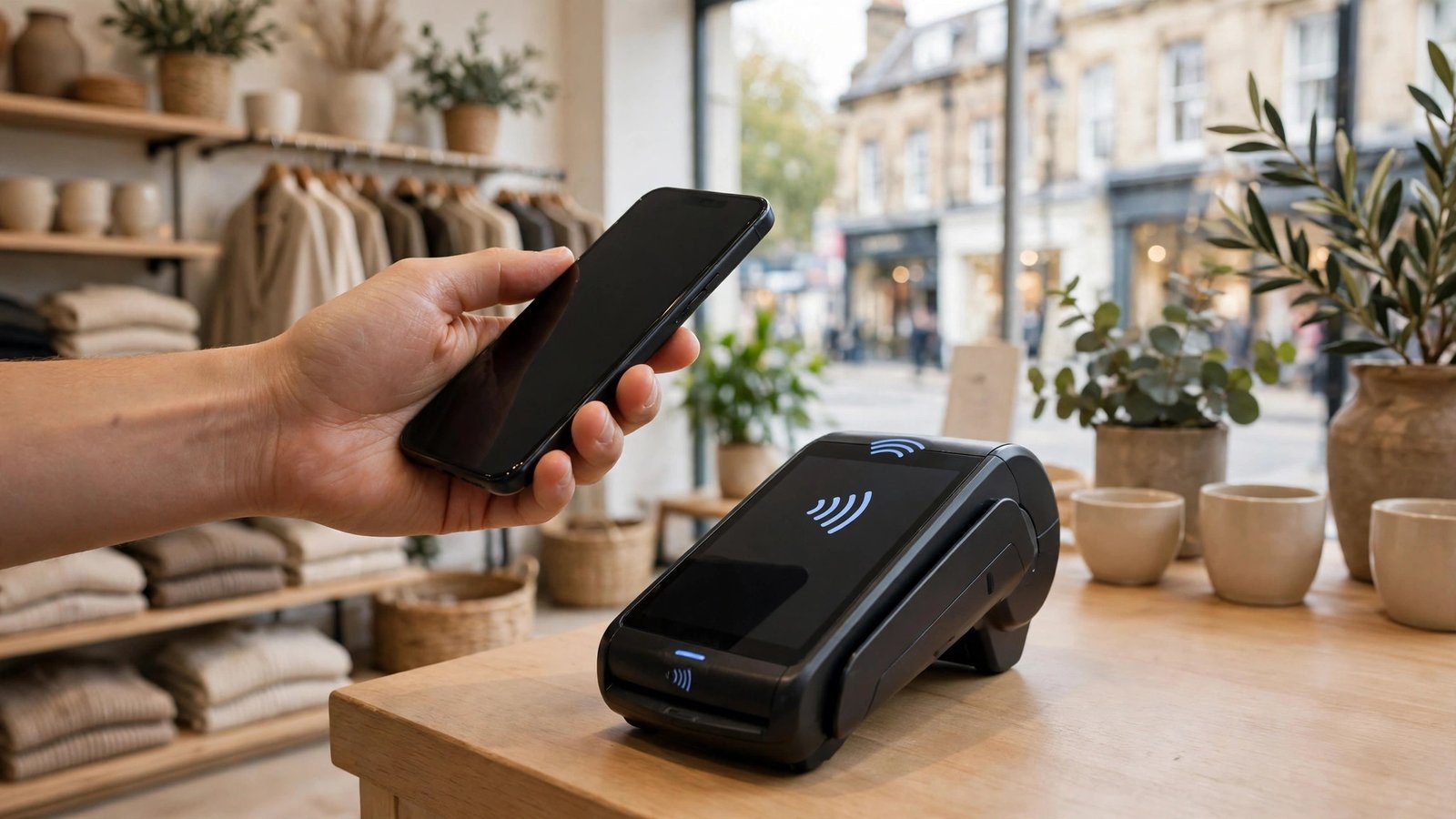
In shops, look for the contactless symbol on the reader. Hold the phone steady near it until you feel a vibration or see a tick. If nothing happens, move the phone slightly, since the NFC spot varies by model. Taking a thick case off can help if the reader struggles to pick up the signal.
On public transport, tap to pay can replace a paper ticket or travel card in many places. In London, you can use your phone on buses, Tube, trams and most trains through the same readers that accept contactless bank cards. Other cities have their own systems, so check before you travel.
Online, Apple Pay and Google Pay appear as checkout buttons in many apps and websites. Tapping that button fills in your card and delivery details from Wallet, so you do not type a long card number on a small screen. Check the delivery address and total before you confirm.
Fix the most common problems
If a payment is declined at the till, first check that you are using the right card and that the card has funds or credit available. Then check that NFC is on and that Google Wallet or Apple Pay is the default payment app on Android. If the card worked yesterday and fails today, try removing it and adding it again, since banks sometimes reissue cards or change verification after a replacement.
If your phone is lost or stolen, act quickly. Suspend Apple Pay through iCloud by marking the device as lost, or suspend Google Wallet through your Google account device settings, and tell your bank so it can block the underlying card if needed. Both systems use a device specific number for payments rather than your real card number, but suspending the device still stops anyone from paying with it.
For safety, keep your phone locked with a PIN, fingerprint or face unlock. Review transactions in Wallet or your banking app now and then, and contact your bank straight away if you spot a payment you do not recognise.
Frequently Asked Questions
Do I need an internet connection to tap to pay?
No, a shop payment itself does not need mobile data or Wi-Fi at the till, since NFC talks directly to the reader. You do need a connection for the first setup and verification, and for adding or removing cards later.
Why will my card not add to Apple Pay or Google Wallet?
The most common reasons are that the card type is not supported for mobile payments, the billing address does not match your bank's records, or verification failed. Check with your bank first, then try adding the card again with the details typed by hand.
Is tap to pay with a phone safer than a physical card?
In most cases, yes, because the phone requires your fingerprint, face or PIN, and it sends a device specific number rather than your real card number to the reader. A lost physical card can be tapped by anyone until it is blocked, while a locked phone adds an extra barrier.



Post Comment