How to Schedule a Text Message on iPhone and Android in Canada
There are plenty of moments when you want to send a message later, not now. A birthday greeting at midnight, a reminder to a colleague first thing in the morning, or a note to family in another time zone. Sending it at 11 at night risks waking someone up, and trying to remember it tomorrow often fails. Scheduling the message solves both problems: you write it when you think of it, and your phone sends it at the time you choose.
Both iPhone and Android can do this, but the steps are different, and the details matter. On iPhone the feature works through Shortcuts and automation rather than a simple send-later button in Messages. On Android, Google Messages has a built-in scheduling option in most recent versions. Here is how each one works, and what to check before you rely on it.
Step 1: Schedule a message on Android with Google Messages
Open Google Messages, the default messaging app on most Android phones sold in Canada. If your phone uses a different default app, such as Samsung Messages, check whether it offers scheduling too, since the steps can differ. In most recent versions of Google Messages, scheduling is built in.
Open the conversation you want to message, or start a new one, and type your message as normal. Do not tap send yet. Instead, touch and hold the send button, which is usually an arrow. A scheduling menu should appear with a few preset options, such as later today, tomorrow morning, or a custom date and time.
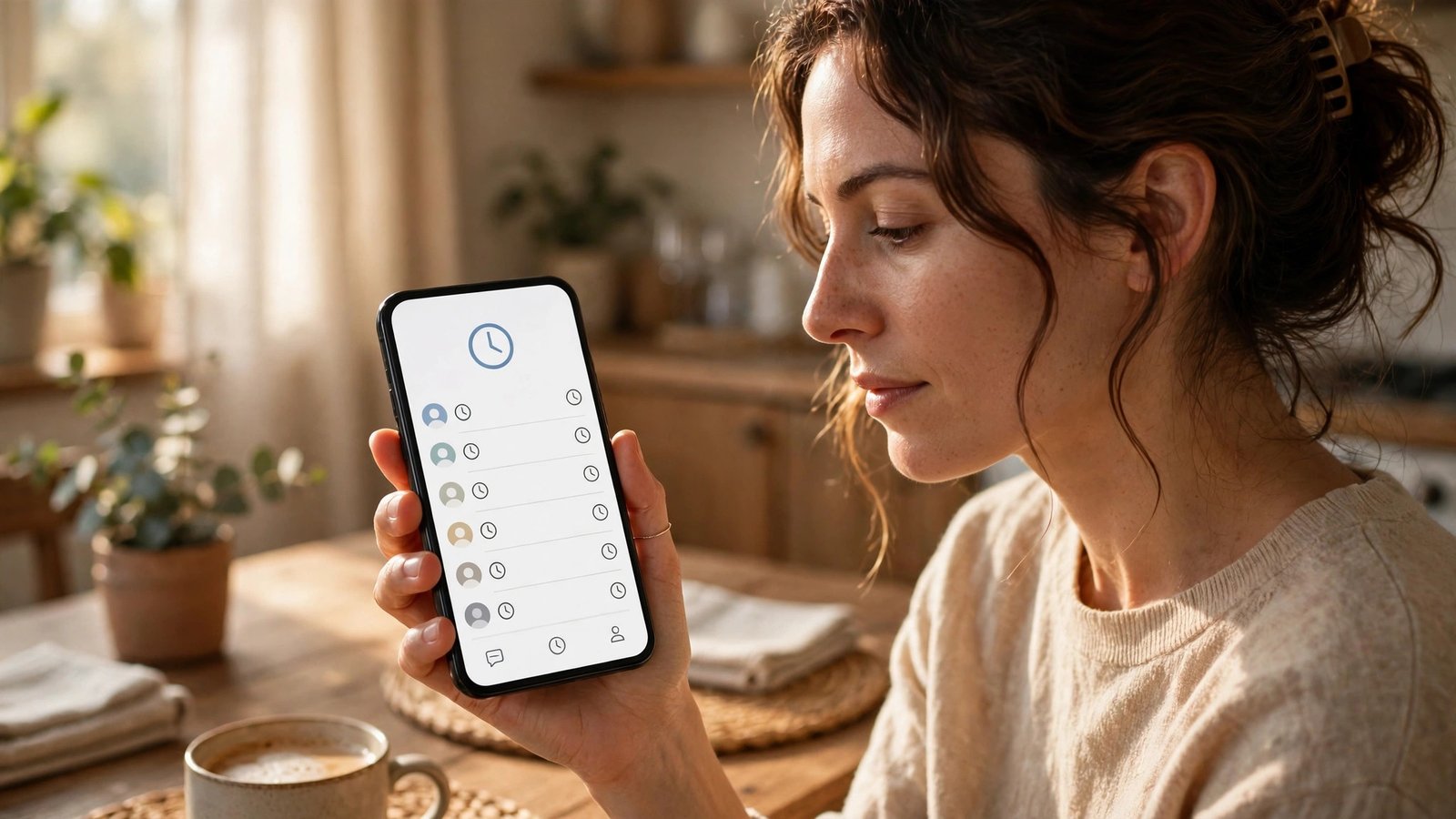
Choose the date and time you want. Double-check the time, especially if the recipient is in a different province, since Canada spans several time zones. A message meant for 9 in the morning in Toronto is 6 in the morning in Vancouver. When you are happy with the time, confirm it. The message will show in the conversation with a small clock icon and the scheduled time, so you know it is queued and not yet sent.
Your phone needs to be on and connected when the scheduled time arrives. If the phone is off, or has no signal, the message will send once the phone reconnects in most cases, but it may arrive late. For anything urgent, send it directly instead of scheduling it.
Step 2: Schedule a message on iPhone with Shortcuts
The iPhone Messages app does not have a built-in send-later button in most recent versions. Instead, you can use the Shortcuts app, which comes preinstalled on iPhones, to create an automation that sends a message at a set time.
Open Shortcuts and go to the Automation tab. Tap to create a new automation and choose Time of Day. Set the time you want the message to send, and choose whether it should run once or repeat. For a one-off birthday message, a single run is what you want.
Next, add an action and search for Send Message. Choose the recipient from your contacts and type the message text. Review the automation summary carefully before saving it, since a wrong contact or a wrong time is easy to miss at this stage.
One important detail: in most recent versions, time-based automations ask you to confirm before running, or they run with a notification you must approve, depending on your settings. Check the automation after you create it and make sure it is set to run without asking, if that option is available on your version. Otherwise the message will only send after you tap to confirm it, which defeats the purpose of scheduling it while you sleep.
Test the setup once with a message to yourself or a willing friend before you rely on it for something important. A quick test takes a minute and catches setup mistakes early.
Step 3: Edit or cancel a scheduled message
Plans change, and a scheduled message you no longer want to send is easy to fix if you catch it in time. On Android, open the conversation in Google Messages and find the scheduled message, marked with a clock icon. Tap it to see options to edit the text, change the scheduled time, or delete it. Deleting it cancels the send.
On iPhone, open Shortcuts, go to Automation, and find the automation you created. You can edit the time, the recipient, or the message text, or delete the automation entirely to cancel it. Do this before the scheduled time arrives. Once the automation has run and the message has sent, you cannot unsend it from Messages in the usual way.
If you edit a message, read the full text again before saving. Autocorrect and pasted text can hide small errors, and a scheduled message gets no second look at send time.
Step 4: Use scheduling wisely and avoid common mistakes
Scheduling works best for messages that are not time-critical. Birthday wishes, reminders, check-ins, and routine work notes are ideal. Avoid scheduling anything urgent, sensitive, or likely to change, such as directions to a meeting place or a message that depends on news that may break before send time.
Also think about the recipient's schedule. A message scheduled for early morning in your time zone may land in the middle of the night for someone elsewhere in Canada. A short check of time zones avoids an awkward wake-up call.
Finally, keep a note of what you have scheduled. If you schedule several messages at once, it is easy to forget one and then send a duplicate by hand. A quick glance at your conversation list, where scheduled messages show a clock icon on Android, or at your Shortcuts automations on iPhone, keeps everything visible.
Frequently Asked Questions
Can I schedule a text message on iPhone without an extra app?
Yes, using the preinstalled Shortcuts app. Create a time-based automation with a Send Message action, set the recipient and time, and confirm it is set to run without asking, where your version allows that.
What happens if my Android phone is off at the scheduled time?
The message will usually send once the phone is back on and connected to a network, but it may arrive late. For urgent messages, send them directly rather than scheduling them.
Can I cancel a scheduled message after setting it up?
Yes, as long as it has not sent yet. On Android, tap the scheduled message in Google Messages and delete it. On iPhone, delete or disable the automation in Shortcuts before its scheduled time.





Post Comment