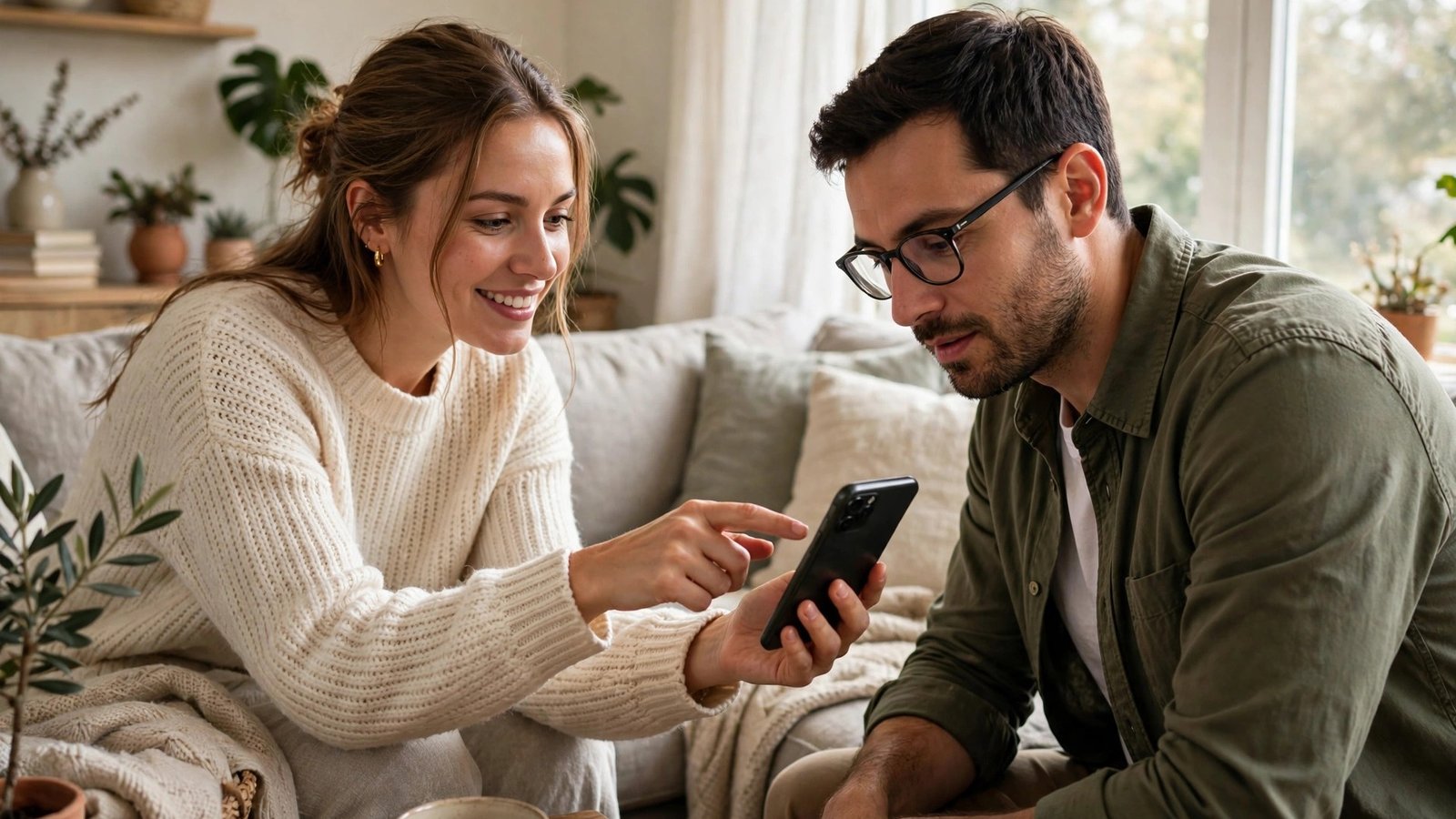
How to Share Your Wi-Fi Password From Your Phone in Canada
A friend visits, asks for your Wi-Fi password, and suddenly you cannot remember the long string of letters and numbers on the back of your router. Your phone already knows it, because it is connected right now. You can share that password in seconds, without reading it aloud or typing it wrong three times. This guide shows the easiest methods on iPhone and Android, plus what to do when the usual tricks do not work.
Sharing from your phone is safer than shouting a password across a room or writing it on a scrap of paper. A QR code or a nearby sharing prompt lets the other phone join directly, and you stay in control of who gets access.
Step 1: Share with a QR code on Android
Android makes this very easy. Open Settings, then Network and Internet, then Internet or Wi-Fi, depending on your phone. Tap the network you are connected to, then tap Share. You may need to unlock your phone with your fingerprint, face, or PIN to confirm.
A QR code will appear on screen, and in most recent versions the password is also shown below it. Your guest opens their camera app, points it at the code, and taps the Wi-Fi prompt to join. This works for both Android and iPhone guests, since most camera apps can read a Wi-Fi QR code.
If the guest's camera does not offer to join, they can open their Wi-Fi settings and look for a QR scan option, usually in the top corner. As a backup, read the password shown under the code and type it in by hand, checking each character carefully.
Step 2: Share nearby on iPhone
On iPhone, sharing is built into the Wi-Fi screen and works best between Apple devices. Make sure both phones have Wi-Fi and Bluetooth turned on, and that the guest is in your contacts with an email address or phone number saved. Ask your guest to open Settings, then Wi-Fi, and tap your network name.
A prompt should appear on your iPhone asking if you want to share the password. Tap Share Password, and the guest's phone will join without typing anything. Keep both phones close together and unlocked during this step, since the prompt can time out if you wait too long.
If no prompt appears, check that Personal Hotspot is off on your phone, that both devices are up to date, and that the guest is really in your contacts. If it still fails, use the QR code method below, which works even when nearby sharing does not.
Step 3: Create a QR code on iPhone
iPhones do not show a built-in Wi-Fi QR code in Settings, but you can still make one in a minute. Open the Shortcuts app, or use a trusted QR generator in your browser, and enter your network name and password exactly as they appear on your router. Save the code as a photo or print it for guests.
A simpler option is to ask an Android phone in the house to show the QR code for your network, as in Step 1, and let iPhone guests scan that code with their camera. The code contains the same network details, no matter which phone created it.
Only use QR generators you trust, and avoid sites that ask you to create an account or save your password online. Once guests have joined, you do not need to keep the code posted anywhere public.
Step 4: Find the saved password if you need to type it
Sometimes you just need the password itself, for a laptop, a smart TV, or a guest whose phone cannot scan codes. On Android, the Share screen in Step 1 usually shows it below the QR code. On iPhone, open Settings, then Wi-Fi, tap the small info icon beside your connected network, and tap Password. Unlock with Face ID, Touch ID, or your passcode to reveal it.
On a Mac signed into the same Apple account, you can also find saved Wi-Fi passwords in the Passwords app or in Keychain Access. On a Windows PC that has joined before, the password is shown in the network properties.
When you read the password aloud, go slowly and spell out tricky characters. A capital O and a zero, or a lowercase L and a one, cause most typing errors. If the password is very long, sending it by QR code is far more reliable than dictation.
Step 5: Share safely and change it if needed
Only share your Wi-Fi password with people you trust. Anyone on your home network can potentially see shared devices, printers, and files, depending on your router settings. For regular visitors, tradespeople, or short stays, consider a guest network if your router offers one. A guest network gives internet access without access to your main devices.
If you shared your password widely, or with someone you no longer trust, change it on your router. Log into your router settings, usually through an address printed on the router or in your internet provider's app, find the wireless settings, and set a new password. You will then need to reconnect your own devices, which is a good moment to update the QR code or guest setup too.
For Canadian homes with a provider router, the provider app often lets you share Wi-Fi, set up a guest network, and change the password without opening a browser.
Sharing Wi-Fi should take seconds. Use the QR code on Android, nearby sharing on iPhone, or the saved password view when you need the text itself, and keep a guest network ready for visitors.
Frequently Asked Questions
Can I share my Wi-Fi password without knowing it?
Yes. On Android, the Wi-Fi Share screen creates a QR code that lets a guest join without you reading the password. On iPhone, nearby sharing sends the password to a contact's Apple device directly, also without you typing it.
Why does nearby sharing not appear on my iPhone?
Nearby sharing needs Wi-Fi and Bluetooth on, both phones unlocked and close together, and the guest saved in your contacts. Personal Hotspot should be off, and both devices should be updated. If it still fails, use a QR code instead.
Is it safe to share my Wi-Fi password with guests?
Sharing with trusted guests is generally fine, but a guest network is safer for visitors you do not know well. If you shared your password widely, change it on your router and reconnect your own devices.


Post Comment