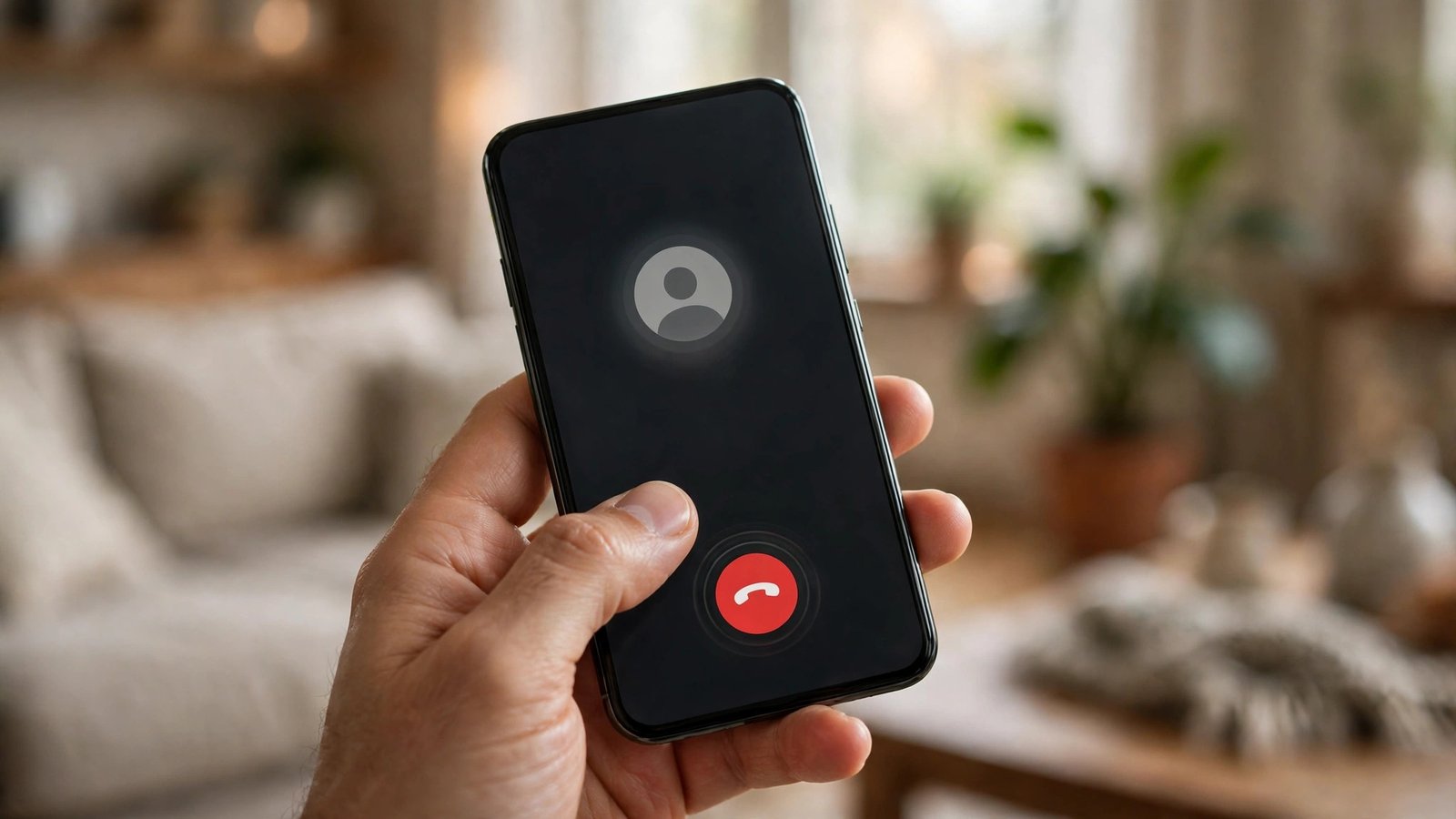
How to Stop Spam Calls and Texts on iPhone and Android in the US
Spam calls and scam texts have a simple goal: get you to pick up, reply or tap a link before you have time to think. The good news is that you do not need a paid app to cut most of them down. Your phone already has blocking tools, your carrier offers free filters in most recent versions, and a few habits can stop the rest from reaching you. Work through the steps below in order, and give each change a few days to take effect.
Step 1: Silence unknown callers on iPhone
On iPhone, the strongest built in switch is Silence Unknown Callers. Open Settings, tap Phone, then turn on Silence Unknown Callers. Calls from numbers that are not in your contacts, recent outgoing calls or Siri suggestions will go straight to voicemail and appear in your recent calls list. You will still get a voicemail if the caller leaves one, so a real caller can still reach you.
This setting works best when your contacts are up to date. Add doctors, schools, delivery services and work numbers you expect to hear from, or their first call may be silenced. If you are waiting for a call from an unknown number, such as a job interview or a repair service, turn the setting off for that day and turn it back on after. You can also block a single number after it calls you. Open the Phone app, tap Recents, tap the small information icon next to the number, scroll down and tap Block this Caller.
Step 2: Turn on spam protection on Android
On most Android phones, open the Phone app, tap the three dots or settings menu, then look for Caller ID and spam or Spam and Call Screen. Turn on See caller and spam ID, and turn on Filter spam calls if your phone offers it. Filtered calls will not ring, but they will still show in your call history.
If you have a Google Pixel, Call Screen is an extra layer worth turning on. It can answer a suspicious call for you and ask the caller to state their reason, then show you a live transcript. You can accept, decline or mark the call as spam without speaking to the caller. On Samsung phones, look in the Phone app settings for Caller ID and spam protection, and turn it on there. The exact menu names vary by maker and Android version, but the idea is the same: let the phone check the number before it rings.
Step 3: Turn on your carrier's free spam filter
Your carrier can block many scam calls before they reach your phone, and the basic version is usually free. AT and T customers can use ActiveArmor, Verizon customers can use Call Filter, and T-Mobile customers can use Scam Shield. Download your carrier's app from the App Store or Play Store, sign in, and turn on spam blocking and scam likely identification.
In most recent versions, these apps let you choose how strict the block should be. A medium setting that sends likely scams to voicemail is a good starting point. A very strict setting may block legitimate calls from businesses that use shared numbers, so check your blocked list during the first week. If a real call is blocked, add that number to your allowed list in the carrier app.
Step 4: Join the Do Not Call Registry and report spam
The National Do Not Call Registry will not stop illegal scammers, who ignore the law by definition, but it does cut down legal telemarketing calls. Visit donotcall.gov and register your mobile number and any home number you use. Registration is free and does not expire for personal numbers in most cases, though you can check your status on the same site.
Reporting matters more than many people expect. On iPhone, you can report a spam text by opening the message, tapping Report Junk when it appears, or forwarding the message to 7726, which spells SPAM on a keypad. On Android, open the Messages app, press and hold the spam message, then tap Block and Report spam. For scam calls, you can also file a report at reportfraud.ftc.gov. Reports help carriers and regulators spot new campaigns faster, even when they cannot stop a single call in real time.
Step 5: Stop spam texts at the source
Scam texts often try to create urgency: a package problem, a toll fee, a bank alert or a prize. Never tap a link in an unexpected text, even if it looks official. Instead, open the real app or website yourself and check there. If a text claims to be from your bank, call the number on the back of your card, not a number in the message.
On iPhone, you can filter unknown senders. Open Settings, tap Messages, then turn on Filter Unknown Senders. Messages from people not in your contacts will move to a separate list. On Android, open Messages, tap your profile or settings, then turn on Spam protection. That setting checks messages against known spam patterns without showing your message content to other people in a readable form, according to Google's description of the feature.
Do not reply STOP to a message you did not ask for unless you are sure the sender is legitimate. A reply tells a scammer that your number is active. Delete the message, block the sender and report it instead.
Frequently Asked Questions
Will Silence Unknown Callers block important calls?
It can silence a first call from a number that is not in your contacts, so add numbers you expect to hear from in advance. Calls still go to voicemail, and the caller can leave a message. Turn the setting off temporarily if you are expecting a call from an unknown number.
Is the Do Not Call Registry enough on its own?
No. It reduces legal telemarketing, but illegal scammers ignore it. Combine registration with your phone's spam filter, your carrier's free filter and reporting. Together, those layers cut far more spam than any one of them alone.
Should I pay for a spam blocking app?
Usually not. The built in iPhone and Android tools plus your carrier's free filter cover most cases. A paid app can help if you still get heavy spam after trying those steps, but check reviews and permissions first, and never give an app access to your contacts or messages unless you trust it.


Post Comment