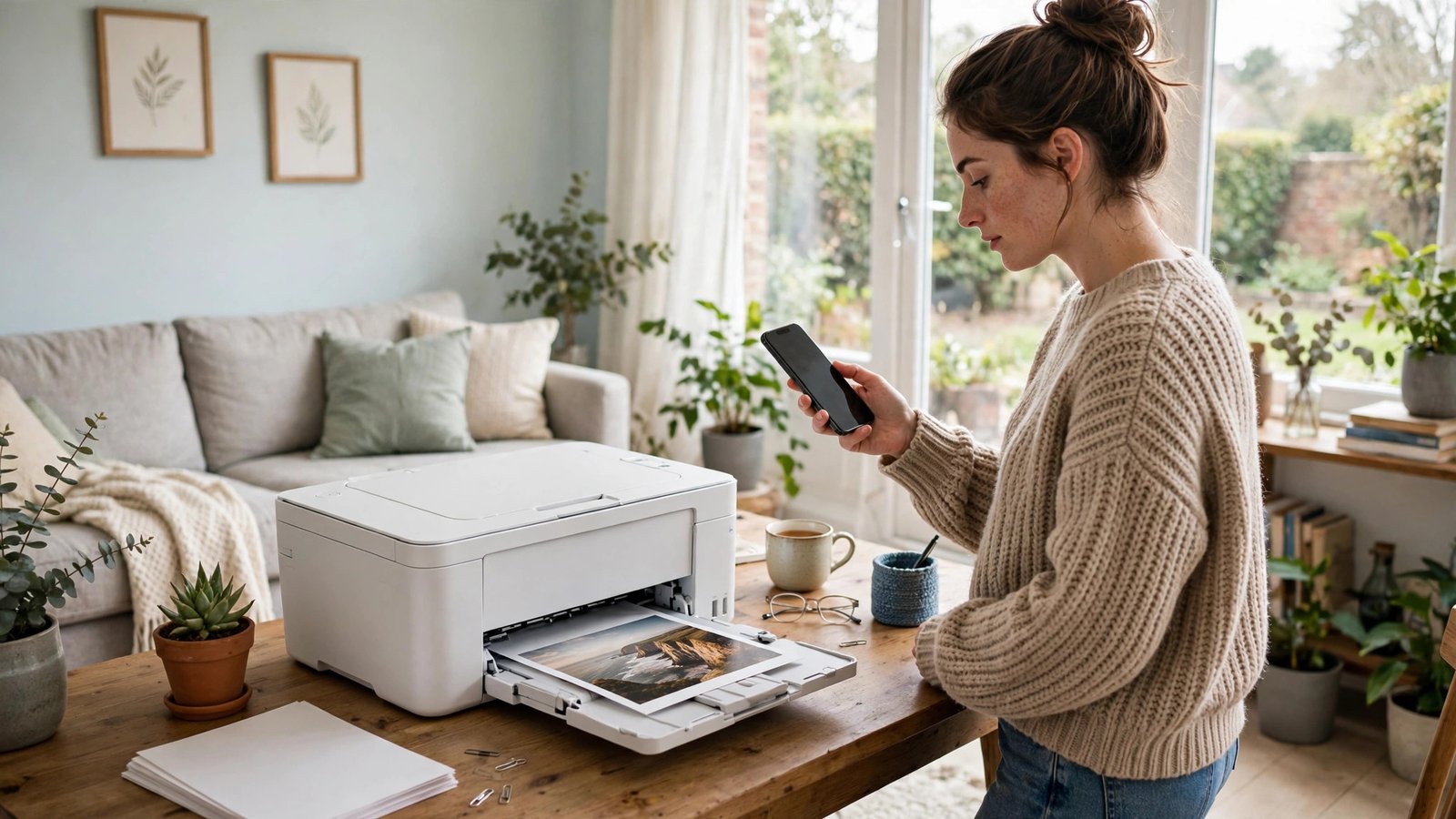
How to Print From Your Phone in the UK: iPhone and Android Made Simple
Printing from a phone used to feel like a fiddly extra. These days it is mostly built in, and once your phone and printer are on the same Wi-Fi network, a photo or document is usually only a few taps away. The steps differ slightly between iPhone and Android, and older printers need a little more patience, but you do not need a computer in the middle for most everyday jobs.
This guide covers the standard routes first, then the workarounds for printers that do not appear, plus a few checks that save paper and ink. It assumes your printer is switched on, has paper loaded, and is connected to your home Wi-Fi in most recent versions of iOS and Android. Menu names can vary a touch by brand and model, so look for the same wording even if a screen looks slightly different.
Step 1: Get your phone and printer on the same network
Start with the boring check, because it fixes most failures before they start. Your phone and printer need to be on the same Wi-Fi network. A phone on mobile data, or on a guest network while the printer sits on the main network, will often fail to find the printer at all.
On your printer, look for a wireless light or a network settings menu that shows it is connected. If you recently changed your Wi-Fi password or got a new router, the printer may still be holding the old details, and you will need to run its wireless setup again. Most printers offer this under Settings, then Wireless or Network Setup, often with a simple wizard that asks for your network name and password.
On your phone, open Settings, then Wi-Fi, and confirm the network name matches the one your printer uses. Some older printers only work on the 2.4 GHz band, so if your printer keeps vanishing, try that network name for the print job.
Step 2: Print from an iPhone with AirPrint
Apple phones use AirPrint, and most printers sold in the UK in recent years support it. You do not need to install an app for a basic print.
Open the photo, document, email, or web page you want to print. Tap Share, then scroll and tap Print. If you do not see Print straight away, scroll the share options or tap the three dots to find it. On the print screen, tap Printer, then choose your printer from the list. Set the number of copies, and check whether you want colour or black and white, single or double sided, and which paper size is loaded. Tap Print in the top right corner.
If your printer does not appear, check the network step again, then restart both the phone and the printer. Also check that your printer is not in a deep sleep mode. Waking it with a button press, or printing a test page from its own menu, often brings it back to the list. If it still does not show, check the printer maker’s website for AirPrint support. A very old printer may need its own app instead.
Step 3: Print from an Android phone
Android phones print through the system print service, and most brands work the same way once a printer is found. Open the photo, document, or web page, tap the three dots or Share, then tap Print. On the print screen, tap the printer name at the top, or tap All printers, to pick your printer. Adjust copies, colour, paper size, and double sided printing, then tap the print button.
If no printer appears, go to Settings, then Connected devices, then Connection preferences, then Printing. Tap Default Print Service and make sure it is switched on, then tap Add service if your printer brand offers its own plugin. Samsung, HP, Canon, Epson, and Brother all offer apps or plugins in the Play Store that can help an older model appear. Install the one for your brand, follow its setup, and return to the print screen.
Once a printer is added, Android usually remembers it, so later jobs are much quicker.
Step 4: Print when the printer is old or offline
Not every printer has Wi-Fi, and not every home has the printer near the router. You still have options. Many printer apps let you print over USB with an adapter, or let you send a file to the printer through the maker’s cloud service once you have registered the printer with an account. Check your printer maker’s app first, because it often includes scanning and ink checks as well.
Step 5: Save ink, paper, and frustration
A few habits make phone printing much less wasteful. Preview before you print, especially for web pages, which can run to many pages with adverts and menus you do not need. On iPhone, the print preview lets you change the page range. On Android, look for Pages in the print options and pick the pages you actually want.
Choose black and white for plain documents, and draft or economy quality for anything you will only read once. Check that double sided printing is on if your printer supports it, and keep the paper size set to A4, which is the standard size in the UK. If colours look wrong, run a nozzle check or cleaning cycle from the printer’s own menu before you assume the file is at fault. Low ink often shows up as streaks or faded patches first.
Frequently Asked Questions
Why can my phone not find my printer?
The most common cause is that the phone and printer are on different networks, or the printer has lost its Wi-Fi settings after a router or password change. Check both are on the same home Wi-Fi, wake the printer from sleep, restart both devices, and run the printer’s wireless setup again if needed.
Do I need an app to print from my phone?
Usually not for a modern printer. iPhones use AirPrint, and Android phones use the built-in print service. An app from your printer maker is only needed for older models, extra features such as scanning, or cloud printing when the printer is not on your home network.
Can I print without Wi-Fi?
Yes, in some cases. Some printers support Wi-Fi Direct, which lets your phone connect straight to the printer without a router. Others work with a USB adapter, or through the maker’s cloud service. For a single photo or ticket, a local print shop is often the simplest option.




Post Comment