How to Use Back Tap and Button Shortcuts to Speed Up Your Phone in Australia
Your phone has buttons and surfaces you probably tap every day without thinking about them. With a little setup, those same taps can open your camera, turn on the torch, take a screenshot, or launch your favourite app, all without hunting through home screens. On iPhone this feature is called Back Tap. On Android it goes by different names depending on the brand, but the idea is the same.
This guide shows you how to set these shortcuts up, what to assign to them, and how to avoid accidental triggers. Everything here uses built-in settings, so there is nothing to install and nothing to pay for.
Step 1: Set up Back Tap on iPhone
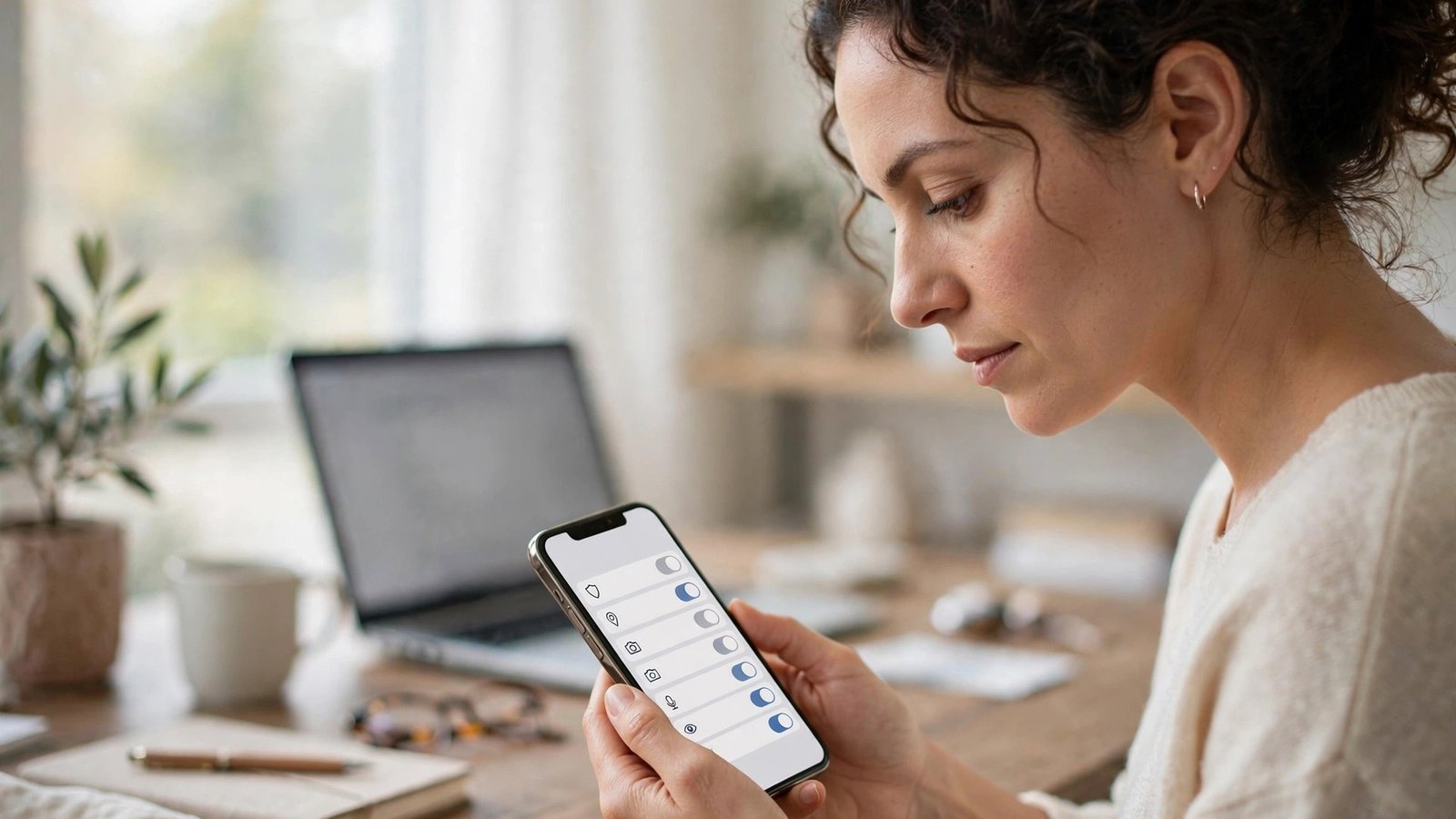
Back Tap works on iPhone 8 and later running iOS 14 or newer. Open Settings, then Accessibility, then Touch, and scroll down to Back Tap at the bottom. You will see two options: Double Tap and Triple Tap.
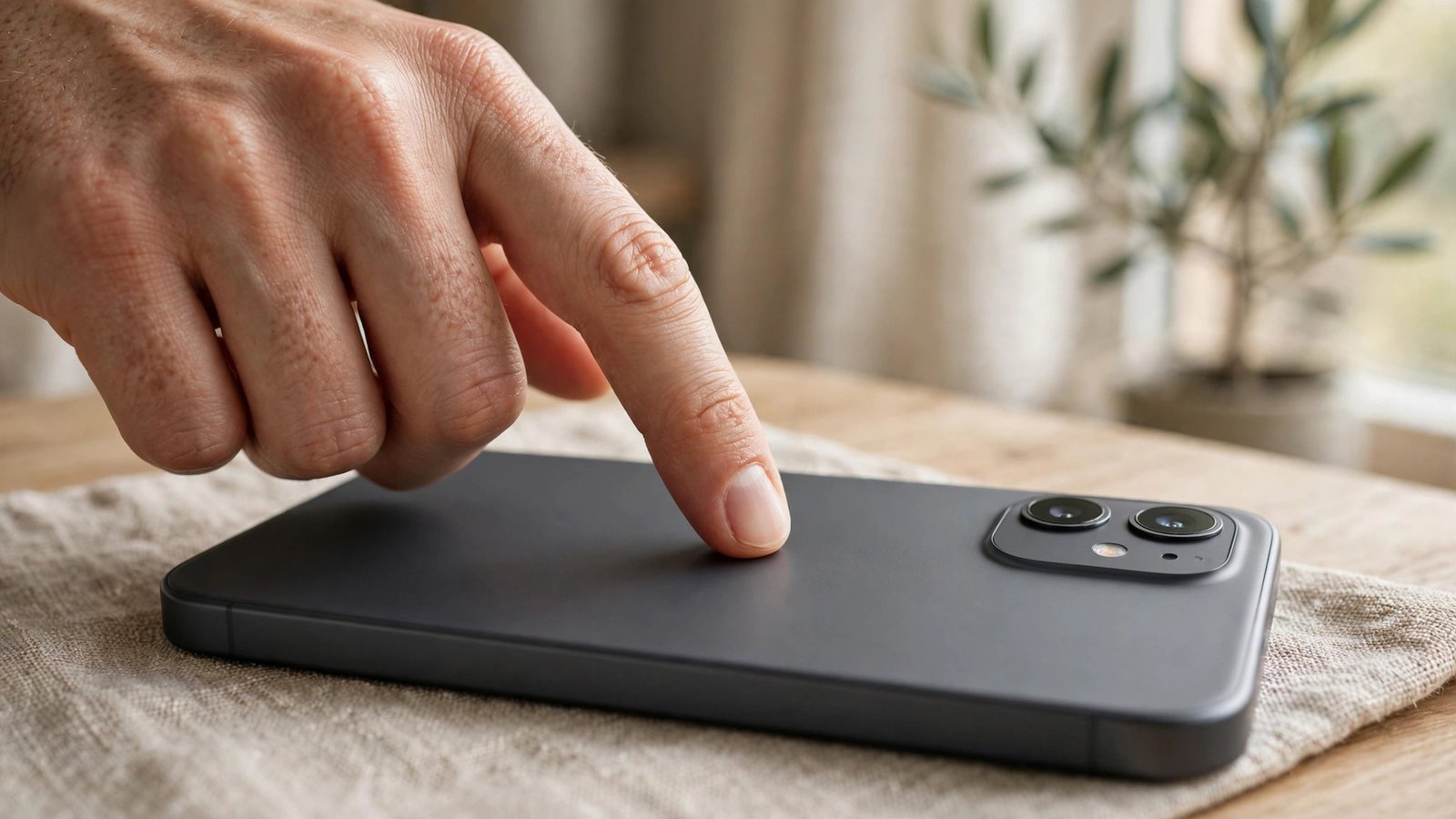
Tap Double Tap and choose an action. Good first picks are Screenshot, Torch, Camera, or App Switcher. Then tap Triple Tap and pick a second action, such as Lock Screen, Mute, or a favourite app via the Shortcuts option. To trigger a tap, tap firmly on the back of the phone, near the centre, twice or three times. It works through most cases, though very thick cases can make it less reliable.
If Back Tap triggers by accident, for example when you put the phone down, switch that action to Triple Tap instead of Double Tap. Triple taps are much harder to trigger by mistake, and you still get the shortcut when you want it.
Step 2: Set up quick tap and gestures on Android
On Google Pixel phones, open Settings, then System, then Gestures, and look for Quick Tap to Start Actions. Turn it on and choose what a double tap on the back of the phone should do: take a screenshot, open the camera, turn on the torch, or open an app. Pixel phones also let you set a long press of the power button to open the voice assistant, under Settings, then System, then Gestures, then Press and Hold Power Button.
On Samsung phones, there is no built-in back tap in most recent versions, but you can get similar speed from other shortcuts. Open Settings, then Advanced Features, then Side Key, and set a double press of the side button to open the camera or an app of your choice. Samsung also offers Motions and Gestures under Advanced Features, including lift to wake and double tap to turn the screen on or off.
On other Android brands, look in Settings under Gestures, Shortcuts, or Buttons for options like double press power button for camera. Most Android phones open the camera with a double press of the power button by default, which is worth knowing even if you change nothing else.
Step 3: Pick shortcuts that save real time
The best shortcuts are the ones you use several times a day. The camera and the torch top the list for most people: a double tap to open the camera means you catch the moment instead of missing it, and a torch shortcut beats fumbling through the control panel at night.
Next, consider a screenshot shortcut if you save receipts, tickets, or directions often, and a mute or do-not-disturb shortcut if you walk into meetings regularly. If you use one app constantly, such as your banking app, your notes app, or Google Maps, assign it to a triple tap or a side key double press and it becomes one gesture away.
Avoid assigning shortcuts you will rarely use. A shortcut that fires once a month is easy to forget, and a forgotten shortcut feels like a glitch when it triggers. Keep it to two or three actions you genuinely reach for daily.
Step 4: Fix accidental triggers
If a shortcut fires when you do not want it to, change the trigger before you give up on the feature. On iPhone, move the action from Double Tap to Triple Tap. On Pixel, turn off the “Require stronger taps” option only if taps are not registering, or leave it on if taps fire too easily. On Samsung, if the side key double press opens the camera in your pocket, set it to require the screen to be on first, or pick a less sensitive action.
Cases matter too. A thick or loose case can absorb taps and make Back Tap unreliable, while a very thin case rarely causes trouble. If taps work without a case but not with one, try tapping slightly harder or slightly lower on the back of the phone, near the centre rather than near the camera module.
Step 5: Add one more shortcut with widgets and lock screen controls
Shortcuts work even better alongside quick-access controls. On iPhone, add the torch and camera buttons to your lock screen or Control Centre so they are one swipe away even when Back Tap is not convenient. On Android, add your most-used app or a torch toggle to the quick settings panel by swiping down twice and tapping the edit button.
You can also place a widget for your most-used app on your home screen. A single tap on a widget beats opening a folder, and combined with a back tap shortcut, the two most common actions on your phone become nearly instant.
Frequently Asked Questions
Does Back Tap work with a case on?
In most cases, yes. It works through thin and medium cases, though very thick or rugged cases can make taps harder to register. If it stops working after fitting a new case, try tapping more firmly near the centre of the phone’s back.
Does using these shortcuts drain the battery?
No, not noticeably. Back Tap and button shortcuts use sensors and buttons that are already active, so they add no meaningful battery drain compared with normal phone use.
Why does my Android phone not have back tap?
Back tap is a Pixel feature in most recent versions, and Samsung and other brands offer different shortcuts instead, such as side key double press or power button gestures. Check Settings under Gestures, Advanced Features, or Buttons on your phone for the equivalent options.



Post Comment