How to Record Your Phone Screen on iPhone and Android in the US
Screen recording is one of those features you ignore until the moment you need it. Maybe a friend asks how to change a setting, an app keeps showing an error you want to show support, or you want to save a gameplay clip. Both iPhone and Android have a built in screen recorder, so in most cases you do not need to download anything extra. The steps differ a little by phone, and the sound settings trip up more people than anything else, so here is the full process, plus the fixes for the problems that come up most often.
Step 1: Record your screen on iPhone
Start by adding the button if it is not already in Control Center. Open Settings, tap Control Center, and look for Screen Recording under More Controls. Tap the green plus sign next to it to move it into your included controls.
Next, open Control Center. On an iPhone with Face ID, swipe down from the top right corner. On an iPhone with a Home button, swipe up from the bottom edge. Find the record button, which looks like a solid circle inside a ring. If you tap it right away, recording starts after a short countdown, but it will record without microphone sound by default.
For most how to videos, you want your voice too. Press and hold the record button instead of tapping it, then tap the microphone icon to turn it on. It turns red when it is active. Then tap Start Recording. A red bar, red dot, or red pill shape appears at the top of the screen while recording is live, depending on your iPhone model and software version. To stop, tap that red indicator and confirm Stop, or open Control Center again and tap the record button. Your clip saves automatically to the Photos app.
Step 2: Record your screen on Android
On most recent Android phones, swipe down twice from the top of the screen to open the full Quick Settings panel. Look for a tile called Screen Record. If you cannot see it, tap the pencil or edit icon in the panel and drag Screen Record into your active tiles. Samsung, Google Pixel, and most other recent Android phones include this tile in recent versions.
Tap Screen Record, and a small setup card usually appears. Choose whether to record audio, and pick media sounds, microphone sound, or both if your phone offers those choices. Some phones also let you show touches on screen, which is handy for a tutorial because viewers can see exactly where you tap. Tap Start, wait for the countdown, then do what you want to show. To stop, swipe down and tap the Screen Record notification, or tap the small floating stop control if your phone shows one. The video saves to your gallery, often in a Movies or Screen recordings folder.
Step 3: Get the sound right
Sound is where most first recordings go wrong, and it is worth a quick test before you record anything important. Record a ten second clip, play it back, and check two things: can you hear the app sound, and can you hear your voice if you meant to include it?
On iPhone, remember that a quick tap starts a silent recording, while a press and hold lets you turn the microphone on. If your clip has no voice, that is almost always the reason. On Android, check the audio source on the setup card before you start. Media only will capture app sound but not your voice. Microphone only will capture your voice but may miss app sound. The combined option, where it exists, is the best choice for a tutorial with narration.
Step 4: Trim, save, and share your clip
You rarely need to share the raw recording. Open the clip in Photos on iPhone or in your gallery app on Android, tap Edit, and drag the trim handles at the start and end to cut dead time. Save the trimmed version, and keep the original until you are sure the edited copy looks right.
Before you share, check the file size. A few minutes of screen video can be large, so trim it shorter or share it through a cloud link if a messaging app refuses the attachment. Turn on Do Not Disturb before recording anything you plan to share, since notifications and passwords can pop up mid recording.
## Step 5: Fix the common problems
If the record button is missing on iPhone, go back to Settings, then Control Center, and confirm Screen Recording is in your included controls. If it is there but greyed out, check Screen Time restrictions under Settings, then Screen Time, then Content and Privacy Restrictions, where screen recording can be limited on a managed device.
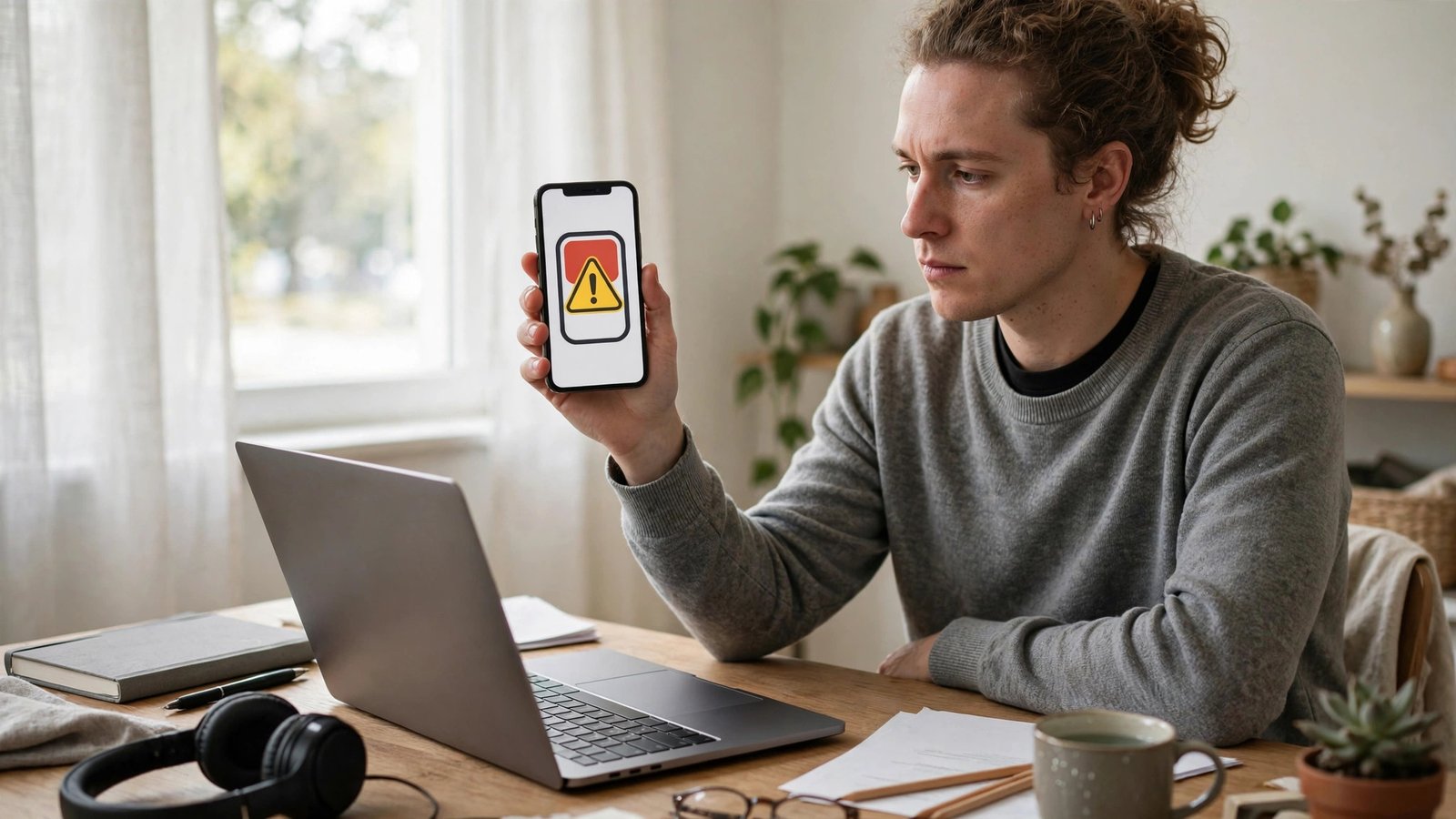
If the record button is missing on Android, edit your Quick Settings tiles first, then search Settings for screen recording. On a work phone, your employer may have disabled recording, in which case no setting on the phone will bring it back. If recording starts but the video is black, that app is likely blocking capture for copyright or security reasons, which is common with some banking and streaming apps. That is a protection built into the app, not a fault with your phone.
If the video stutters, close other apps, free up a little storage, and try again with a shorter clip.
## Frequently Asked Questions
Does screen recording capture sound on iPhone and Android?
Yes, but you have to set it up first. On iPhone, press and hold the record button in Control Center and turn the microphone on. On Android, pick the audio source on the Screen Record setup card, such as media, microphone, or both where offered. A quick tap with no setup usually records without your voice.
Where do screen recordings save on my phone?
On iPhone, recordings save to the Photos app. On Android, they usually save to your gallery, often in a Movies or Screen recordings folder, though the exact folder name varies by phone maker. If you cannot find a clip, open your gallery and search for recent videos.
Why is my screen recording black in some apps?
Some banking, streaming, and secure apps block screen capture to protect copyrighted video or sensitive information. When that happens, the recording may come out black or the app may show a warning. This is a protection built into the app, not a problem with your phone, so use screenshots of error messages or describe the steps instead.


Post Comment