How to Set Up Parental Controls and Screen Time on iPhone and Android in Australia
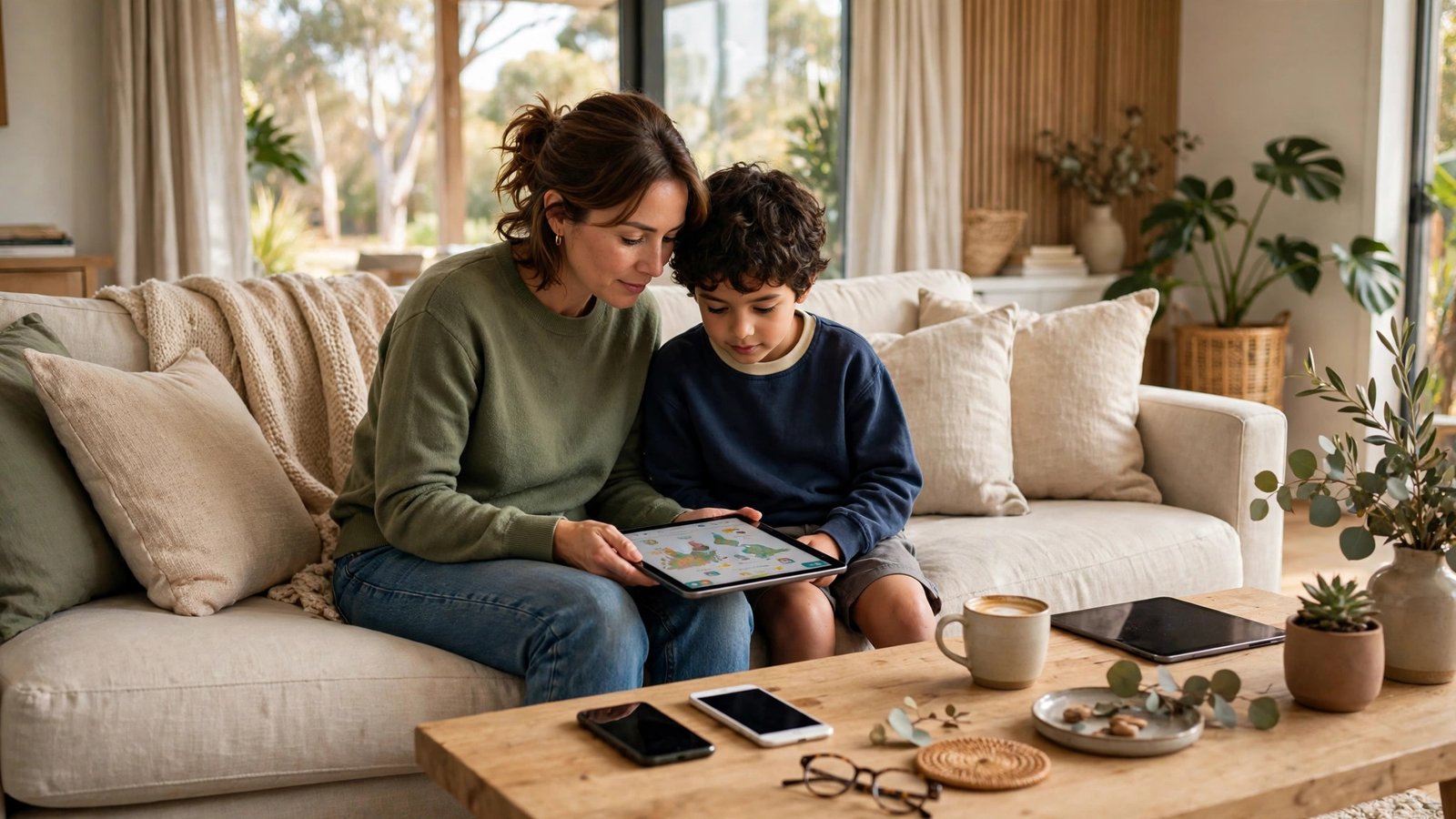
If your child has a phone or tablet, you have probably had the same conversation twice: once about how long they can use it, and once about what they can see on it. Parental controls will not replace that conversation, but they can back it up. On iPhone, the tools sit inside Screen Time. On Android, they sit inside Google Family Link and the Digital Wellbeing settings. Set them up once, and you get limits, approvals and reports without having to hover.
This guide walks through both systems in plain steps, with Australian settings where they matter. You will need your own phone or computer, your child's device, and about 20 minutes. Keep both devices charged and nearby, and know your own Apple ID or Google account password before you start.
Step 1: Decide what you want to control before you touch settings
Start with a short list, not a long rule book. Most families only need five controls: daily screen time limits, a bedtime or downtime window, approval for new app downloads, content filters for web and apps, and location sharing if you use it. Write those down, agree them with your child where you can, and set only those controls first. You can tighten things later.
Also decide who holds the controls. On iPhone, that is usually a parent passcode inside Screen Time. On Android, it is the parent account inside Family Link. Do not share that passcode or password with your child, and store it somewhere you will find it again, such as your password manager.
Step 2: Set up Screen Time on an iPhone or iPad
On your child's iPhone or iPad, open Settings, then tap Screen Time. If you are setting it up from your own iPhone, you can also go to Settings, then Family, then add your child to your Family Sharing group and manage Screen Time from there. For a device your child already uses, turn on Screen Time on that device and choose the option that says this is your child's device.
Next, set a Screen Time passcode. This is a four digit code that stops your child changing the limits. Pick something different from the device unlock code. Then work through the main sections in order. Under App Limits, add a daily limit for categories such as games or social media, or set a limit for a single app. Under Downtime, pick the hours when only phone calls and apps you allow will work, such as overnight. Under Communication Limits, choose who your child can contact during allowed screen time and during downtime.
Then open Content and Privacy Restrictions and turn them on. This is where you block explicit content, set age limits for apps, films and web content, and stop in app purchases or app deletions if you want that control. For web content, choose the option to limit adult websites, or allow only approved websites for younger children. Finish by checking that the App Store asks for your approval before a download completes, so a new game cannot appear without you knowing.
Step 3: Set up Family Link and Digital Wellbeing on Android
On Android, start with Google Family Link. Install Family Link on your own phone if it is not already there, then sign in with your Google account. Follow the prompts to create or link a Google account for your child, then install Family Link on your child's phone or tablet and sign in with that child account. The two devices will pair, and you will be able to manage the child device from your phone.
Inside Family Link, set a daily limit and a bedtime schedule. The daily limit caps total screen time, while bedtime locks the device except for calls in most recent versions. You can also set per app limits, so one game does not eat the whole day. Under content controls, turn on SafeSearch in Google Search, set YouTube to its supervised experience where available, and require your approval for new app installs from Google Play.
Then open Digital Wellbeing on the child device itself for extra habits. Digital Wellbeing shows which apps take the most time and lets you set app timers and a bedtime mode that dims the screen and silences notifications. Family Link handles the rules, Digital Wellbeing helps your child see the pattern, and together they work better than either tool alone.
Step 4: Turn on safe search and app approvals everywhere else
Parental controls work best when they cover every door, not just one. In Google Search on the child device, check that SafeSearch is on. In YouTube, use the supervised account setting rather than a general account for younger children, and turn off autoplay if late night viewing is a problem. In Google Play and the App Store, keep purchase approval on, and check that the store shows age ratings before you approve a download.
Step 5: Check the reports, then adjust once a week
After a week, open the Screen Time report on iPhone or the Family Link activity report on Android. Look for three things: total time per day, the top three apps, and any late night use that slipped past downtime. Then adjust one thing only, such as trimming one app limit by 30 minutes or moving bedtime earlier. Small weekly tweaks last longer than one big crackdown.
Frequently Asked Questions
Can my child bypass Screen Time or Family Link?
They can try, and older children often do, by changing time zones, using a browser loophole or borrowing another device. Keep device software updated, keep the parent passcode private, check reports weekly, and treat a bypass attempt as a conversation, not just a settings fix.
What age should I start using parental controls?
Start when a child first gets regular unsupervised access to a connected device, even if that is just a shared tablet. For younger children, tighter filters and app approvals make sense. For teenagers, focus more on time limits, bedtime and open discussion, with lighter content filters.
Do these controls work on school devices too?
School devices often carry their own management settings set by the school, which can override or sit alongside family settings. Check with the school before changing anything on a school issued device, and use your home controls mainly on devices your family owns.



Post Comment