How to Set Up Apple Pay and Google Wallet on Your Phone in the US
Tapping your phone to pay is faster than digging for a card, and it is safer in one quiet way: stores never see your real card number. Apple Pay on iPhone and Google Wallet on Android both replace your card number with a device-specific token for each purchase. Setup takes a few minutes per card, and most problems come from one skipped step: the bank verification. This guide covers iPhone and Android setup in the US, how to pay in stores and online, and what to do when a payment is declined or your phone goes missing.
Step 1: Check that your phone and card are ready
First, confirm your phone supports tap to pay. On iPhone, that means an iPhone 6 or later with the Wallet app, running a recent version of iOS. On Android, you need a phone with NFC, which most recent Android phones have, plus the Google Wallet app from the Play Store. Next, check that your bank supports Apple Pay or Google Wallet. Most major US banks and many credit unions do, and both Apple and Google publish lists of supported banks. If your card is a prepaid card, a store gift card, or a card from a small issuer, check first, since a few card types are not eligible. You will also need a screen lock on your phone, such as Face ID, a fingerprint, or a passcode, because tap to pay requires it.
Step 2: Add a card on iPhone with Apple Pay
Open the Wallet app on your iPhone and tap the plus sign. Choose Debit or Credit Card, then either scan the card with the camera or enter the details by hand. Double-check the card number, expiry date, and billing ZIP code, since a typo here causes most setup failures. Next, your bank will ask you to verify the card, usually by text message, email, or through the bank's own app. Complete that verification right away. Until you do, the card may show as pending and will not work at checkout. Once verified, the card appears in Wallet with its last four digits. You can add more than one card and set a default by going to Settings, then Wallet and Apple Pay, and choosing Default Card.
Step 3: Add a card on Android with Google Wallet
Open Google Wallet and tap Add to Wallet, then Payment card. You can scan the card with the camera or type the details in by hand, then confirm the billing address matches what your bank has on file. As with Apple Pay, your bank will ask you to verify the card, often by a code sent by text or through the bank app. Finish that step before you leave the house. In Google Wallet, you can also set a default card for tap to pay and turn on payment notifications so you see every charge right away. If a card keeps failing to add, check that the billing address matches exactly, including the ZIP code, and that the card is not locked or frozen in your bank app.
Step 4: Pay in stores, apps, and on the web
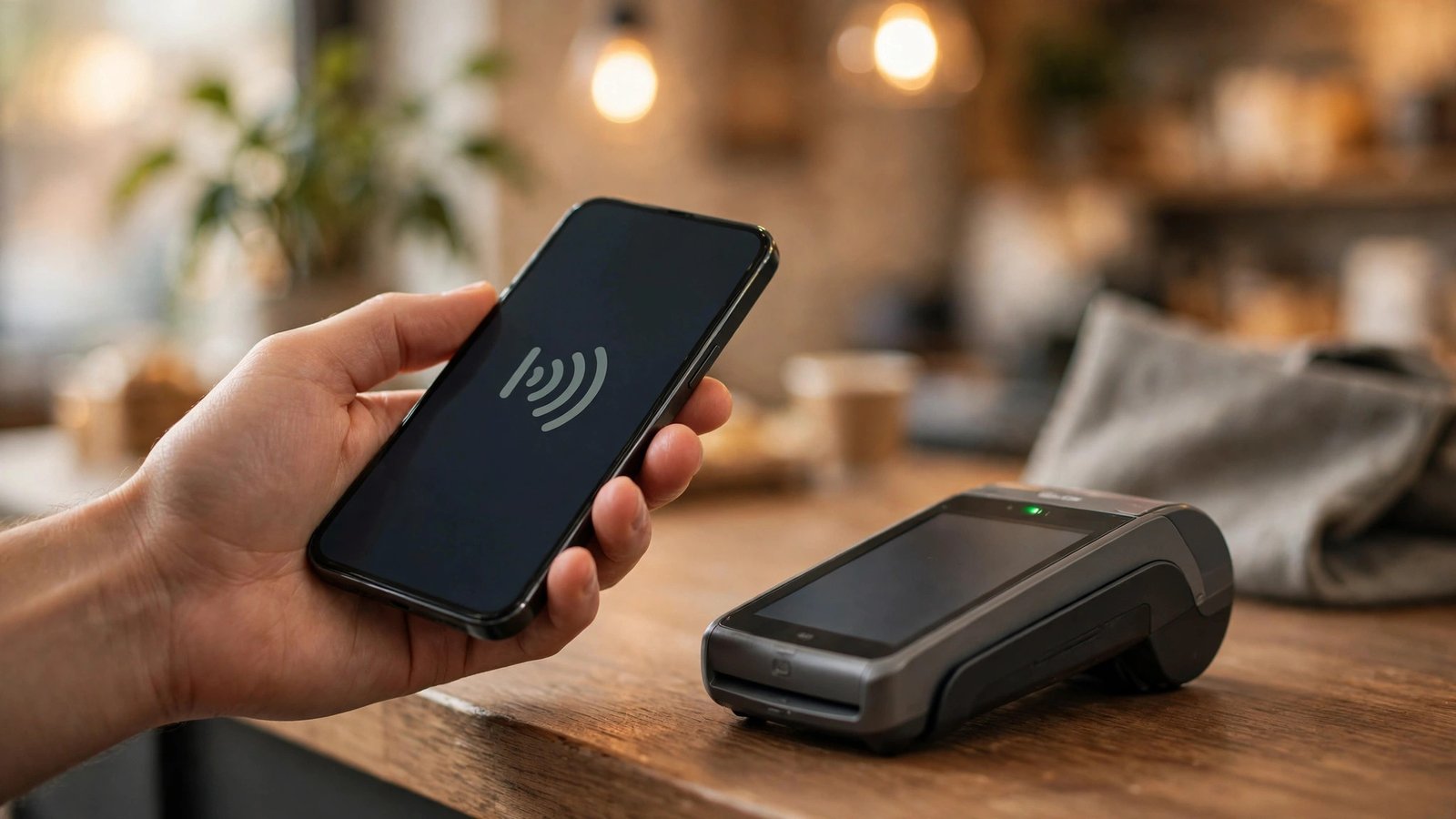
To pay in a store, hold the top of your iPhone near the card reader and confirm with Face ID or Touch ID, or double-click the side button first if your iPhone asks for it. On Android, unlock the phone and hold it near the reader; in most cases you do not need to open Wallet first. Look for the contactless symbol on the reader, four curved lines like a Wi-Fi icon on its side. For purchases in apps and on websites, choose Apple Pay or Google Pay at checkout instead of typing card details, then confirm with your fingerprint, face, or passcode. For transit in some US cities, you can also use an Express Transit card on iPhone, which works without unlocking the phone first. Keep your phone's NFC on and your default card set, and checkout becomes a one-second tap.
Step 5: Fix declines and protect a lost phone
If a payment is declined, work through the short list before assuming the phone is broken. Check that the card is verified in Wallet, that the store accepts contactless payments, and that the card is not frozen or over its limit. Try the default card, then try a second card if you have one. If the phone itself is lost or stolen, act fast: on iPhone, use Find My from another device or icloud.com to mark it as lost and suspend Apple Pay cards. On Android, use Find Hub from another device or a browser to lock the phone and remove payment methods. You do not need to cancel the physical card in most cases, since the phone holds a token rather than the real number, but call your bank if you are unsure. When you get a new phone, add your cards again in Wallet, since payment cards do not transfer automatically with a phone backup.
Frequently Asked Questions
Is paying with my phone safer than using the physical card?
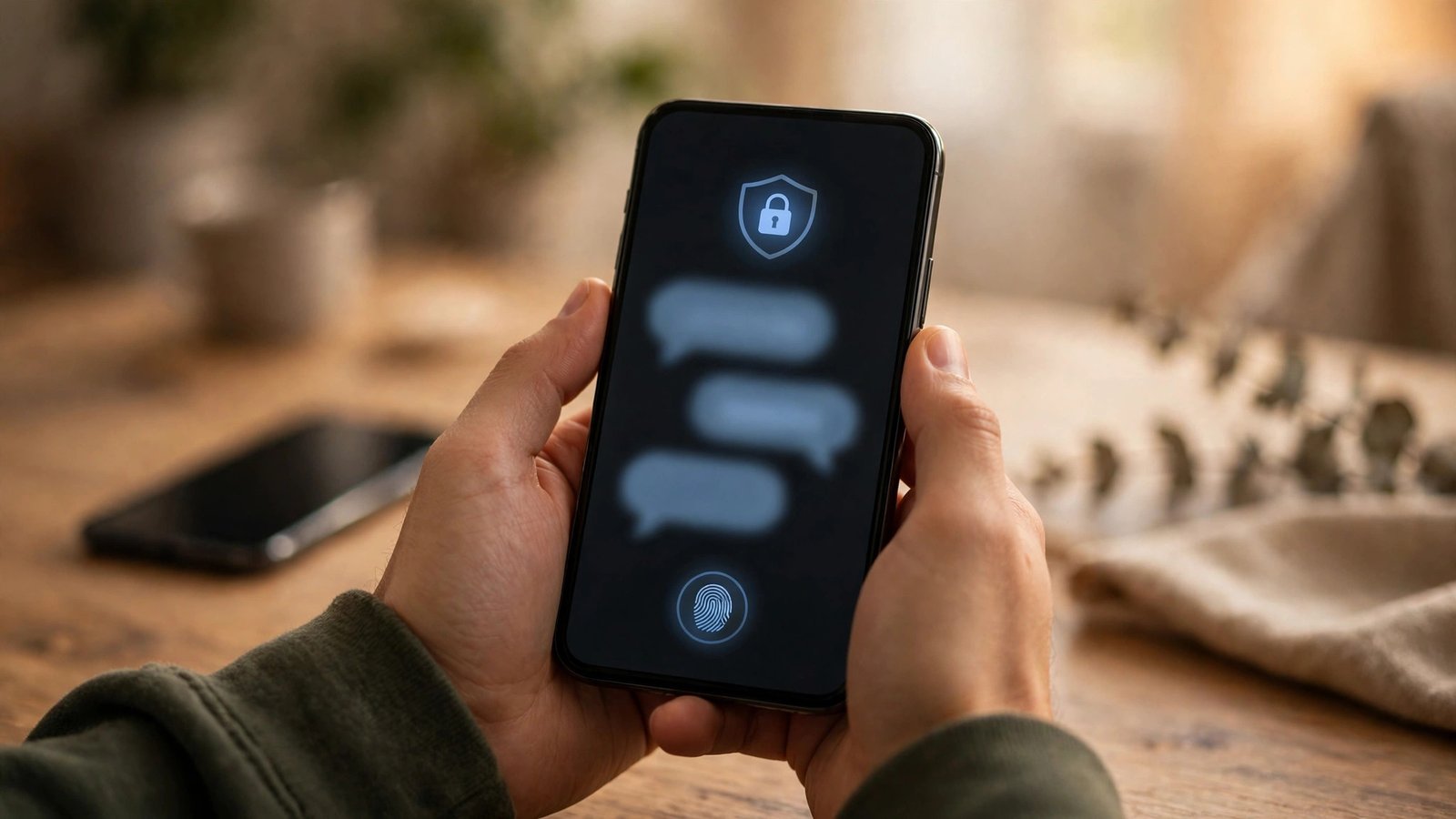
In most cases, yes. Apple Pay and Google Wallet send a device-specific token instead of your real card number, so a store never stores or sees the number itself. You also confirm each payment with your face, fingerprint, or passcode, which a lost physical card does not require.
Why does my card show as pending in Wallet?
The bank verification step is not finished. Open Wallet, select the card, and follow the verification prompt, usually a code by text, email, or your bank app. Until verification completes, the card cannot be used for tap to pay.
Can I use Apple Pay or Google Wallet without an internet connection?
Yes, for most in-store tap payments. The phone stores payment tokens on the device, so a tap at a store reader works offline. Adding a new card and verifying it with your bank do need an internet connection.


Post Comment