How to Share Your Wi-Fi Password with Guests on iPhone and Android in Australia
Reading a long Wi-Fi password out loud, letter by letter, is a recipe for mistakes. Both iPhone and Android now offer quicker ways to share access, and most routers also let you set up a separate guest network. This guide covers the easiest sharing methods for each phone type, plus the safer guest setup to use when visitors come often.
Step 1: Share Wi-Fi from an iPhone to another Apple device
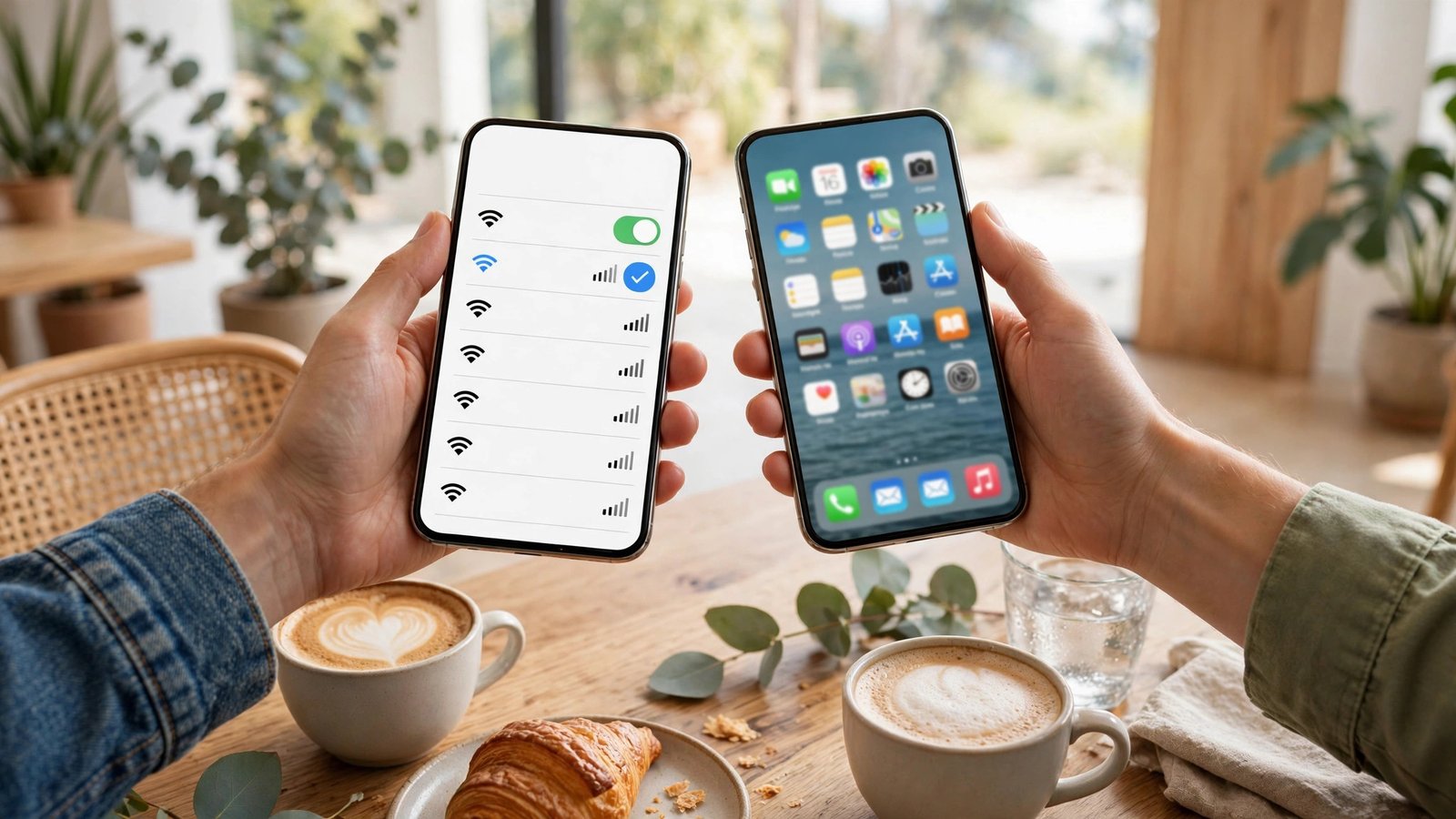
If you and your guest both use Apple devices, sharing takes only a few taps. Make sure both devices have Wi-Fi and Bluetooth turned on, and that your guest is saved in your contacts with the email address or phone number linked to their Apple ID. Both devices should also be unlocked and near each other.
Ask your guest to open Settings, tap Wi-Fi, and select your network name. A prompt should appear on your iPhone asking whether you want to share the password. Tap Share Password, and your guest's device should connect without typing anything. If the prompt does not appear, check that Bluetooth is on, that both devices are close together, and that your guest's contact details are correct, since that is the most common reason sharing fails.
This method works between iPhones, iPads and Macs signed in with Apple IDs. It does not share the password with Android phones, so use a different method below for mixed households.
Step 2: Share Wi-Fi from Android with a QR code
Android phones make sharing easy with a QR code, and this method works for both Android and iPhone guests, since an iPhone camera can scan a Wi-Fi QR code too. On most recent Android phones, open Settings, tap Network and internet or Connections, then tap Wi-Fi. Tap the network you are connected to, then tap Share or the QR code icon.
Your phone may ask for your screen lock, fingerprint or PIN before it shows the code. Once the QR code appears, your guest opens their camera app and points it at the code. Their phone should offer to join the network, and they tap Join or Connect to finish. There is no need to read the password aloud or type it by hand.
The exact menu names vary slightly by brand, so on Samsung phones look under Connections and Wi-Fi, while on Pixel phones look under Network and internet. If you cannot find a Share option, search your Settings app for Wi-Fi and QR code, or check your phone maker's support pages for your model.
Step 3: Share Wi-Fi from an iPhone to an Android guest
An iPhone does not offer a built-in QR code for Wi-Fi sharing in the same way Android does, so you need a small workaround. The simplest option is to use your router's settings or app to show a QR code for your network, if your router offers one. Many internet providers in Australia include this feature in their router app.
Another option is to set up a guest network, covered in Step 4, and share that password instead. That way your main password never leaves your hands at all.
Step 4: Set up a guest network for regular visitors
A guest network is a separate Wi-Fi network that gives visitors internet access without giving them access to your computers, printers, smart home devices or shared files. It is the best option if you host guests often, run an Airbnb, or have tradespeople who need internet access.
Log in to your router settings or open your provider's router app, and look for Guest Network or Guest Wi-Fi. Turn it on, give it a simple name such as your house name plus Guest, and set a password you are happy to share. In most recent versions of router software, you can also set the guest network to turn off automatically after a set time, or limit how much bandwidth guests can use.
Once it is set up, share the guest network name and password with visitors instead of your main network. When they leave, you can change the guest password in a minute, without having to update every device in your own home.
Step 5: Keep your main password safe after sharing
Sharing Wi-Fi is normal, but a few habits keep it safe. Do not share your router admin password with guests, since that password controls your router settings and is different from your Wi-Fi password. If you wrote your Wi-Fi password on a card for guests, store that card where visitors will not photograph it casually.
If a guest's phone is lost or stolen, or if you shared your main password widely at a party, change your Wi-Fi password through your router settings and reconnect your own devices. It takes a few minutes, but it stops old devices reconnecting automatically.
Frequently Asked Questions
Can I share Wi-Fi from an iPhone to an Android phone?
Yes, but not with the one tap Apple to Apple prompt. Use a QR code from your Android phone, your router app, or a trusted QR generator, or type the password into your guest's phone yourself. A guest network is the cleanest option for Android visitors, since you can share that password freely.
Is it safe to share my Wi-Fi password with guests?
Sharing with people you trust is generally fine, but a guest network is safer because it keeps visitors off your private devices and files. Avoid sharing your router admin password, and change your guest password after visitors leave if you host people often.
Why does Wi-Fi password sharing fail between two iPhones?
The most common causes are Bluetooth being off, the devices being too far apart, or the guest not being saved in your contacts with the correct Apple ID details. Check all three, make sure both devices are unlocked, and try again with the guest selecting your network first so the prompt appears on your phone.



Post Comment