How to Set Up Dual SIM and a Second Number on Your Phone in Canada
A second phone number used to mean a second phone. Now most modern phones can hold two numbers at once, and that changes how you can separate work from personal life, travel, or a side business. Dual SIM lets you keep one device in your pocket while two lines stay active. This guide walks through how to set it up in Canada on iPhone and Android, what to check with your carrier, and how to avoid the small mistakes that cause missed calls.
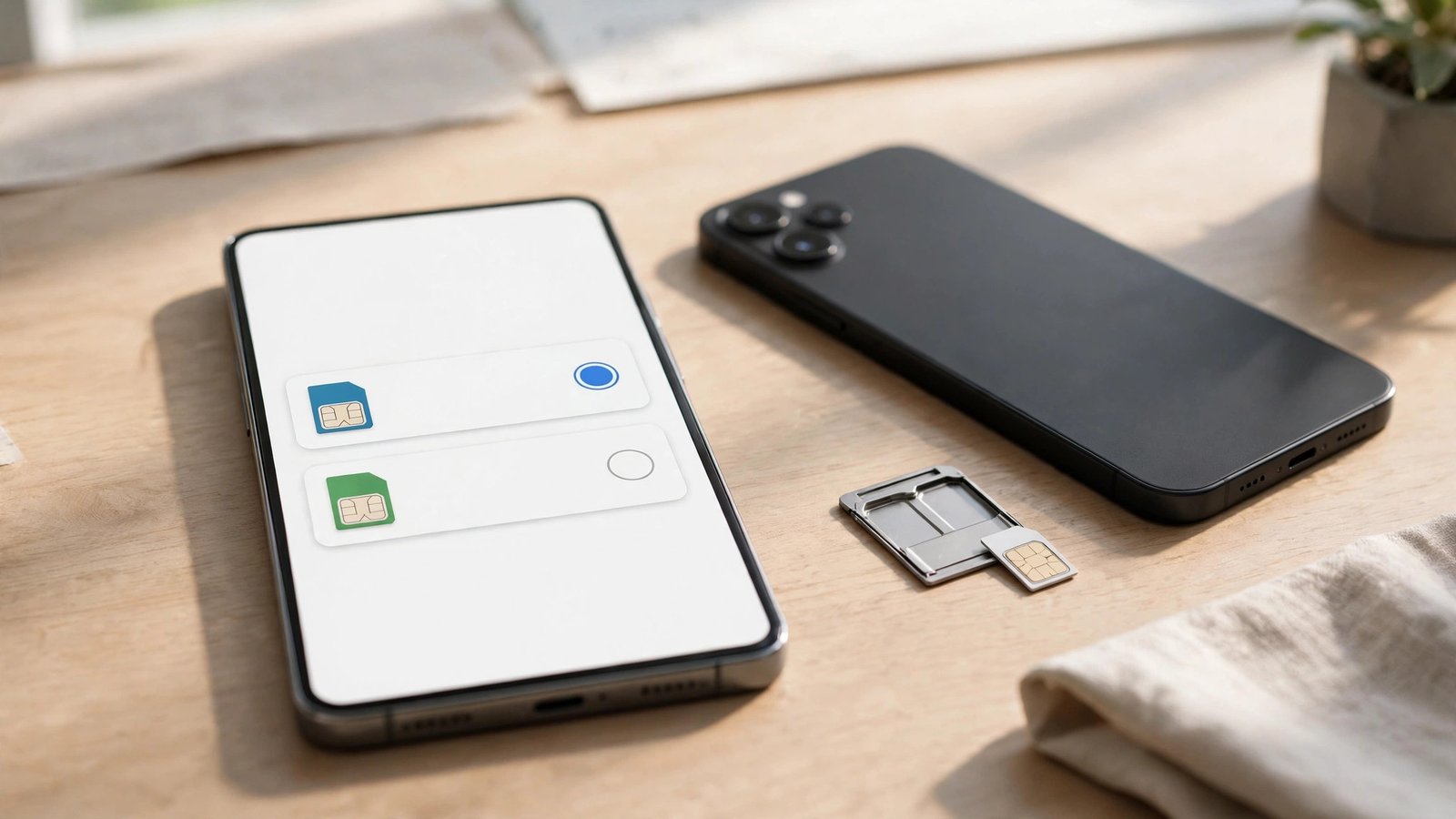
Dual SIM works in two main ways. Some phones have two physical SIM slots. Most newer phones pair one physical SIM with one eSIM, which is a digital SIM you activate by scanning a QR code or through your carrier's app. A few phones support two eSIMs. The exact mix depends on your model, so check your phone's specs before you order anything. In Canada, the major carriers and many smaller providers support eSIM, but support for a second line can vary by plan, so confirm with your carrier first.
Step 1: Check that your phone supports dual SIM
Start in your phone's settings. On iPhone, go to Settings, then Cellular or Mobile Data, and look for an option to add an eSIM. On Android, the path varies by brand, but it is usually under Settings, then Network and Internet, then SIMs. If you see an option to add a second SIM or eSIM, your phone supports it. If you only see one SIM listed and no add option, your model may be single SIM only.
Also check whether your phone is unlocked. A phone locked to one carrier may refuse a second carrier's SIM or eSIM. In Canada, carriers are required to unlock phones on request, and most phones sold in recent years arrive unlocked. If you are unsure, ask your current carrier to confirm the unlock status before you buy a second plan.
Step 2: Get your second line
Decide what the second number is for. A work line, a business number, and a travel plan all point to different choices. For a permanent second number, contact a Canadian carrier or a mobile virtual network operator and ask for a new line as an eSIM or a physical SIM, depending on what your phone supports. You will usually need ID and, in some cases, a credit check for a postpaid plan. Prepaid second lines are often simpler, since they avoid a contract and let you test the setup first.
Step 3: Add the second SIM or eSIM
On iPhone, go to Settings, then Cellular, then Add eSIM, and follow the prompts. You can scan the QR code with your camera or enter the details manually if your carrier provides them. On Android, go to Settings, then Network and Internet, then SIMs, then Add SIM or Add eSIM, and follow the on-screen steps. For a physical second SIM, power off the phone, insert the SIM into the second slot using the SIM tool, and power the phone back on.
Give each line a clear label right away. iPhone lets you label lines as Personal, Work, or a custom name. Android offers similar labels. This step takes ten seconds and saves a lot of confusion later, because every call, message, and data setting will refer to those labels. Use names you will recognize at a glance, such as Personal and Business.
Step 4: Choose your defaults for calls, messages, and data
This is the step people skip, and it causes the most trouble. After both lines are active, choose which line handles each job. On iPhone, go to Settings, then Cellular, and set your default line for calls and for mobile data. You can also set which line is used for iMessage and FaceTime, and you can allow the phone to switch data lines automatically when coverage is weak. On Android, go to the SIM settings and set your preferred SIM for calls, texts, and mobile data separately.
Think about your daily pattern and make a deliberate choice, so you are not surprised when a call goes out from the wrong number. If you use your phone for work, double-check the caller ID that shows up when you call a colleague from the new line.
Step 5: Test both lines before you rely on them
Call your own second number from another phone and confirm it rings. Send a text to each number and confirm both arrive. Turn mobile data on for one line, load a web page, then switch data to the other line and repeat. This five-minute test catches most problems, such as a line that shows as active but has no data plan, or a label mix-up that sends work calls to your personal voicemail.
Common problems and quick fixes
If the second line shows No Service, restart the phone first. That fixes a surprising number of activation issues. If the problem stays, check that the eSIM profile downloaded fully and that the line is turned on in settings. A line can be installed but switched off, which looks exactly like a dead SIM.
If calls work but data does not, check the data default and the access point settings for that line. Your carrier can confirm the correct settings, and most carriers push them automatically when the SIM activates. If texts fail on one line, check that the line is selected for messages and that the number is registered correctly in your messaging app, especially on iPhone where iMessage and SMS can behave differently per line.
Frequently Asked Questions
Can I use two numbers on one phone in Canada?
Yes, if your phone supports dual SIM. Most newer iPhones and Android phones support one physical SIM plus one eSIM, or two eSIMs. Confirm support in your phone's settings and check with your carrier that your plan allows a second line.
Do I need two data plans for dual SIM?
Not always. You can have two lines active for calls and texts while using mobile data on only one of them. Choose one line as your data default in settings, and keep the other line for calls and messages if you want to save on plan costs.
Will dual SIM drain my battery faster?
Running two active lines can use slightly more battery, since the phone maintains connections to two networks. In most cases the difference is small. If battery life drops noticeably, check signal strength on each line, since a weak signal on either line is usually the bigger drain.




Post Comment