How to Download Offline Maps and Navigate Without Signal in the UK
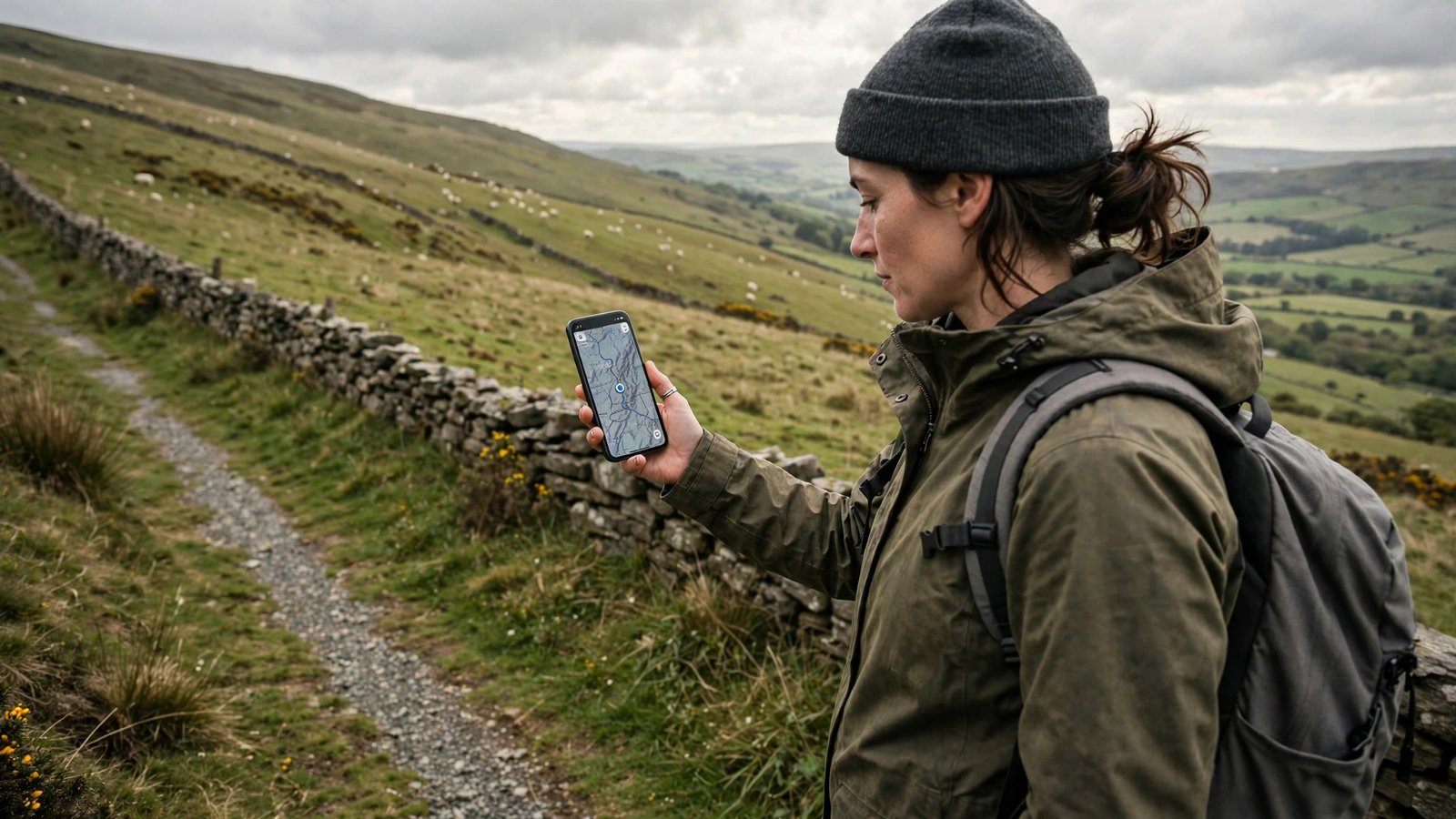
There is a familiar moment on a UK road trip or a walk in the hills: the signal bars drop, the map stops loading, and you are left guessing at the next turn. It happens in rural Wales, in parts of the Scottish Highlands, in deep valleys, in car parks under concrete, and on trains passing through cuttings. The fix is simple, and it takes five minutes at home: download the map before you leave. Once an offline map is on your phone, your GPS can still place you on it, even when mobile data is weak or gone.
This guide covers Google Maps on iPhone and Android, and Apple Maps on iPhone, with the steps as they work in most recent versions. It also covers the habits that make offline maps reliable, such as updating them before a trip and checking that the area you need is actually inside the downloaded region. You do not need a paid app, and you do not need to change your phone plan. You just need a little storage space and a Wi-Fi connection before you set off.
Step 1: Pick the right app and check your storage
Start by deciding which app you will use on the day. Google Maps lets you download a chosen area for offline use on both iPhone and Android, which makes it a good default for most people. Apple Maps on iPhone also offers offline maps in most recent versions, and it can be a good choice if you already use Apple Maps for directions. Pick one app as your main offline map for the trip, so you do not split your attention between two downloads.
Step 2: Download an area in Google Maps
Open Google Maps and make sure you are signed in, if you normally use a Google account, so your downloads stay tied to your account. Tap your profile picture or initial in the top corner, then choose Offline maps. Tap Select your own map, or Download, depending on the version you see. A rectangle will appear over the map. Move and zoom it until it covers the whole area you will travel through, including your starting point, your destination and any detours you might take. Try not to cut the rectangle too tight around a single town: a slightly larger area costs more storage, but it saves you if a road closure sends you on a different route.
Once you are happy with the area, tap Download. Stay on Wi-Fi while it downloads, and keep the app open until it finishes. Give the download a clear name if the app asks, such as Lake District or Cornwall coast. When it is done, you should see it listed under Offline maps with its size and its expiry or update date. Google Maps offline maps need to be updated from time to time, so check that date before a trip and refresh the map if it is out of date.
Step 3: Download an offline map in Apple Maps on iPhone
If you prefer Apple Maps, open the app on your iPhone and tap your profile picture or initial. Look for Offline Maps, then choose Download New Map. Type the place you want, such as Snowdonia or the Cotswolds, and choose the suggested area, or adjust the rectangle to cover the region you need. Apple Maps will show an estimate of the download size before you confirm, which helps you judge whether you have enough storage.
Step 4: Test the map before you leave home
This is the step most people skip, and it is the one that catches problems while you can still fix them. Put your phone in aeroplane mode, open the map app, and search for your destination inside the downloaded area. Check that streets, place names and the route itself load without a data connection. Try starting a route and watching the blue dot move, or at least confirming that the route draws fully on screen. If the map looks blank, patchy or stuck on a loading message, the download may not cover that spot, or it may not have finished.
Step 5: Use the offline map on the day, and know its limits
On the day, your phone's GPS still works without mobile data, because GPS uses satellites, not your phone signal. Open the downloaded map, search for your saved destination, and start navigation as normal. In many cases you will get turn by turn directions for driving, and a route line for walking or cycling, even with no signal. Keep your phone charged, because GPS navigation uses battery, and carry a charging cable or a power bank on longer walks and drives.
Know the limits before you rely on the map completely. Offline maps do not always include live traffic, road closures reported in the last few minutes, public transport times, or search results for businesses outside the downloaded area. If a road is closed, the app may not know until you are back in signal. That is why a paper map, a screenshot of the route, or a quick note of key turnings is still a sensible backup for remote walks and long rural drives. Use the offline map as your main tool, but do not treat it as a promise that every detail is current.
Frequently Asked Questions
Does GPS work without mobile data or Wi-Fi?
Yes, in most cases. GPS on your phone uses satellite signals, so it can still work out where you are on a downloaded map even when you have no mobile signal. What you lose without data is live information, such as traffic updates and new search results, not your location itself.
How long does an offline map stay valid?
It depends on the app and the version you use. Google Maps offline maps typically need to be updated after a period of time, and the app will show an expiry or update date in the Offline maps list. Apple Maps also refreshes offline maps over time. Check the date before a trip and update the map on Wi-Fi if it looks old.
Can I still search for places while offline?
You can search for places inside the area you downloaded, and for saved places, in most cases. Searches for places far outside the downloaded region, or for very new businesses, may not work until you are back in signal. That is why saving your destination before you leave is so useful.




Post Comment