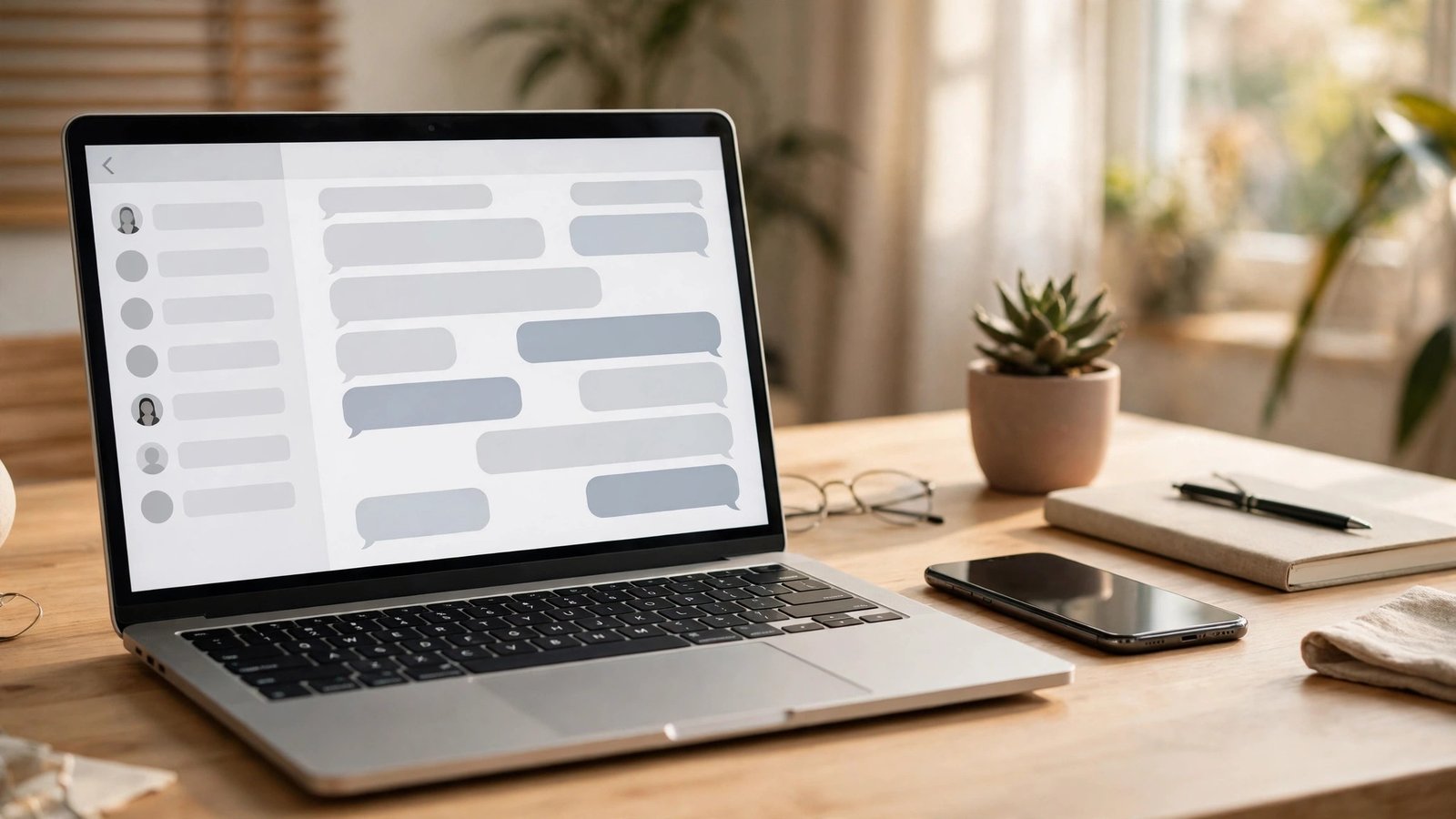
How to Use WhatsApp on Your Computer in the UK: WhatsApp Web and Desktop Made Simple
Typing long messages on a small phone keyboard gets tiring when you are already working at a computer. WhatsApp Web and the desktop app mirror your chats on a bigger screen, so you can type with a full keyboard and drag files straight into a chat. Your messages stay end to end encrypted, and your phone remains the main account.
This guide covers both routes, WhatsApp Web in a browser and the desktop app for Windows and Mac, plus the details that catch people out, such as staying signed in, sending files, and what happens when your phone is offline.
Step 1: Choose WhatsApp Web or the desktop app
WhatsApp Web runs in your browser and needs no installation. Open web.whatsapp.com in a modern browser, and you will see a QR code. That is the quickest option on a shared computer or a work machine where you cannot install software.
The desktop app is a separate program for Windows and Mac, downloaded from whatsapp.com/download or from the Microsoft Store or Mac App Store. It can feel smoother and send desktop notifications more reliably. If you use WhatsApp on your computer every day, the app is usually the better choice. If you only need it occasionally, the browser version is simpler.
Both show the same chats, because both are linked devices on your account. You can link up to four devices in most recent versions, alongside your phone, and use them even when your phone is not connected to the internet.
Step 2: Link your phone with the QR code
Start with your computer. For WhatsApp Web, go to web.whatsapp.com. For the desktop app, open the app after installing it. Either way, you will see a QR code and a prompt to link a device.
Now pick up your phone. On iPhone, open WhatsApp, tap Settings, then Linked Devices, then Link a Device. On Android, open WhatsApp, tap the three dot menu, then Linked Devices, then Link a Device. Point your camera at the QR code and hold it steady until the link completes.
If the camera will not scan the code, brighten the computer screen, move the phone a little closer or further away until the code sits inside the frame, and wipe the lens if it is smudged. If the code has expired, refresh the page or restart the app for a fresh code. Do not share a screenshot of your QR code. Anyone who scans it can link their own device to your account, so treat it like a password.
Step 3: Send messages, photos, and files from your computer
Once linked, using WhatsApp on a computer is straightforward. Click a chat on the left, type in the message box at the bottom, and press Enter to send. You can use the emoji button, attach files with the paperclip or plus icon, and paste images copied from elsewhere straight into the message box in most browsers and in the desktop app.
Sending files is where the computer version really earns its keep. Drag a document, photo, or PDF from a folder into the chat window, add a caption if you want one, and send it. You can also record a voice message with the microphone icon, if your computer has a microphone and your browser has permission to use it.
One habit worth building is to check which chat is selected before you type. A glance at the name at the top of the chat window before pressing Enter prevents most mistakes.
Step 4: Manage notifications and stay signed in
Notifications can either help you or interrupt you constantly, so set them to suit your working day. In WhatsApp Web, click the menu or settings icon, then Notifications, and choose sounds, previews, and desktop alerts. In the desktop app, you will find similar options in Settings, plus your computer's own notification settings.
By default, WhatsApp Web and the desktop app try to keep you signed in on a computer you trust. On a shared or public computer, never leave yourself signed in. When you finish, open WhatsApp on your phone, go to Linked Devices, tap the computer session, and choose Log Out.
If WhatsApp Web keeps logging you out on your own computer, the usual cause is a browser setting that clears cookies or site data on exit. Try allowing cookies for web.whatsapp.com, or use the desktop app instead.
Step 5: Fix sync problems when chats do not appear
Sometimes a message appears on your phone but takes a while to show on the computer. Start by refreshing the WhatsApp Web page or restarting the desktop app. That forces a fresh sync, and in most cases the missing messages arrive within a minute or two.
If messages still do not sync, check your internet connection on both devices. WhatsApp on the computer needs its own connection, even when your phone is offline, because linked devices sync through WhatsApp's servers.
If one chat refuses to sync while others work, log out of the computer session from your phone's Linked Devices screen, then link the device again with a fresh QR code. Relinking does not delete your chats, because they remain on your phone.
A few extras are worth knowing. You can star important messages, search all chats, and mute a noisy group. You can also make voice and video calls from the desktop app in most recent versions, if your computer has a microphone, speakers, and a camera.
Frequently Asked Questions
Can I use WhatsApp on my computer without my phone nearby?
Yes, in most recent versions. Once a computer is linked, it can send and receive messages even when your phone is offline, thanks to multi device support. Your phone is still the main account device, so you need it for the initial QR code link.
Is WhatsApp Web safe on a shared computer?
It is safe only if you log out when you finish. Never leave a session signed in on a shared or public computer, and check Linked Devices on your phone regularly. If you see an unfamiliar device, log it out at once.
Why will my phone not scan the WhatsApp Web QR code?
Brighten the screen, hold the phone steady at a comfortable distance, and clean the camera lens. If the code has expired, refresh the page or restart the desktop app for a fresh code. Never share a screenshot of your QR code, because anyone who scans it can link a device to your account.


Post Comment