How to Scan QR Codes Safely on Your Phone and Spot a Fake Before You Tap
QR codes are now part of everyday life in Australia. You scan them to open a menu, pay for parking, check in at an event, or log in to a website. They are quick and convenient, and that is exactly why scammers like them. A fake QR code can send you to a lookalike website that steals your login details or payment information. The good news is that safe scanning takes only a few seconds once you know what to check.
How to scan a QR code on iPhone and Android
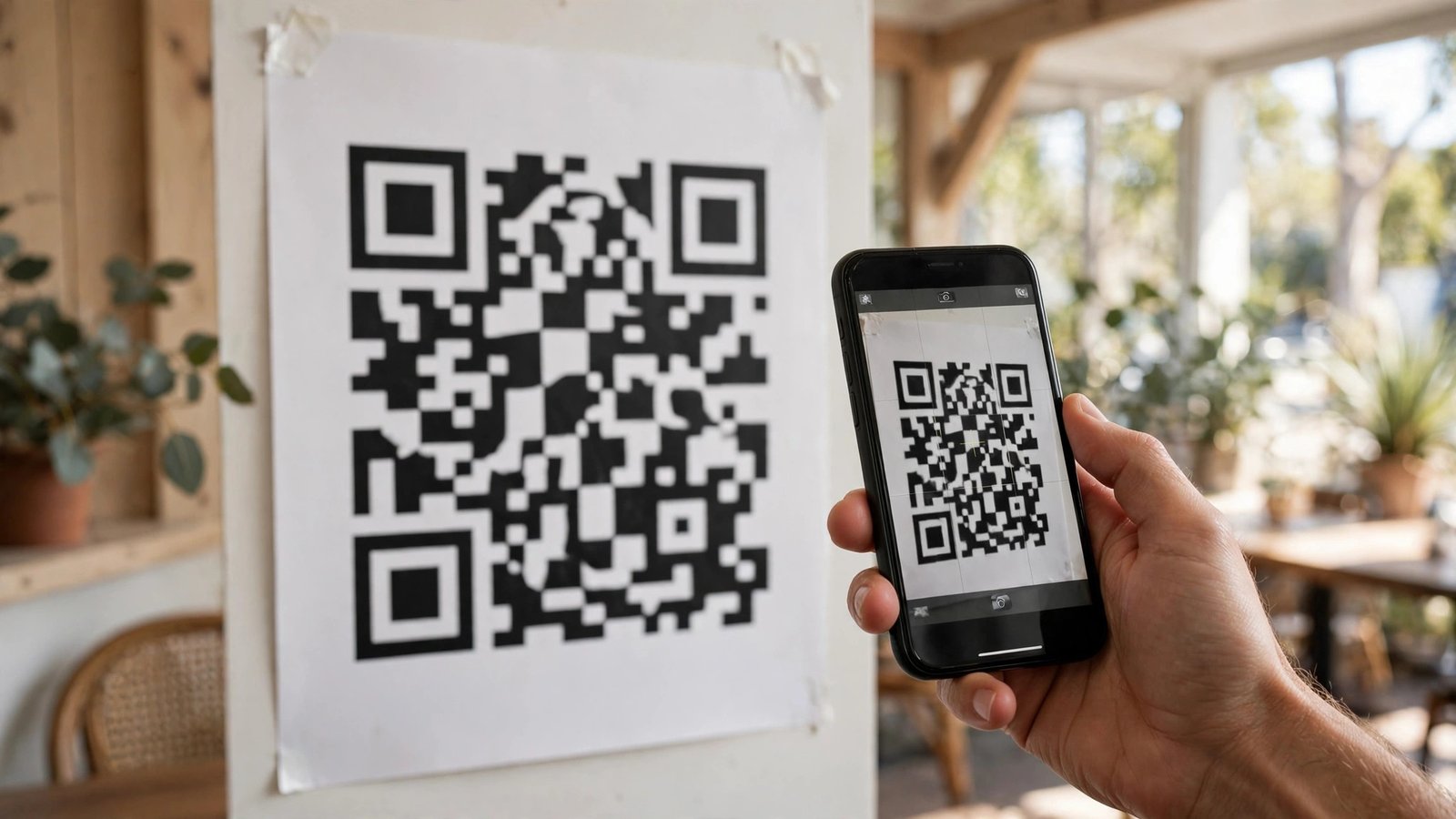
On iPhone, open the Camera app and point it at the code. A yellow notification appears with the web address. Do not tap straight away. Read the address first, and only tap if it looks like the business or service you expect.
On Android, the Camera app works the same way on most recent phones. Point the camera at the code, wait for the link preview, and check the address before tapping.
The five second check before you tap
The most important habit is reading the link preview. A genuine code for a restaurant menu should point to that restaurant’s website or a well known menu service. If the address looks odd, uses misspellings, adds extra words, or points to a file download you did not expect, stop.
Watch for a few warning signs. A web address that is a long string of random letters is worth questioning. A link that claims to be your bank but uses a different domain name is a red flag. A code that promises a prize, a refund or an urgent account fix is trying to rush you, and rushing is a classic scam tactic. Real businesses rarely ask you to scan a code to fix an urgent account problem.
Never enter your bank login, card details or passwords on a page you reached by scanning a code unless you are certain it is genuine. If a page asks you to log in, close it and open the service’s own app or type its web address yourself. That one step defeats most QR scams.
Watch out for stickers and swapped codes
One common trick is placing a fake QR sticker over a real one. This has been reported on parking meters, posters and public notices in several countries, and it works because people trust a code that looks official. Before scanning a code in a public place, look closely. Is the code printed cleanly on the sign, or does it look like a sticker stuck on top? Does it peel at the edges? Does it cover another code underneath?
If anything looks tampered with, do not scan it. Pay through the official app, use the business’s own website, or ask staff for the correct link. The same caution applies to codes in emails and messages. A QR code in an unexpected email, especially one warning about an account problem, deserves the same suspicion as a suspicious link.
Be careful with codes that ask you to make a payment. Check the amount, the recipient and the payment app before confirming. If the details do not match what you expected, cancel the payment and contact the business through a number or address you already trust.
What to do if you scanned a suspicious code
If you tapped a link and now feel unsure, act quickly but calmly. Close the page and do not enter any details. If you did enter a password, change it straight away from the service’s own app or website, and turn on two factor authentication if you have not already. If you entered card details, contact your bank promptly and ask about blocking the card or watching for unusual transactions.
Check your phone for anything unexpected. A QR code on its own cannot install an app on a modern iPhone or Android phone without your permission, but a scam page may try to trick you into downloading something. If you downloaded an app or file from a QR link, delete it, and only reinstall apps from the official App Store or Google Play.
Report the scam so others are warned. In Australia, you can report scams to Scamwatch, run by the Australian Competition and Consumer Commission. A short report with where you saw the code and what the link showed helps others recognise the same trick.
Safer scanning habits for everyday use
Keep your phone’s software up to date, since camera and browser protections improve over time. Avoid installing third party QR scanner apps that ask for broad permissions, since your built in camera already does the job and shows a link preview.
Use QR codes for low risk tasks, like opening a menu or a timetable, and be more careful when money or logins are involved. When a code leads to a payment or a login, slow down and verify the destination first. If you are unsure, type the address yourself or use the official app. Safe scanning is not about avoiding QR codes. It is about taking five seconds to check before you tap.
Frequently Asked Questions
Is it safe to scan any QR code with my phone camera?
Scanning itself is generally safe, since your camera only shows a link preview. The risk comes from tapping the link and entering details on a fake page. Always read the preview address before tapping, and never log in or pay on a page you do not trust.
What should I do if a QR code looks like a sticker over another code?
Do not scan it. A sticker placed over a genuine code is a common scam technique. Use the business’s official app or website instead, or ask staff for the correct link.
Can a QR code install a virus on my phone just by scanning it?
On a modern iPhone or Android phone, scanning a code does not install software by itself. It only opens a link or shows information. The danger is a scam website that tricks you into downloading something or entering personal details, so check the link and avoid downloads from QR links.


Post Comment