How to Use Google Maps Offline on iPhone and Android in the US
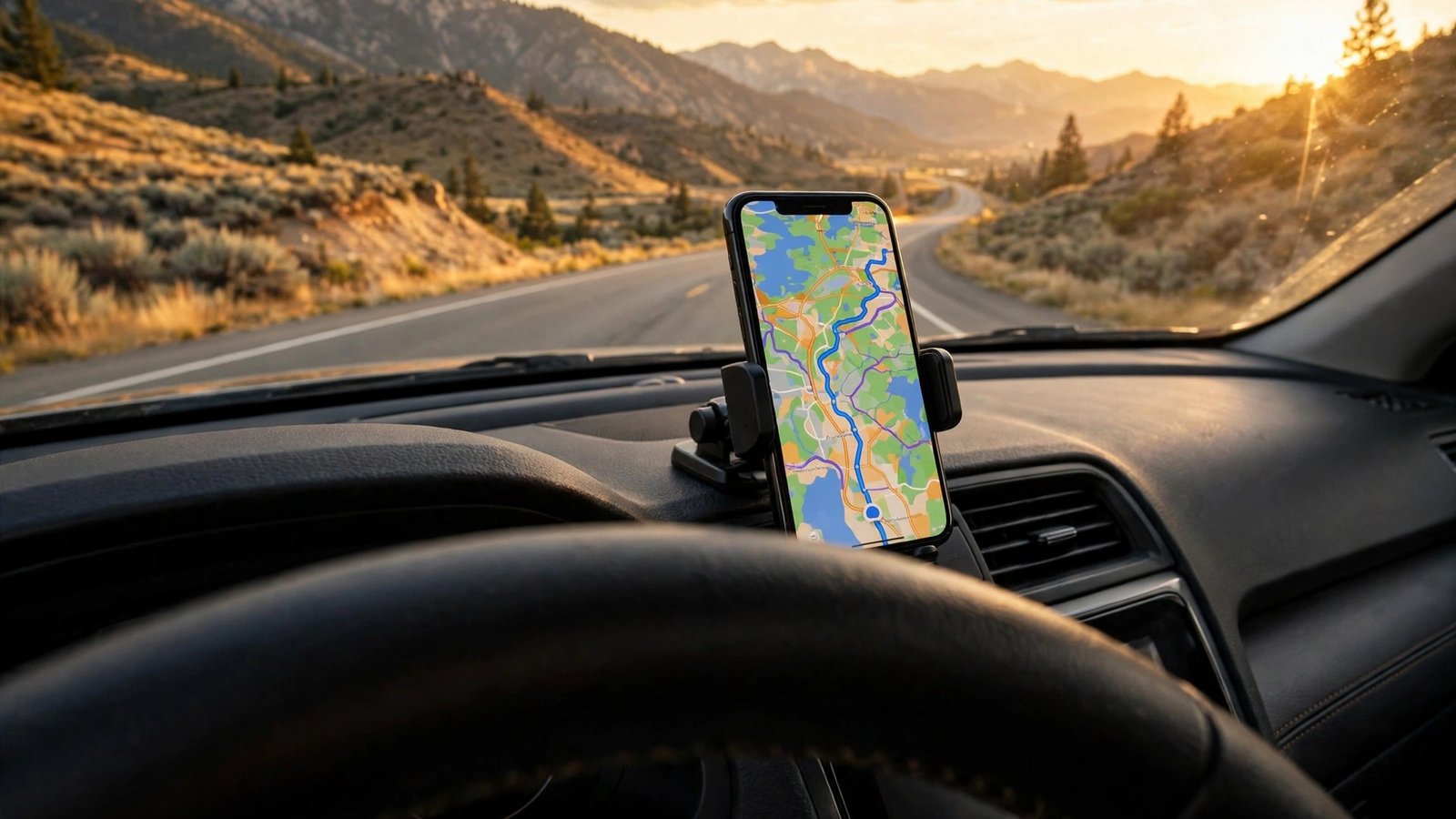
A dead zone on a mountain road is the worst time to discover that your maps need the internet. Google Maps lets you download whole areas to your phone ahead of time, so navigation keeps working when the connection drops. It works on both iPhone and Android, and a downloaded map stays on your phone for weeks. Here is how to set it up, use it on the road, and keep it from eating all your storage.
Before you start: a quick checklist
Download your maps while you are on Wi-Fi, not on mobile data. Offline map areas can be large, often hundreds of megabytes for a city and more for a wide rural area, so a Wi-Fi connection saves both time and data. Make sure the Google Maps app is updated to the latest version from the App Store or Google Play, since the steps below follow the current layout.
Check your free storage too: on iPhone, Settings, then General, then iPhone Storage; on Android, Settings, then Storage. If space is tight, clear out old downloads or unused apps first. A metro area usually needs a few hundred megabytes, so most phones can hold several without trouble.
Finally, sign in to the Google account you use for Maps, so your saved places and downloads stay in sync if you switch phones later.
Step 1: Download a map area
Open Google Maps and search for the place you are heading to, such as a city or a national park. Tap its name at the bottom of the screen, then tap the three-dot menu in the top right and choose Download offline map. Google Maps will show a rectangle over the area: drag the corners or pinch to zoom until it covers everywhere you plan to drive, including detours and the roads around your destination.
Tap Download. The app shows the size before it starts, so you can shrink the area if it is bigger than you expected. The map downloads in the background while you keep using your phone. On Android, you can also start from your profile picture, then Offline maps, then Select your own map.
Give the download a clear name, such as the city and the month, so you can find it later. Download maps for each stop on a longer trip, not just the final destination, since one rectangle cannot cover a whole cross-country drive.
Step 2: Manage your offline maps
Downloaded maps do not last forever. Google Maps updates them automatically over Wi-Fi when they become outdated, and it deletes a map that has not been updated for a long time. To check what you have saved, tap your profile picture, then Offline maps, to see each saved area, its size, and its download date.
From that screen you can rename or delete a map, or turn automatic updates on and off. Leave updates on, since roads change and an old map can send you down a closed road. If you are short on storage, delete maps from finished trips before downloading new ones.
On Android, you can also change where offline maps are stored: in Offline maps, tap the gear icon, choose Storage preferences, and pick your SD card if your phone has one. On iPhone, offline maps always live in the app's own storage.
Step 3: Navigate without a connection
Using an offline map is simple: use Google Maps the way you normally would. Search for an address or a saved place inside the downloaded area, tap Directions, and choose the driving route. Turn-by-turn voice guidance works offline, and GPS follows your location without a mobile signal.
A few things work differently offline. Live traffic does not show, so the app cannot warn you about a jam or suggest a faster route. Alternative routes are limited to the downloaded area, and the app cannot look up new places outside it. Walking, cycling, and transit directions are limited or unavailable offline, so driving works best.
If your route leaves the downloaded area, navigation stops until you are back inside it or back online. Download overlapping areas along your whole route, with a margin on each side, rather than one tight rectangle around the destination.
Tips for road trips and rural driving
Download maps the night before you leave, while you are still on home Wi-Fi. Hotel and airport Wi-Fi can be slow, and a half-downloaded map is no help on the road. For a national park or a rural area, download a wider area than you think you need, since cell coverage there is often worse than the coverage map suggests.
Save your key stops before you go. Drop a pin on your hotel, trailhead, or meeting point and save it to a list, so you can tap it and navigate even when search cannot reach the internet.
Bring a car charger. GPS navigation uses more battery than most people expect, and a phone that dies halfway through a mountain pass leaves you with no map at all.
What offline maps cannot do
Offline maps are a backup, not a replacement for a live connection. Without internet you cannot search for new businesses, read reviews, or check opening hours, and you cannot get live traffic, road closures, or transit times. A very long drive needs several downloads, since one map cannot cover an area larger than its size limit.
For a whole state or a multi-day drive, download each region separately and check the list before you set off. Remember that offline maps expire: if a map is months old and unupdated, Google Maps may delete it, so re-download anything important before a big trip.
Frequently Asked Questions
How much storage does an offline map use?
It depends on the size of the area. A small town may need only tens of megabytes, while a large metro area can need several hundred. The app shows the exact size before you download, so you can shrink the rectangle if it is bigger than you have room for.
Do offline maps expire?
Yes. Google Maps updates downloaded maps automatically over Wi-Fi, and it may delete one that has not been updated for a long time. Check your Offline maps list before a trip and re-download anything stale.
Can I search for places while offline?
You can search for addresses and saved places inside a downloaded area and navigate to them with turn-by-turn directions. You cannot search for new businesses, read reviews, or get live traffic and transit information without an internet connection.





Post Comment