How to Find Your Forgotten Wi-Fi Password on iPhone and Android in the UK
You need to connect a new device to your home Wi-Fi, a friend asks for the password, or your phone has forgotten the network after an update. The password is long, random, and written down somewhere you cannot find. The good news is that your phone probably already knows it.
Both iPhone and Android can show you the password for a Wi-Fi network you have joined before. Your router has it too, printed on a sticker. Here is how to find it on each device, and what to do when none of those options work.
Find the Wi-Fi password on iPhone
On iPhone, the password for your current Wi-Fi network is stored in Settings, and you can view it in a few taps. This works in most recent versions of iOS, so if you do not see the option, check that your iPhone is updated to the latest software.
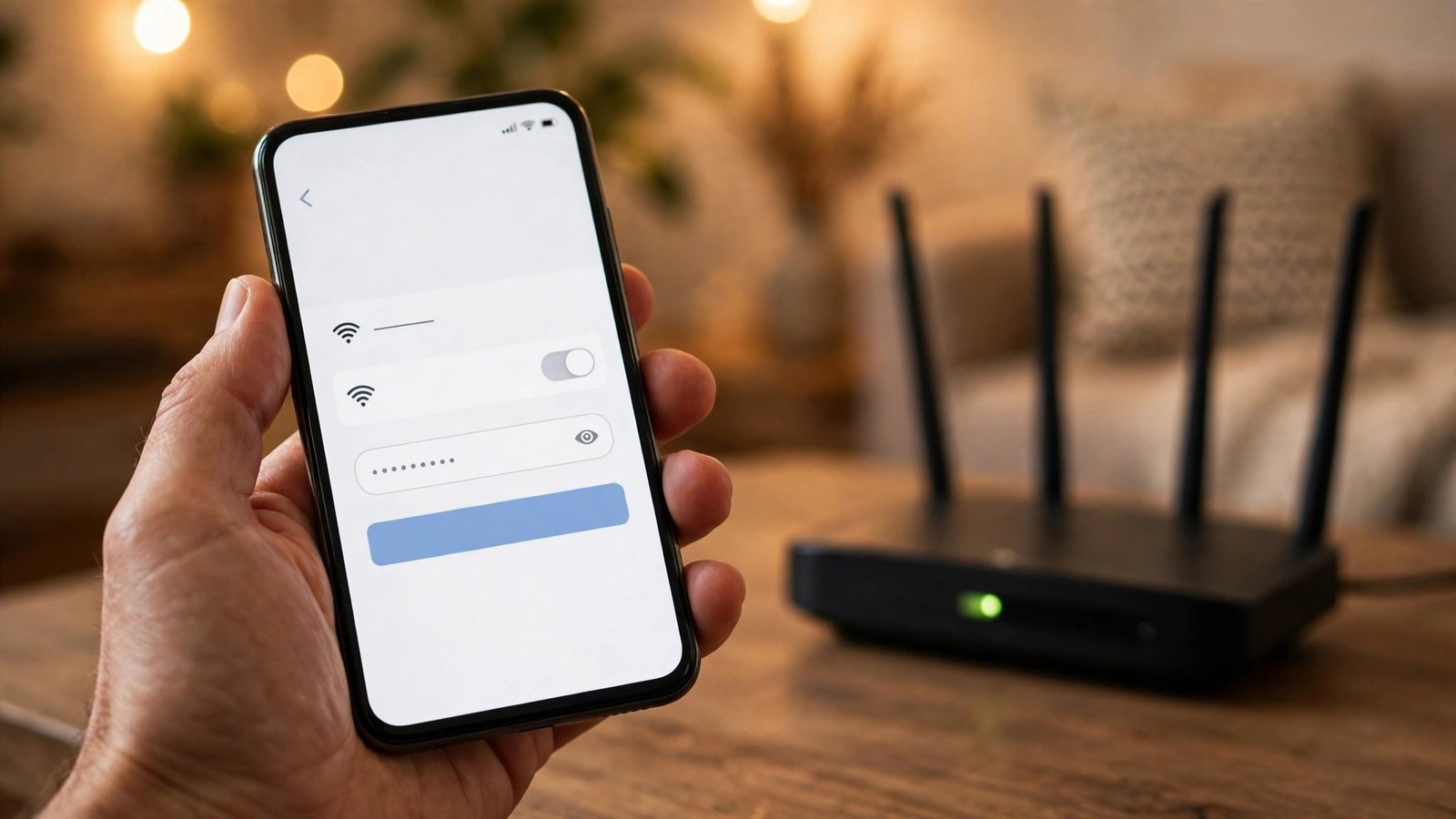
Open Settings and tap Wi-Fi. Make sure you are connected to the network whose password you want, or find it in the list of known networks below. Tap the small information icon, the letter i inside a circle, next to the network name.
On the network details screen you will see a Password field with the password hidden behind dots. Tap the field and authenticate with Face ID, Touch ID, or your passcode. The password will appear in plain text, and you can tap it to copy it. Paste it into a message or type it into the new device.
If the network is one you joined before but are not currently connected to, the steps are the same. Scroll to the list of known networks in Settings, tap the information icon next to the one you want, and tap the Password field to reveal it. The phone stores the password for every network it has joined, so this works for your home, your office, and any other network you have used.
Find the Wi-Fi password on Android
Android phones can show a saved Wi-Fi password too, though the exact steps depend on the phone you have. On a Google Pixel and most Android phones running recent versions, open Settings, then tap Network and internet, then Internet.
Find your connected network in the list and tap the gear or settings icon next to it. Tap Share, and authenticate with your fingerprint, face, or PIN. Android will show a QR code that another phone can scan to join the network, and on many phones the password is printed in plain text underneath the code. If the password is not shown, the QR code still lets another device connect without typing anything.
On a Samsung Galaxy phone, open Settings, then tap Connections, then Wi-Fi. Tap the gear icon next to the network you are connected to, then tap QR code at the bottom of the screen. Authenticate, and the phone will show a QR code and, in most recent versions, the password below it.
Some older Android phones do not show the password at all, even after authentication. In that case, the QR code is still useful, and the router sticker method below will give you the password itself.
Check the sticker on your router
Every broadband router supplied by a UK provider has a sticker with its default Wi-Fi name and password. The sticker is usually on the bottom or the back of the router, and it lists the network name, which often starts with the provider's name, and a password next to words like Wi-Fi Password, Wireless Key, or Network Key.
This password works as long as nobody has changed it. If you or someone in your household changed the Wi-Fi password after the router was installed, the sticker will show the old one, and the phone method above is the reliable way to find the current one.
Find it on a Windows PC or Mac
If a computer in your house is already connected to the Wi-Fi, it can reveal the password too. On a Windows PC, open the Control Panel, go to Network and Sharing Centre, click your Wi-Fi network name, then Wireless Properties, then the Security tab, and tick Show characters. You will need administrator access on the computer.
On a Mac, open System Settings, click Wi-Fi, then click the three dots next to your network and choose Copy Password. You will need to authenticate with your Mac password or Touch ID.
Keep the password somewhere safe
Once you have the password back, take a minute to store it properly so you do not have to hunt for it again. Write it on a card kept near the router, save it in a password manager, or take a photo of the router sticker and keep it in a locked note on your phone.
Avoid texting the password to a group chat or sticking it on the fridge where visitors can photograph it. If you suspect the password has spread too far, change it in the router settings and update your devices.
Frequently Asked Questions
Can I see the Wi-Fi password on iPhone without Face ID?
No, your iPhone asks for Face ID, Touch ID, or your passcode before it shows a saved Wi-Fi password. This stops anyone who picks up your unlocked phone from reading your network passwords. If you have forgotten your iPhone passcode as well, you will need to reset the phone, so use the router sticker method instead.
Why does the password on my router sticker not work?
The sticker shows the password the router shipped with. If anyone changed the Wi-Fi password in the router settings since then, the sticker is out of date. Check the password saved on a phone or computer that is already connected, or reset the router to restore the sticker password.
Can I share Wi-Fi with a guest without telling them the password?
Yes, on iPhone you can share the password automatically when a guest's Apple device is nearby and they try to join your network, as long as they are in your contacts. On Android, the QR code in the Wi-Fi settings lets a guest connect by scanning it with their camera, without ever seeing the password typed out.




Post Comment