How to Use Contactless and Oyster on the London Tube with Your Phone
If you live in London or visit often, your phone can replace your ticket for the Tube. Transport for London accepts contactless bank cards, Apple Pay and Google Pay across the network, and you can also manage an Oyster card from your phone. Once it is set up, you just tap in and out, and the system works out the cheapest fare for the day.
This guide covers how to pay with your phone on the Tube, how daily and weekly capping works, and the mistakes that cause extra charges. It applies to the London Underground, buses, trams, the DLR, London Overground, the Elizabeth line, and most National Rail services inside London.
What you need before you travel
You need a phone with NFC, which almost every iPhone and Android phone sold in recent years has, plus a debit or credit card added to Apple Pay or Google Pay. You can also use a physical contactless bank card if you prefer. Check that your card is from a bank that supports contactless payments in the UK, which most high street banks do.
One rule matters more than any other: use the same card or device to touch in and touch out. If you tap in with your phone and tap out with your physical card, the system sees two unfinished journeys and charges you two maximum fares. Pick one payment method for the whole trip and stick with it.
Make sure your phone has enough battery for the return journey too. If your phone dies before you touch out, you will not be able to complete the journey and may face a maximum fare.
How to set up Apple Pay or Google Pay for the Tube
On an iPhone, add your card in the Wallet app if you have not already. Then turn on Express Transit for Transport for London. Go to Settings, then Wallet and Apple Pay, then Express Transit Card, and select your card. Express Transit lets you tap in and out without unlocking your phone or confirming with Face ID, which keeps the gates moving.
On Android, add your card in the Google Wallet app. Google Pay works at TfL readers without unlocking for small transactions in most cases, but check your phone's settings, as some models ask you to wake the screen first. Make sure NFC is turned on in your phone's settings.
If you already use an Oyster card, you can link it to a TfL account and top it up in the TfL Oyster app if you want to keep travel spending separate from your bank account.
Tapping in and out at the gates
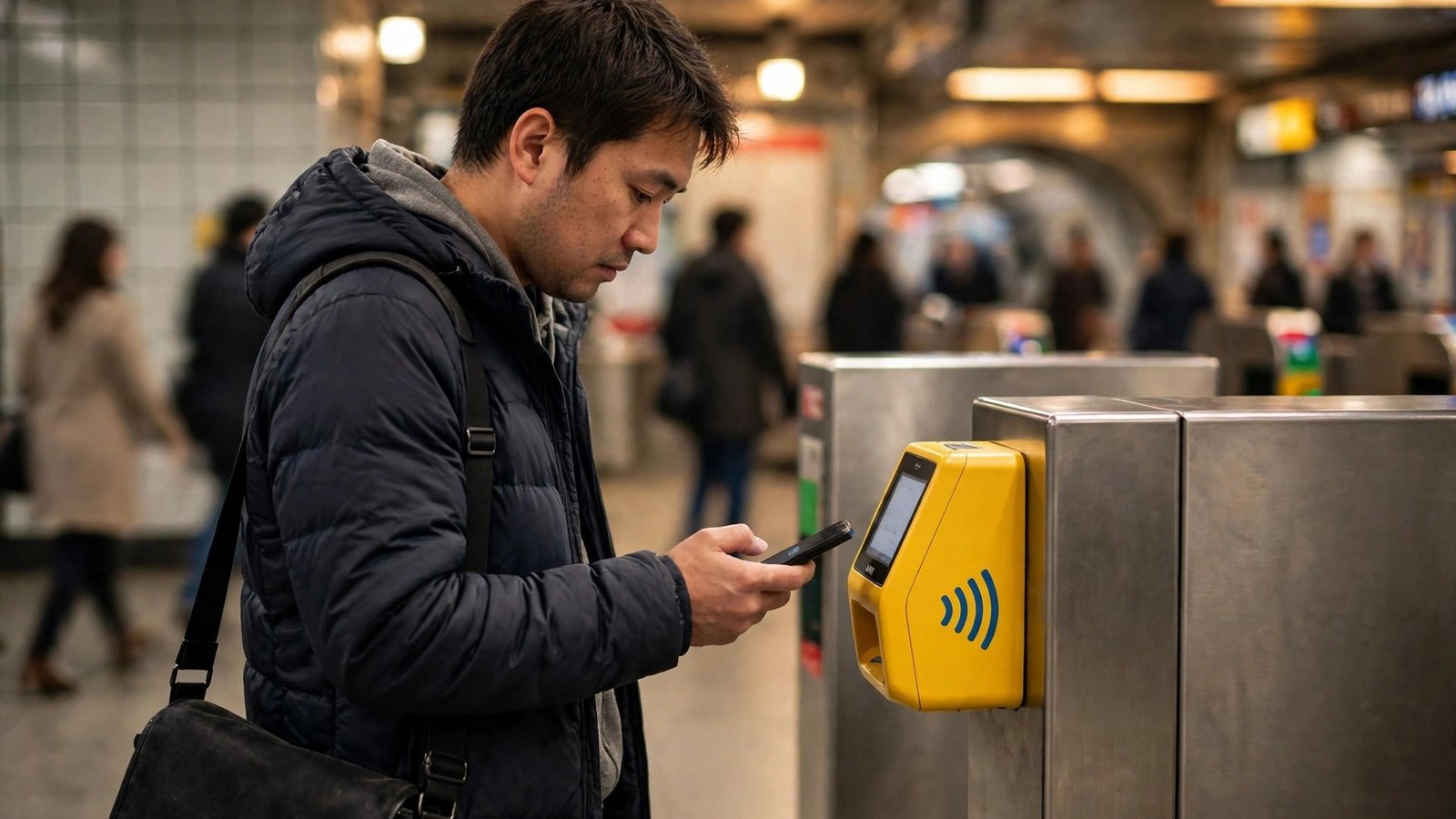
At a Tube station, hold your phone near the yellow card reader on the gate until you see a green light and hear a beep. Walk through promptly. At stations without gates, look for the yellow readers on posts near the entrance and tap there instead.
When you change lines inside a station, you do not need to tap again. Only tap when you enter the network and when you leave it. If you change from the Tube to a bus, you will tap on the bus reader as you board. Buses do not need a tap out, because the fare is flat.
If the reader shows a red light, try again with the phone held flat and still for a second. A common cause is holding the phone at an angle or moving it away too fast.
How daily and weekly capping saves you money
TfL caps what you pay. Once your fares for the day reach the daily cap for the zones you travelled in, the rest of your travel that day is free. The cap is automatic, and it applies to contactless payments and Oyster alike. There is also a weekly cap that runs from Monday to Sunday, but it only applies if you use the same card or device all week.
What to do when something goes wrong
If you are charged a maximum fare, it usually means a tap in or tap out was missed. Check your journey history in the TfL app or website, and apply for a refund online if the charge is wrong. TfL normally refunds incomplete journey charges if you can show the journey you actually made.
If your phone is lost or stolen, contact your bank straight away to freeze the card, and check your TfL account for any journeys made after you lost it.
If you travel with children, note that under-11s travel free on the Tube, buses and trams when accompanied by an adult, and 11 to 15 year olds can get a Zip Oyster photocard for free or discounted travel. You cannot pay for a child's fare with your own contactless card, because the system would treat it as your journey.
Tips for visitors and regulars
Visitors can use a contactless card from an overseas bank, and TfL accepts most major international cards. Check with your bank about foreign transaction fees, because those can add up over a week of travel. An Oyster card bought at a station can be a simpler option if your bank charges per transaction.
If you commute every day, consider whether a weekly or monthly Travelcard on Oyster works out cheaper than pay-as-you-go with capping. For most people travelling five days a week, the weekly cap and the Travelcard come out close, so convenience is the deciding factor.
Frequently Asked Questions
Can I use my phone to pay on the London Tube?
Yes. Transport for London accepts Apple Pay and Google Pay, as well as contactless bank cards, on the Tube, buses, trams, the DLR, London Overground, the Elizabeth line and most National Rail services in London. Just hold your phone to the yellow reader.
Do I need to unlock my phone to tap in?
On iPhone, turn on Express Transit for your card in Settings, then Wallet and Apple Pay, and you can tap without unlocking. On Android, Google Pay usually works with the screen awake, but check your phone's settings, as some models behave differently.
Why was I charged a maximum fare?
A maximum fare usually means a tap in or tap out was missed, or you used a different card or device to tap in and out. Check your journey history in the TfL app or website, and apply for a refund online if the charge is wrong.



Post Comment