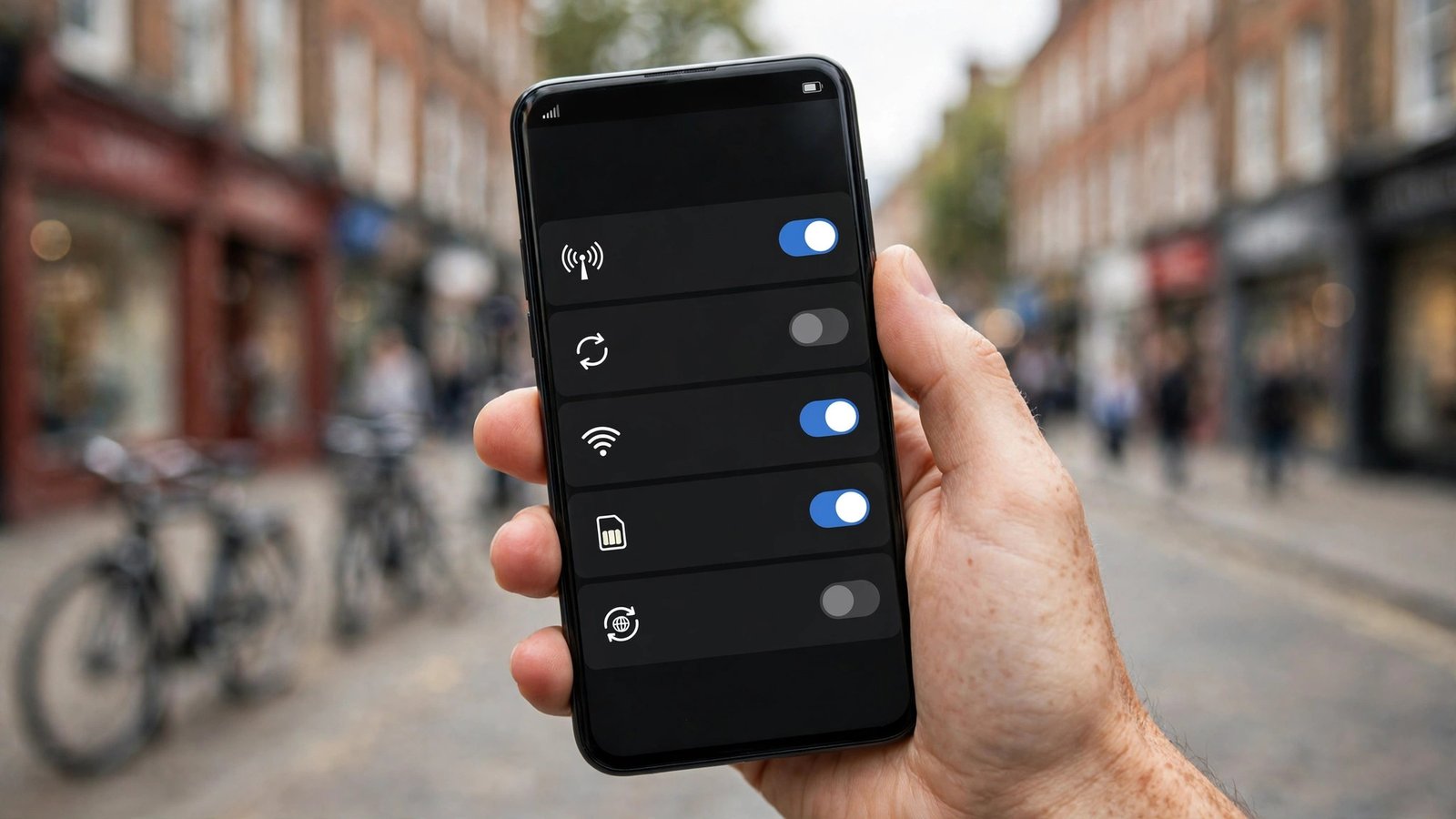
How to Turn Off 5G on iPhone and Android in the UK
5G is fast when it works well, but it is not always the best choice. Where the 5G signal is weak, your phone can burn through battery hunting for it, switching back and forth between 5G and 4G, and heating up in the process. Sometimes the connection even feels slower than 4G because the phone keeps dropping in and out of coverage.
Turning off 5G tells your phone to stick to 4G, also called LTE, which is steadier in most of the UK and still fast enough for streaming, maps, and video calls. You can switch 5G back on any time, so nothing here is permanent. This guide covers iPhone and Android, with the steps as they work in most recent versions.
Why You Might Turn Off 5G
The most common reason is battery life. A phone that keeps searching for a weak 5G signal uses more power than one settled on a strong 4G connection, and the constant switching adds up over a day. If your battery drops faster when you are out than it does at home on Wi-Fi, a patchy 5G signal is a likely cause.
A weak signal is the second reason. 5G coverage in the UK is good in towns and cities but patchy in rural areas, on trains, and inside thick-walled buildings. When the signal keeps flipping between 5G and 4G, pages can stall and calls can break up. Locking the phone to 4G removes the flipping and often makes the connection feel smoother.
Overheating is a third reason, and it is linked to the first two. A phone working hard to hold a weak 5G signal runs warmer, and a warm phone throttles its performance. If your phone gets hot on a commute, turning off 5G is worth trying for a day.
Turn Off 5G on iPhone
On an iPhone, open Settings, then tap Mobile Service. On older versions of iOS the same screen is called Mobile Data. Tap Mobile Data Options, then Voice and Data. You will see three choices: 5G On, 5G Auto, and LTE.
Tap LTE to turn off 5G. Your iPhone will now use 4G for everything, including calls, since all UK networks support voice over LTE. The 5G Auto option is the middle ground: the phone uses 5G when it thinks it will help and drops to 4G when it will not, which saves battery but can still cause the switching problem in patchy areas. If you want a steady connection, choose LTE.
To turn 5G back on later, follow the same path and tap 5G Auto or 5G On. The change takes effect straight away, and you do not need to restart the phone. If you use two SIMs, repeat the steps for each line, since the setting applies per SIM.
Turn Off 5G on a Samsung Phone
On a Samsung Galaxy phone, open Settings, then Connections, then Mobile networks. Tap Network mode, and you will see a list of options such as 5G, LTE, 3G, and 2G in various combinations. Choose the option that lists LTE, 3G, and 2G but not 5G, usually labelled LTE/3G/2G. Your phone will now connect to 4G at most.
The exact wording can differ between Samsung models, but the path is the same in most recent versions. If you cannot find Network mode, use the search bar at the top of Settings and type "network mode" to jump straight to it.
To switch 5G back on, return to the same screen and pick the option that includes 5G, usually labelled 5G/LTE/3G/2G. The phone reconnects within seconds.
Turn Off 5G on a Google Pixel
On a Google Pixel, open Settings, then Network and internet, then SIMs. Tap your SIM, then Preferred network type, and choose LTE. Your Pixel will now stay on 4G and stop searching for 5G.
The menu names can vary slightly by Android version, so if you do not see SIMs, look for Mobile network under Network and internet instead. To turn 5G back on, return to the same menu and pick 5G from the list.
Turn Off 5G on Other Android Phones
Other Android phones keep the same setting in slightly different places. Open Settings, then look for Network and internet, Connections, or SIM card and mobile network, depending on the maker. From there, find Preferred network type and choose LTE, or 4G.
On OnePlus phones, the path is usually Settings, then Mobile network, then your SIM, then Preferred network type. On Xiaomi phones, it is Settings, then SIM cards and mobile networks, then your SIM, then Preferred network type. If you get stuck, use the search bar at the top of Settings and type "preferred network type", which takes you to the right screen on most Android phones.
What Changes When You Turn Off 5G
Day to day, very little changes. 4G in the UK is fast enough for HD video, video calls, music streaming, and maps, and most people will not notice the difference. What you may notice is a steadier connection and a battery that lasts longer, especially where 5G is patchy.
A few things do not change at all. Wi-Fi is untouched, so your phone still uses your home broadband as before. Calls still work, since voice calls on UK networks run over 4G. And with 3G now switched off across UK networks, 4G is the sensible fallback.
The one thing you will lose is the top speed 5G offers in places with strong coverage, such as city centres and stadiums. If you regularly download large files on mobile data in a strong 5G area, you may want 5G on for those moments and off the rest of the time.
Frequently Asked Questions
Will turning off 5G make my phone slower?
For most everyday use, no. 4G is fast enough for streaming, video calls, maps, and browsing, and a steady 4G connection often feels faster than a 5G signal that keeps dropping out. You will only notice a difference when downloading very large files where 5G is strong.
Does turning off 5G affect calls or texts?
No. Calls and texts work normally on 4G, and voice calls on UK networks already run over 4G. You can still make and receive calls, send texts, and use Wi-Fi calling exactly as before.
Will my phone still use 5G on Wi-Fi?
Wi-Fi is separate from 5G. Turning off 5G only affects your mobile data connection. When you are on Wi-Fi, your phone uses your broadband connection as normal, and the 5G setting makes no difference at all.





Post Comment