How to Cancel a Subscription on iPhone and Android in the UK
Forgotten subscriptions are one of the easiest ways to lose money in the UK. A free trial rolls into a monthly charge, an app you stopped opening keeps billing you, and a service you signed up for on your phone turns out to be billed somewhere else entirely. Cancelling takes a few minutes once you know where to look. This guide covers iPhone, Android and subscriptions billed directly by the company, plus how to check the charges really stop.
Before you cancel: find what you are paying for
Start by working out where each subscription is billed. The same app can be billed by Apple, by Google Play, by the Samsung Galaxy Store, or directly by the company that runs the service. Where you signed up usually decides where you cancel. If you subscribed inside an iPhone app, Apple is almost always the one billing you. If you subscribed inside an Android app, Google Play usually bills you. If you signed up on a company's website, the company bills you directly.
Check your bank statement for the names behind the charges. Apple subscriptions usually show as APPLE.COM/BILL, Google Play charges as GOOGLE, and direct ones under the company name. Matching each charge to its billing route stops you cancelling in the wrong place.
Cancel a subscription on iPhone
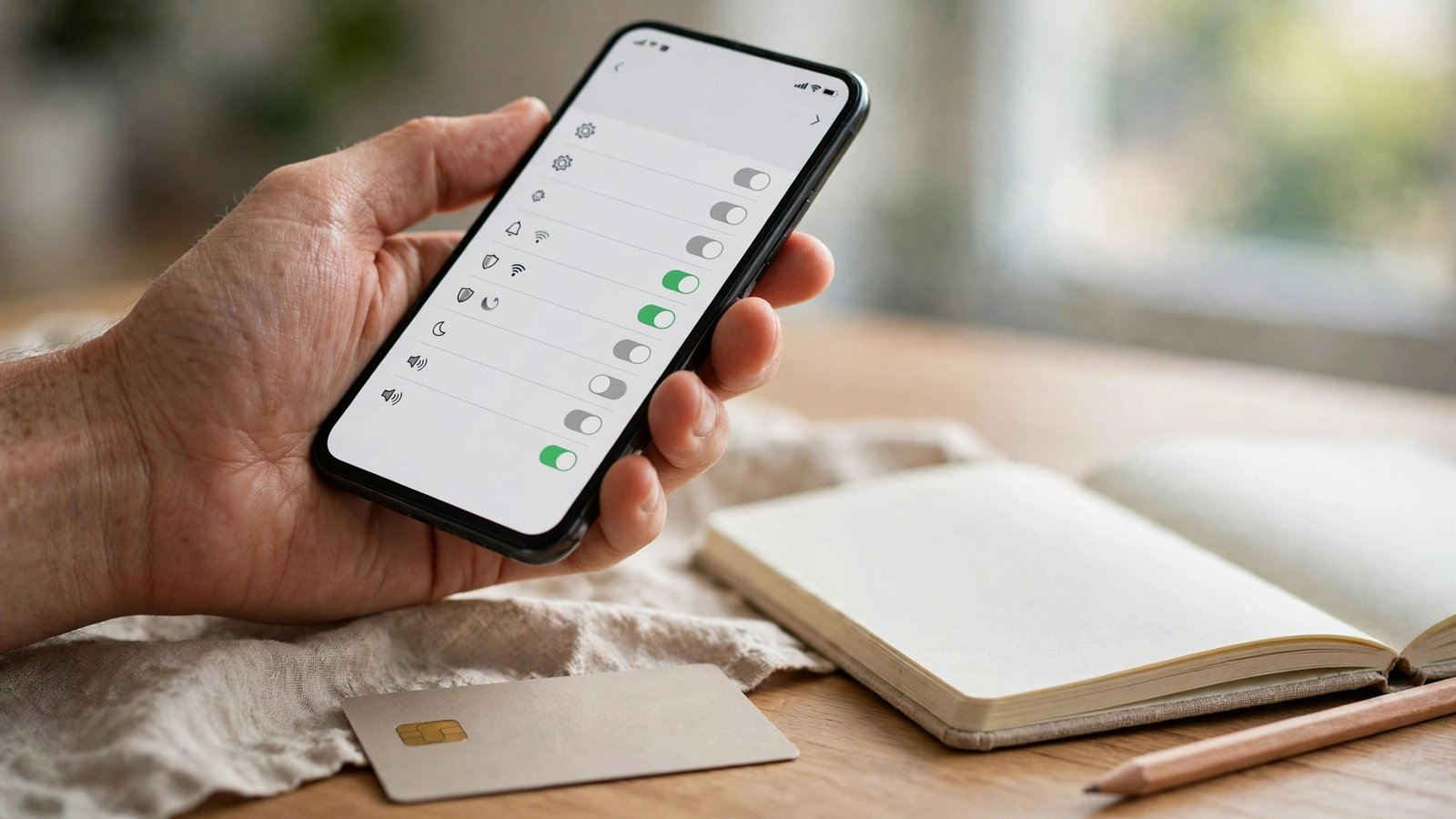
On an iPhone, most subscriptions live in one list. Open Settings, tap your name at the top, then tap Subscriptions. You will see every active subscription billed through Apple, with the renewal date and price for each one. Tap the subscription you want to stop, then tap Cancel Subscription and confirm.
You can also reach the same list through the App Store: tap your profile picture in the top right, then Subscriptions. The steps are the same on an iPad.
A few things to know before you tap cancel. Cancelling stops the next payment, but you can usually keep using the service until the end of the current billing period you have already paid for. Some free trials are different: cancelling a trial can end your access straight away, so if you want to use the trial to the end, cancel on the last day instead. To avoid being charged for the next period, cancel before the renewal date shown on the screen.
If you were charged by mistake, or a subscription renewed after you thought you had cancelled it, you can ask Apple for a refund at reportaproblem.apple.com. Sign in with your Apple ID, find the charge and choose Request a Refund. Apple decides each request case by case, and refunds are not guaranteed.
Cancel a subscription on Android
On an Android phone, open the Google Play Store app and tap your profile picture in the top right. Tap Payments and subscriptions, then Subscriptions. You will see every subscription billed through Google Play. Tap the one you want to stop, tap Cancel subscription, pick a reason if asked, and confirm.
You can do the same on a computer at play.google.com, under Subscriptions. After you cancel, you can normally keep using the service until the end of the billing period, and Google Play will email you to confirm.
If your phone is a Samsung and you subscribed through the Galaxy Store rather than Google Play, the subscription lives somewhere else. Open the Galaxy Store app, tap the menu, then Subscriptions, and cancel from there. The same applies to subscriptions bought inside apps from other stores: cancel where you bought it.
For a refund on Google Play, open the Play Store, tap your profile picture, then Payments and subscriptions, then Budget and history, and request a refund on the charge. Google decides each request case by case.
Cancel a subscription billed directly by the company
Some subscriptions never pass through Apple or Google at all. If you signed up on a website, such as Netflix, Spotify or a newspaper, you usually have to cancel on that company's own website or in its app. Log in to your account on the company's site, look for Subscription, Billing or Account settings, and follow the cancel steps there.
This is the step people miss most often. Deleting the app from your phone does not cancel the subscription, and neither does removing your card from Apple Pay or Google Pay. Billing continues until you cancel where you are charged, so keep the confirmation email until the next billing date passes without a charge.
If you cannot find the cancel option, check the company's help pages or contact its support team. In the UK, companies must make cancelling straightforward, and most now offer a cancel button in account settings rather than making you phone them.
After cancelling: check the charges stop
Cancelling is only half the job. Check your bank or card statement after the next renewal date to confirm no payment went out. If a charge still appears, check whether the same service is billed from a second place, for example through both Apple and the company's own website, or on a second account with a different email address.
Also check family sharing. On Apple devices, the family member who bought a subscription is usually the one who has to cancel it. On Google Play, family members can hold their own subscriptions, so check each account separately.
Finally, keep a note of what you cancelled and when. A short list on your phone, with renewal dates, makes the next tidy-up far quicker.
Frequently Asked Questions
Does deleting an app cancel its subscription?
No. Deleting an app only removes the app. The subscription keeps renewing until you cancel it where it is billed: in Settings, then Subscriptions, on iPhone; in Google Play, then Subscriptions, on Android; or on the company's own website if it bills you directly.
Can I get a refund after cancelling a subscription?
You can ask, but refunds are not guaranteed. On iPhone, request one at reportaproblem.apple.com. On Android, request one from your order history in Google Play. For direct billing, contact the company's support team. Cancelling stops future payments, and you can usually use the service until the end of the period you already paid for.
How do I stop a free trial from charging me?
Cancel before the trial ends. On iPhone, go to Settings, tap your name, then Subscriptions, and cancel the trial. On Android, go to Google Play, then Payments and subscriptions, then Subscriptions, and cancel it there. Some trials end the moment you cancel, while others run to the end of the trial, so check what the screen tells you before confirming.


Post Comment