How to Turn On Two-Factor Authentication for Google, Apple and Your Bank in the UK
Your password alone is no longer enough. Data breaches leak millions of passwords every year, and once yours is out there, anyone can try it on your email, your bank and your shopping accounts. Two-factor authentication, often shortened to 2FA, fixes that weakness with one simple idea: even if someone knows your password, they still need a second proof that it is really you. This guide shows you how to turn it on for the accounts that matter most in the UK, starting with Google, Apple and your bank.
Two-factor authentication works by asking for two things when you sign in. The first is something you know, your password. The second is something you have, usually your phone. That second step might be a six-digit code from an authenticator app, a tap on a prompt, or a text message. If a stranger tries to log in with your stolen password, they get stuck at the second step.
Step 1: Get an authenticator app
Before you switch anything on, install an authenticator app on your phone. It works without a mobile signal, and the codes change every 30 seconds. Google Authenticator and Microsoft Authenticator are both free, and both work with almost any account, not just Google or Microsoft. Download one from the App Store on iPhone or Google Play on Android.
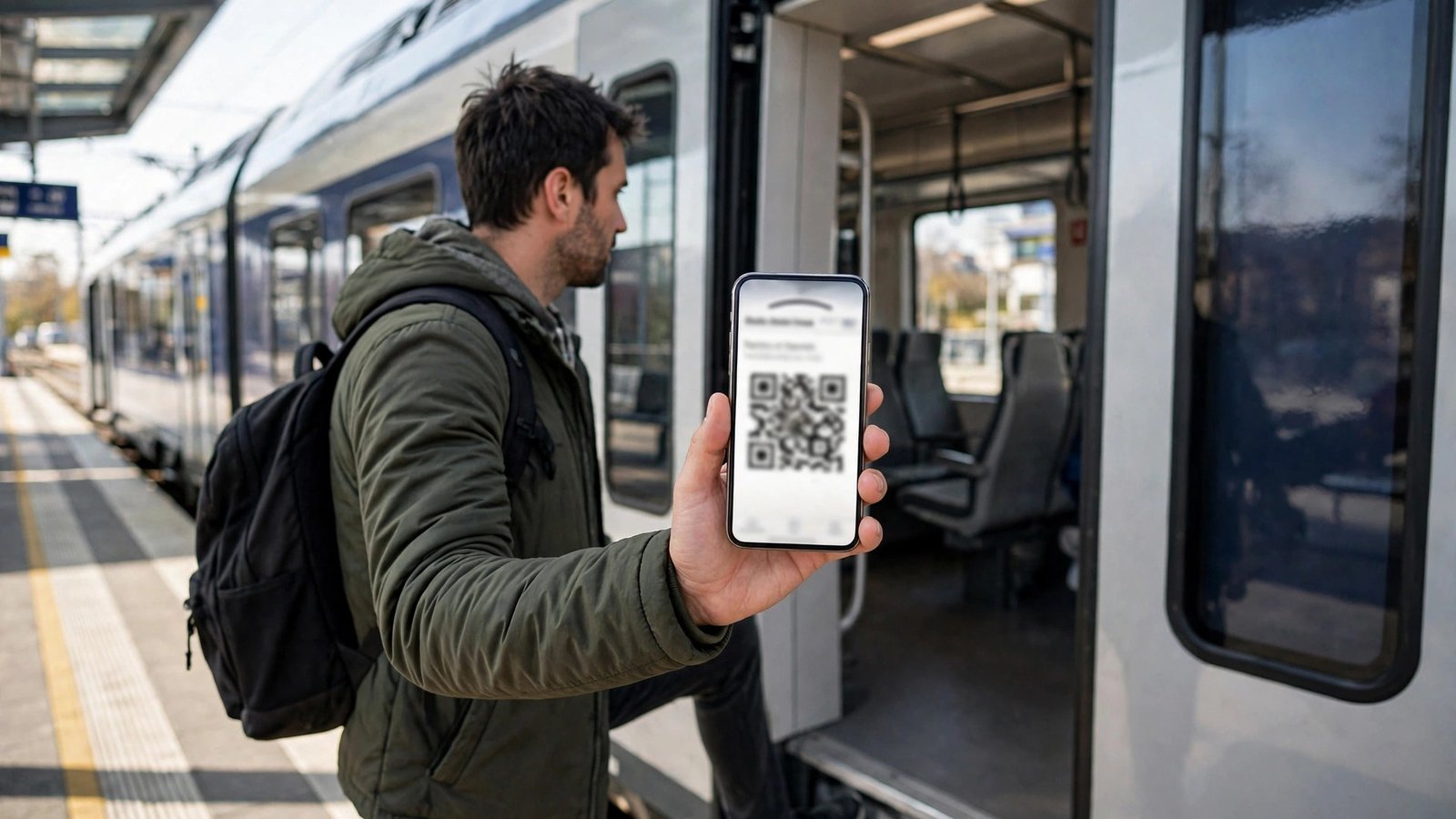
When you set up two-factor authentication on an account, the site will show you a QR code. Scan that code with the authenticator app, and from then on the app generates a fresh six-digit code for that account every half minute. You just open the app, read the current code and type it in when asked.
Step 2: Turn on 2FA for your Google account
Your Google account is the best place to start, because it guards your Gmail, your photos, your documents and often the password reset route for other services.
On your phone or computer, open your Google account settings and look for Security, then 2-Step Verification. Google will ask you to sign in again to confirm it is you. The strongest choice is an authenticator app, which you link by scanning the QR code Google shows you. Google also offers prompts on your phone, where you simply tap Yes to approve a sign-in, and backup codes you can print and keep somewhere safe.
Step 3: Turn on 2FA for your Apple ID
If you use an iPhone, your Apple ID is just as important as your Google account. It controls your iCloud photos, your messages, your purchases and Find My. Apple builds two-factor authentication into the system, and in most recent versions it is switched on by default when you create an account.
On your iPhone, open Settings, tap your name at the top, then tap Sign-In and Security and look for Two-Factor Authentication. If it is off, tap to turn it on and follow the prompts. Apple will ask you to confirm a trusted phone number. After that, whenever you sign in to your Apple ID on a new device, Apple sends a six-digit verification code to your trusted devices, and you type it in to complete the sign-in.
Step 4: Turn on 2FA with your UK bank
Banks in the UK already use strong checks for many actions, because financial rules require them to verify it is really you before they move money.
Most UK banks now ask you to approve sign-ins and payments inside their own app, using your fingerprint, face or a passcode. This is the bank's version of two-factor authentication, and it is already switched on for most customers. Open your bank app, go to settings or security, and check that biometric approval and app notifications are enabled. If your bank still offers text message codes as the main option, that is fine too, though app approval is generally safer than SMS.
Step 5: Save your backup codes somewhere safe
Every service that offers two-factor authentication also offers a way back in if you lose your phone. Usually this is a set of backup codes, eight or ten one-time codes you can print or write down. Each code works once.
Save these codes somewhere you can find them in a hurry but a burglar cannot. A drawer at home works for most people. Do not store them in a note on the same phone, and do not email them to yourself, because that puts the spare key next to the lock. If you keep a password manager, its secure notes section is a good place for them.
Once Google, Apple and your bank are covered, work through the rest of your important accounts in the same way: your other email accounts, your password manager, your social media and any account that stores payment details. Most of them offer two-factor authentication under Security or Privacy in their settings, and the setup takes about two minutes each.
What to do if you lose your phone
Losing your phone with two-factor authentication switched on sounds frightening, but it is a problem with a known fix. Use a backup code to sign in to your Google or Apple account from another device, then remove the lost phone from your trusted devices and set up the authenticator app on your replacement phone. If you use Find My on iPhone or Find Hub on Android, you can also locate, lock or erase the lost phone remotely.
Frequently Asked Questions
What is two-factor authentication?
Two-factor authentication is a security check that asks for two proofs of identity when you sign in: your password, plus a second step such as a code from an authenticator app or a tap on your phone. Even if someone steals your password, they cannot get in without that second step.
Is two-factor authentication by text message safe enough?
Text message codes are better than no second factor at all, and they are fine for most everyday accounts. An authenticator app or an in-app approval is stronger, because text messages can be intercepted if someone takes over your mobile number. Use an authenticator app for your email, your bank and your password manager.
What happens if I lose the phone with my authenticator app?
Use one of your backup codes to sign in, then set up the authenticator app again on your new phone. If you have no backup codes, use the account recovery process for each service, which takes longer and requires proving your identity. This is why saving backup codes somewhere safe matters so much.



Post Comment