How to Scan Documents With Your Phone in the UK
Most of us still need to send a clean copy of a paper document now and then: a passport page for a letting agent, a signed form for work, a receipt for expenses. You do not need a scanner for any of that. The phone in your pocket already has one built in, and in most recent versions of iOS and Android it costs nothing and needs no extra app.
This guide shows how to scan on iPhone and Android, how to get a clean result, and how to save and share the scan as a PDF.
Scan with the Notes app on iPhone
The easiest way to scan on an iPhone is the Notes app, which has a scanner built in. Open Notes, start a new note, and tap the paperclip icon at the bottom of the screen. Choose Scan Documents from the menu that appears.
Hold your phone over the document. The app will usually find the edges of the page by itself and take the scan automatically. If it does not, tap the shutter button to capture it manually. You can scan several pages into the same document: just keep holding the phone over each new page. When you have finished, tap Save.
Each page can be adjusted after capture. Drag the corners of the outline to match the edges of the page, and use the filter options to switch between colour, greyscale and black and white. Black and white usually looks cleanest for text documents, while colour is better for forms with stamps or coloured headings. To share the scan, tap the share icon and choose Save to Files to keep it as a PDF, or send it straight to Mail, WhatsApp or any other app.
Scan with Google Drive on Android
On Android, the simplest built-in option is Google Drive, which is on most phones already. Open the Drive app, tap the camera icon at the bottom right, and point your phone at the document. Drive will find the edges and capture the page, and you can add more pages to the same scan before saving.
After capture, you can crop the page by dragging the corners, rotate it if it came out sideways, and pick a colour mode. The scan is saved as a PDF in your Drive, which means it is backed up automatically and you can open it from any device signed in to the same Google account. To send it, open the PDF in Drive, tap the three dots, and choose Share or Send a copy.
If your phone is a Samsung, there is another option built in: open the Camera app, point it at a document, and tap the yellow Scan icon that appears. Samsung saves the scan as an image, and you can convert it to PDF from the Gallery app by opening the image, tapping the three dots and choosing Print, then Save as PDF.
Get a clean scan every time
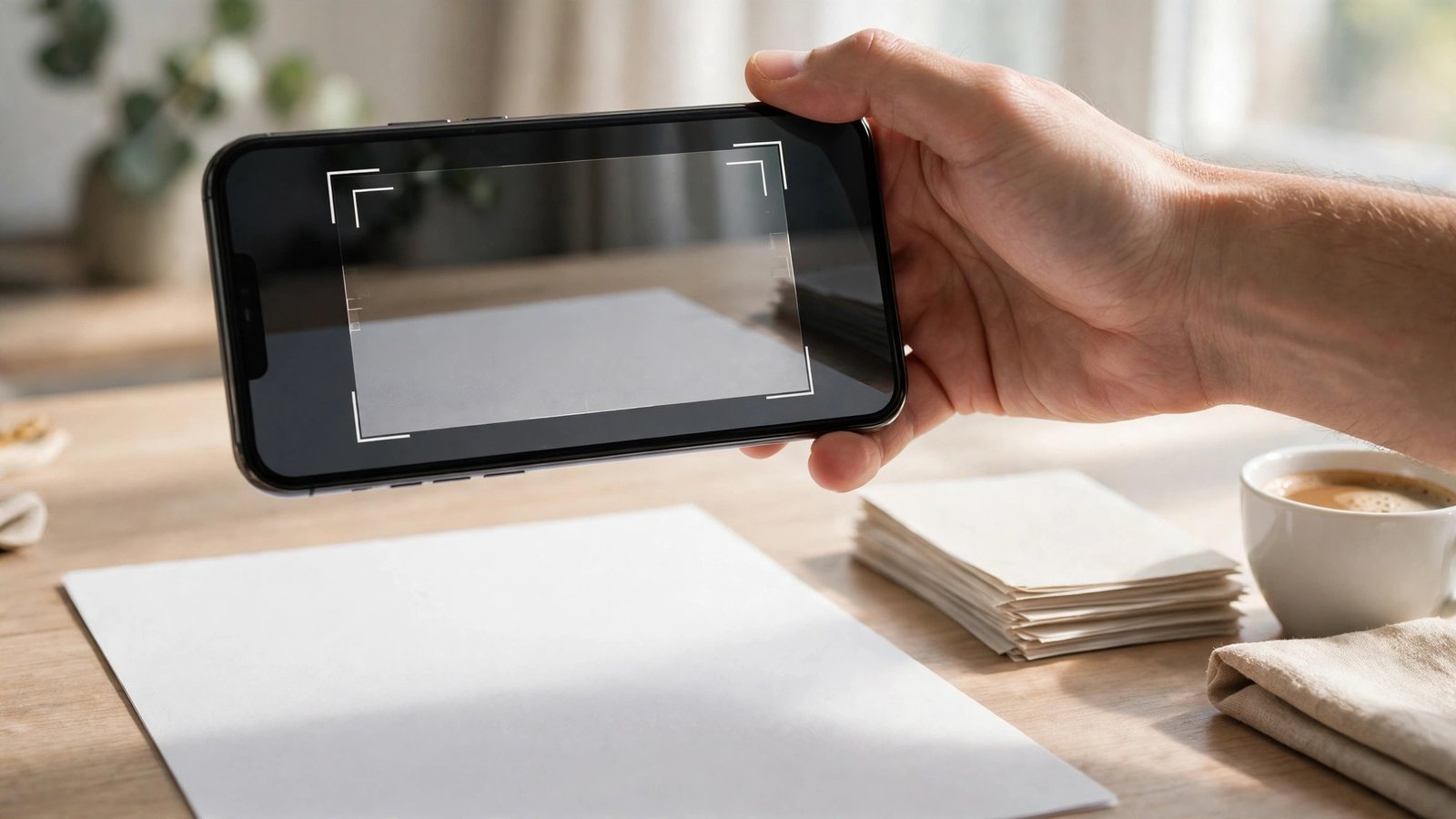
A phone scan is only as good as the photo it starts from, and a few small habits make a big difference. Put the document on a flat surface in good light, and avoid shadows falling across the page. Daylight near a window works well; a single lamp from directly above can leave a bright spot in the middle of the page.
Place the document on a dark, plain background if you can, such as a dark table or a piece of dark card. The scanner finds the edges of a white page much more reliably against a dark surface than against a white table. Hold the phone steady and level above the page, with all four corners visible in the frame, and wait a second for the camera to focus before the scan is taken.
Check each page before you save it. Look for cut-off edges, fingers in the frame, and text that has gone blurry because the phone moved. A page that looks fine as a thumbnail can be unreadable when zoomed in, so open it once and check the small print. If a page is crooked, most scanner apps let you rotate or straighten it after capture.
For a multi-page document, scan the pages in order and check the page count before sending. It is easy to miss a page in the middle of a long form, and the person receiving it will not know a page is missing until they try to read it.
Save, name and share the scan
A scan is only useful if you can find it again. Give the file a clear name as soon as you save it, such as Passport-John-Smith or Council-Tax-Bill-November, rather than leaving the default name the app suggests. If the scan is for an official purpose, check whether the recipient wants a PDF, which most scanners produce by default, or a photo file such as JPG.
Keep the original paper document until you are sure the scan has been accepted. Some organisations, including banks and letting agents in the UK, ask to see the original later, and a scan is not always a substitute. If you are sending a scan that contains personal details, such as a passport or a bank statement, send it through a secure channel where you can, and delete the file from your phone once it is no longer needed.
Frequently Asked Questions
Is a phone scan good enough for official documents in the UK?
In most cases, yes. Banks, employers, letting agents and councils in the UK routinely accept clear PDF scans from a phone. Check with the organisation first if the document is a passport or a certified copy, because a few still ask for the original or a certified copy.
Can I scan several pages into one PDF?
Yes. Both the iPhone Notes scanner and Google Drive let you add page after page to the same scan before saving, and the result is a single PDF with the pages in the order you scanned them.
Do I need to pay for a scanning app?
Usually not. The built-in scanners on iPhone and Android cover everyday needs for free. Paid scanning apps add features such as text recognition and automatic filing, which are useful if you scan documents every day, but they are not needed for the occasional form or receipt.


Post Comment