How to Set Up Voicemail on iPhone and Android in Canada
Voicemail still matters, even in a world of text messages and missed-call notifications. A caller who reaches your voicemail expects a clear greeting and a way to leave a message, and you want to hear that message without a maze of menus. Setting it up takes only a few minutes on both iPhone and Android, and most Canadian carriers support visual voicemail, which shows your messages as a list you can tap and play.
Set up visual voicemail on iPhone
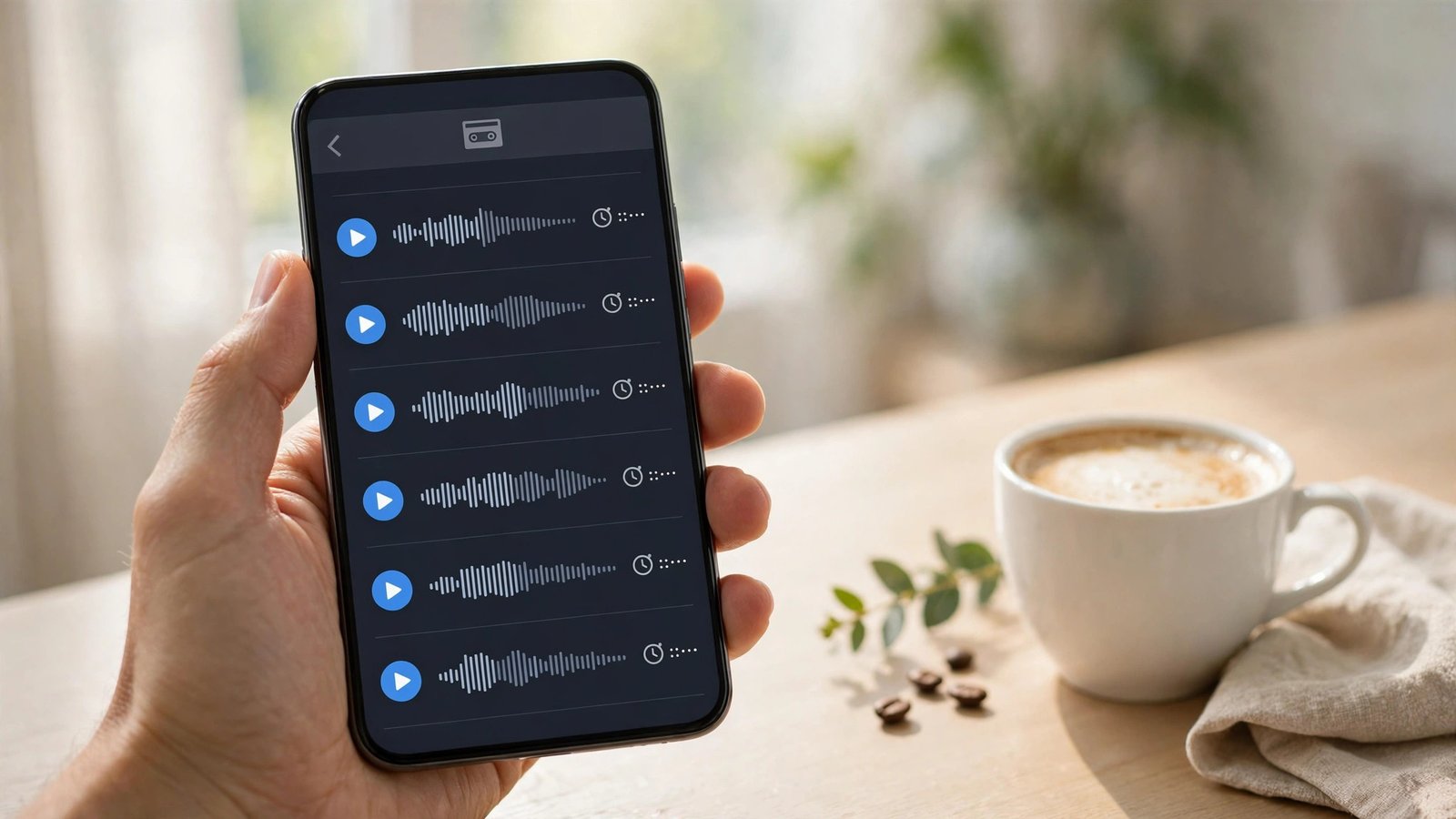
Visual voicemail is built into the Phone app on iPhone, and the big Canadian carriers, including Rogers, Bell and Telus, support it. Open the Phone app and tap the Voicemail tab at the bottom right. If this is your first time, tap Set Up Now. You will be asked to create a voicemail password, usually four to seven digits, and then to record a greeting. Choose Custom to record your own message, or Default for the standard greeting that uses your phone number.
After setup, new messages appear in the Voicemail tab as a list with the caller's name or number, the time and a play button. You can listen in any order, delete messages you do not need, and share a message if you need to pass it on. If the Voicemail tab shows a button to call voicemail instead of a list, your line may not have visual voicemail turned on, and the next section covers that.
If your iPhone runs iOS 17 or a newer version, you also get Live Voicemail. It shows a live transcript of the message as the caller records it, so you can decide whether to pick up mid-message. Turn it on in Settings, then Phone, then Live Voicemail.
Set up voicemail on Android
On Android, the steps depend on your phone and your carrier, but the pattern is the same. Open the Phone app by Google, tap the three dots in the top corner, then Settings, then Voicemail. Turn on Visual Voicemail if your carrier supports it. On Pixel phones, this is where you will find the option, and messages then appear in the Voicemail tab of the Phone app. On Samsung phones, open the Phone app, tap the three dots, then Settings, then Voicemail, and check whether Visual Voicemail is available on your line.
If visual voicemail is not offered on your plan, the classic method still works. Press and hold 1 on the dial pad to call your voicemail inbox. The first time you call, the system walks you through setting a password and recording a greeting. The same number also works from another phone: call your own mobile number, wait for the greeting, then press the star key and enter your password when asked.
Record a greeting people will actually understand
A good greeting is short and says three things: who you are, that you cannot take the call, and what the caller should do. Record it in a quiet room and speak slowly. A simple version works well: "Hi, you have reached Alex. I can't take your call right now. Please leave your name, number and a short message, and I will call you back."
On iPhone, go to Phone, then Voicemail, then Greeting, and tap Custom to record. On Android, call your voicemail by holding 1 and follow the prompts for greeting options, or use the Visual Voicemail settings if your phone offers a record option there. If you use your phone for work, record a more formal greeting and mention your working hours or an alternate contact. Change the greeting when you go on holiday so callers know when you will be back.
Listen to, save and delete your messages
Check your messages regularly, because a full mailbox stops new callers from leaving anything. On iPhone, the Voicemail tab shows each message with a play button and a transcript in most recent versions. Tap a message to hear it, then tap Delete when you are done. On Android with visual voicemail, the flow is the same: tap a message in the list, listen, and delete when finished.
To save a message you want to keep, share it to a notes app, a cloud drive or your email before deleting it. Voicemails are stored by your carrier, and deleting them from your phone removes them from the carrier's system too. If a message matters, save it first.
Fix the most common voicemail problems
The most common problem is a missing Voicemail tab. This usually means visual voicemail is not active on your line. Call your carrier or check your account in the carrier app, and ask them to enable visual voicemail on your plan. Restart your phone after the change, then open the Phone app again.
If you have forgotten your voicemail password, you cannot reset it from the phone. You need to reset it through your carrier, either in the carrier app, on the carrier website, or by calling customer service. After the reset, call voicemail by holding 1 and set a new password when prompted.
If callers hear that your mailbox is full, delete old messages, including the deleted ones sitting in the trash folder on iPhone. On iPhone, scroll to the bottom of the Voicemail tab and tap Deleted Messages, then Clear All. If people say your greeting never plays, re-record the greeting and check that your phone is not in Do Not Disturb or a Focus mode that sends calls straight to voicemail without ringing.
Frequently Asked Questions
How do I set up voicemail on my iPhone in Canada?
Open the Phone app and tap the Voicemail tab, then Set Up Now. Create a password and record a greeting. Most Canadian carriers support visual voicemail, so messages will appear as a list you can tap and play.
How do I check my voicemail from another phone in Canada?
Call your own mobile number, wait for the greeting, then press the star key and enter your voicemail password when asked. If that does not work, check your carrier's app or website for the voicemail access number, or press and hold 1 on your own phone to reach the inbox directly.
Why is there no Voicemail tab on my phone?
The Voicemail tab appears only when visual voicemail is active on your line. Contact your carrier and ask them to enable visual voicemail on your plan, then restart your phone. If your carrier does not offer visual voicemail on your plan, press and hold 1 on the dial pad to call your voicemail inbox instead.




Post Comment