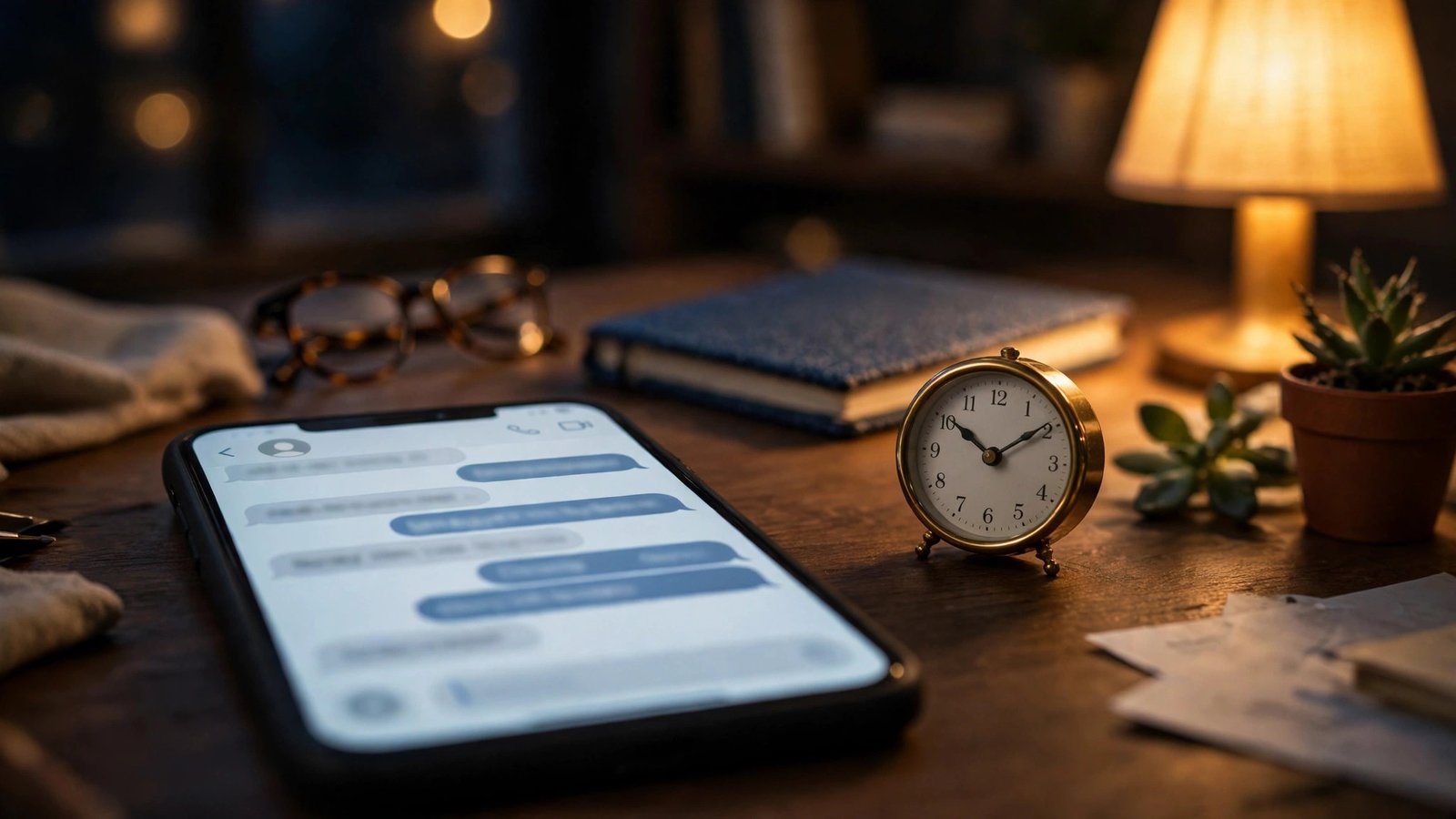
How to Schedule Text Messages on iPhone and Android in the US
Sometimes a text is ready in your head but the timing is wrong. You want to wish someone a happy birthday at midnight, remind a coworker about a morning meeting, or send a message during business hours instead of late at night. Both iPhone and Android now let you schedule a text to send later.
The steps are different on each platform, and there are a few limits worth knowing before you rely on it. Here is how it works.
Schedule a text on iPhone
On iPhone, scheduled texts use the Send Later feature in the Messages app. It works in most recent versions of iOS, so if you do not see the option, check that your iPhone is updated to the latest software.
Open the Messages app and start a new message or open an existing conversation. Type your message as usual, but do not tap the send arrow yet. Instead, press and hold the blue send arrow, or tap the plus button next to the text field and look for Send Later. A date and time picker will appear. Choose the day and time you want the message to go out, then tap the send arrow to schedule it.
The scheduled message appears in the conversation with a dotted outline and a small note showing when it will be sent. This makes it easy to spot which messages are waiting and which have already gone out. Send Later works with iMessages and with standard text messages to Android phones, though some carriers and older message types may not support it.
One thing to know: the message is stored on your iPhone until it sends. Your phone needs to be on and connected to a network at the scheduled time, so do not rely on Send Later if your phone will be off or in airplane mode at that moment.
Edit or cancel a scheduled text on iPhone
Plans change, and a scheduled message is easy to fix. Open the conversation and find the message with the dotted outline. Tap it and choose Edit to change the words, or tap it and choose Edit Time to pick a different send time.
To cancel it entirely, tap the message and choose Delete Message. It will be removed before it ever sends, and the other person will never know it existed.
If you want to send it right away instead of waiting, tap the message and choose Send Now.
Schedule a text on Android
On Android, scheduled texts are built into Google Messages, the default messaging app on most Android phones, including Pixel and many Samsung models. Open Google Messages and open a conversation or start a new one. Type your message, then press and hold the send button. A scheduling menu will appear with a few quick choices, such as later today, tomorrow morning, or a custom date and time.
Pick a time and tap Save, then tap the send button. The message stays in the conversation with a small clock icon and a note showing when it is scheduled to send. Like on iPhone, the message is held on your phone until the scheduled time, so your phone needs to be on and connected for it to go out.
If your phone uses Samsung Messages instead of Google Messages, the steps are similar. Open the conversation, type your message, tap the plus button or the arrow next to the text field, and choose Schedule message. Pick a date and time, tap Done, and send. In most recent versions, Samsung phones use Google Messages as the default, so check which app you are in if the option looks different.
Edit or cancel a scheduled text on Android
To change a scheduled message in Google Messages, open the conversation and tap the scheduled message. You will see options to edit the text, change the time, or delete it. Tap Delete to cancel it before it sends.
If you only want to change the time, tap the message, choose the new date and time, and save. The message keeps its place in the conversation and will send at the new time.
One limit: scheduled messages may not work in group conversations or for RCS messages in some regions. If the schedule option does not appear, check that Google Messages is updated from the Play Store.
What scheduled texts are good for
Scheduled texts are useful for more than birthdays. Parents use them to send a reminder to a teenager about practice in the morning. Small business owners schedule appointment reminders and follow-up messages during business hours. Anyone who works odd hours can write a message at 2 a.m. and have it arrive at 9 a.m., when the other person is awake.
They are also useful for recurring reminders. While neither iPhone nor Android offers a built-in way to repeat a scheduled text every week, you can schedule the next one each time you send one, or use the Reminders app or Google Calendar to prompt yourself.
A few practical tips make scheduled texts more reliable. Double-check the date, especially around midnight, since it is easy to pick the wrong day. Remember that time zones matter: if you are traveling, the message sends at the time shown on your phone, in your phone's current time zone. And avoid scheduling anything urgent or time-sensitive, since a delayed message could cause confusion if it arrives late.
Frequently Asked Questions
Can I schedule a text message on iPhone?
Yes. In most recent versions of iOS, open the Messages app, type your message, press and hold the send arrow, and choose Send Later. Pick a date and time, then tap send to schedule it. You can edit the time or cancel it before it goes out.
Can I schedule a text on Android?
Yes. In Google Messages, type your message, press and hold the send button, and choose a date and time. The message will send automatically at that time as long as your phone is on and connected. Samsung Messages has a similar Schedule message option.
Does my phone need to be on for a scheduled text to send?
Yes. Scheduled texts are stored on your phone, not on a server, so your phone must be on and connected to a mobile network or Wi-Fi at the scheduled time. If your phone is off, in airplane mode, or out of signal, the message will send once the phone reconnects, or it may fail if the delay is too long.



Post Comment