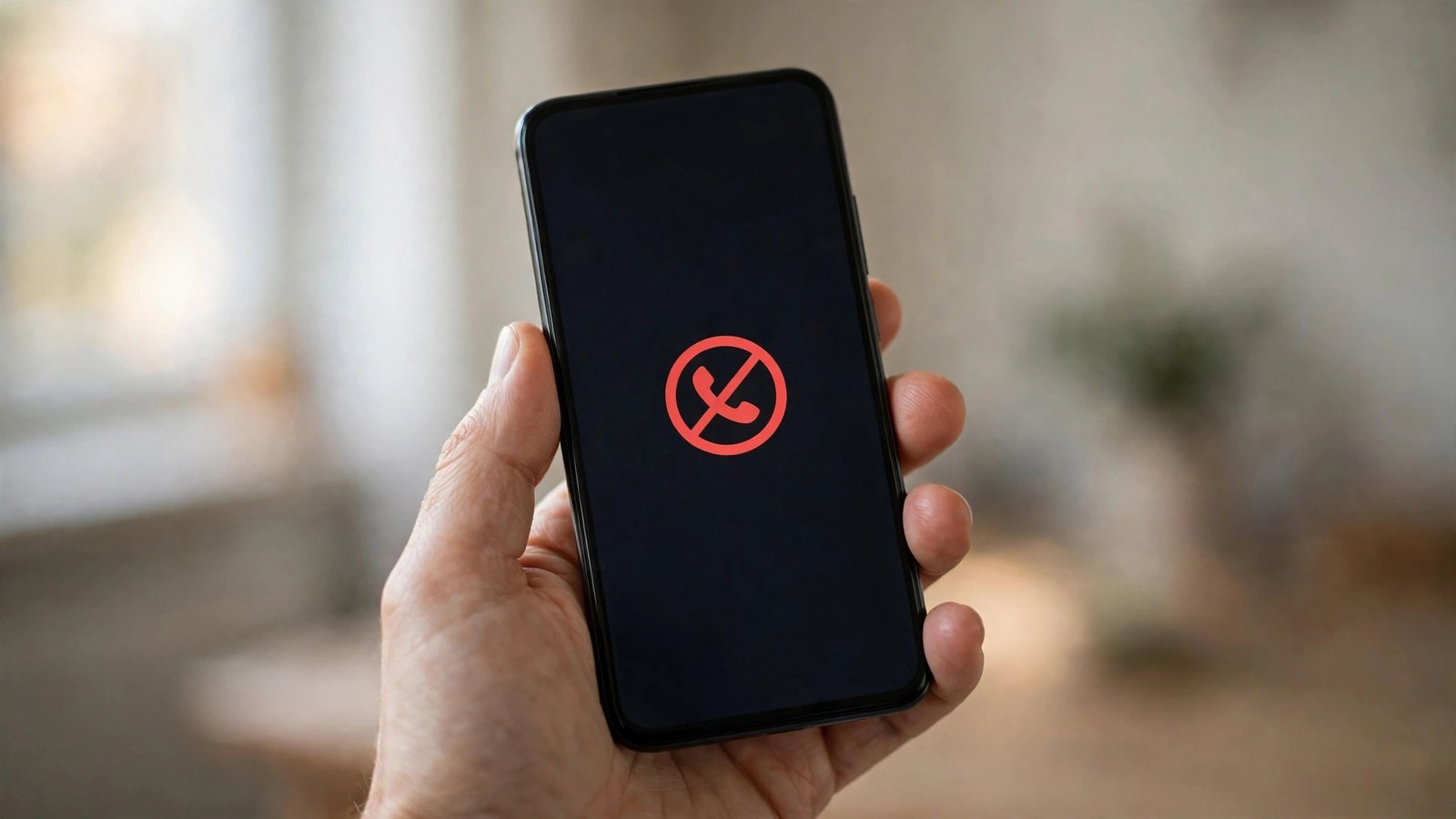
How to Block a Number on iPhone and Android in the US
A single number keeps calling, and you want it gone. Blocking a number on your phone is quick, free, and reversible, and it works on both iPhone and Android. The steps differ slightly between the two, but the result is the same: calls and texts from that number stop reaching you.
This guide covers blocking from your recent calls, contacts, and messages, plus how to silence unknown callers and how to unblock a number if you change your mind.
Block a number on iPhone
The fastest way to block a number on an iPhone is from your recent calls list.
Open the Phone app and tap Recents. Find the number you want to block and tap the small “i” icon next to it. Scroll down and tap Block this Caller, then confirm. That number can no longer call you, send you iMessages or texts, or reach you on FaceTime from that number.
You can also block someone from your contacts. Open the Contacts app, tap the person's name, scroll to the bottom, and tap Block this Caller. The same option appears in the Messages app: open the conversation, tap the contact name or number at the top, tap Info, then scroll down and tap Block this Caller.
Blocked callers are not told they were blocked. Their calls go straight to voicemail, and their messages simply never arrive. You will not see a notification, and the blocked number will not appear in your recent calls. Voicemails from blocked numbers are kept in a separate Blocked Messages section at the bottom of the Voicemail tab, in case you ever need to check them.
Block a number on Android
On most Android phones, the steps run through the Google Phone app. Open the Phone app and tap Recents. Press and hold the number you want to block, or tap the three-dot menu next to it, then tap Block. You will see an option to also report the number as spam, which is worth checking if the call was a scam or a robocall. Tap Block to confirm.
On a Samsung Galaxy phone, the path is nearly the same. Open the Phone app, tap Recents, tap the number, then tap the “i” icon and choose Block at the bottom of the screen. Samsung also lets you block numbers from the Messages app: open the conversation, tap the three-dot menu at the top, and choose Block.
To block a contact instead of a recent caller, open the Contacts app, tap the contact, tap the three-dot menu, and choose Block numbers. On Pixel phones, blocked numbers are managed in the Phone app under Settings, then Blocked numbers. On Samsung phones, the list lives in the Phone app under Settings, then Block numbers.
Silence unknown callers instead
Sometimes the problem is not one number but a stream of unknown ones. Both iPhone and Android have a setting for that.
On iPhone, go to Settings, then Phone, then Silence Unknown Callers, and turn it on. Calls from numbers that are not in your contacts, recent outgoing calls, or Siri Suggestions go straight to voicemail and are listed in Recents so you can call back if the call mattered. Calls from numbers in your contacts still ring normally.
On Android, open the Phone app, tap Settings, then Caller ID and spam, and turn on Filter spam calls. This sends suspected spam calls straight to voicemail. Pixel phones also offer a Call Screen feature that answers unknown callers with an automated assistant and shows you a transcript before you decide whether to pick up.
How to unblock a number
Blocking is not permanent, and undoing it takes less than a minute.
On iPhone, go to Settings, then Phone, then Blocked Contacts. Find the number, swipe left on it, and tap Unblock. You can also unblock from the contact itself by opening it and tapping Unblock this Caller at the bottom.
On Android, open the Phone app, tap Settings, then Blocked numbers. Tap the X next to the number you want to unblock. On Samsung phones, go to the Phone app, tap Settings, then Block numbers, and tap the minus sign next to the number.
After unblocking, the number can call and text you again as normal. Messages sent while the number was blocked are not delivered later, so if you were expecting something from that person, ask them to resend it.
When blocking is not enough
Blocking handles one number at a time, and scammers know this. If the same caller keeps switching numbers, blocking each one becomes a chore. In that case, use your carrier's free tools as well. In the US, the major carriers offer spam and scam call filtering apps and settings, often at no extra cost, and you can enable them from your carrier account or app.
You can also register your number on the National Do Not Call Registry at donotcall.gov. This does not stop scammers, who ignore the list, but it cuts down legitimate telemarketing calls after about a month.
If a caller is threatening you, harassing you, or impersonating a bank, a government agency, or a delivery company, save the number and any messages, then report it. You can report scam calls and texts to the Federal Trade Commission at reportfraud.ftc.gov, and you can forward a spam text to 7726, which is the short code US carriers use to collect spam reports. For threats or harassment, contact your local police non-emergency line.
Frequently Asked Questions
Does the person know they have been blocked?
No. Blocked callers are not notified. Their calls go straight to voicemail on iPhone, or are rejected silently on Android, and their texts never arrive. A caller may guess they were blocked if every call goes to voicemail at once, but the phone gives them no message saying so.
Can I block a number that is not in my contacts?
Yes. On both iPhone and Android you can block any number from your recent calls list, even if it is not saved as a contact. On iPhone, tap the “i” next to the number in Recents. On Android, press and hold the number in Recents and tap Block.
What happens to texts from a blocked number?
Texts from a blocked number are not delivered to your phone. On iPhone, the sender sees no error, but you never receive the message. On Android, the message is blocked before it reaches your inbox. Messages sent during the block are not delivered later if you unblock the number.


Post Comment