How to Set Up a Mobile Hotspot on iPhone and Android in the US
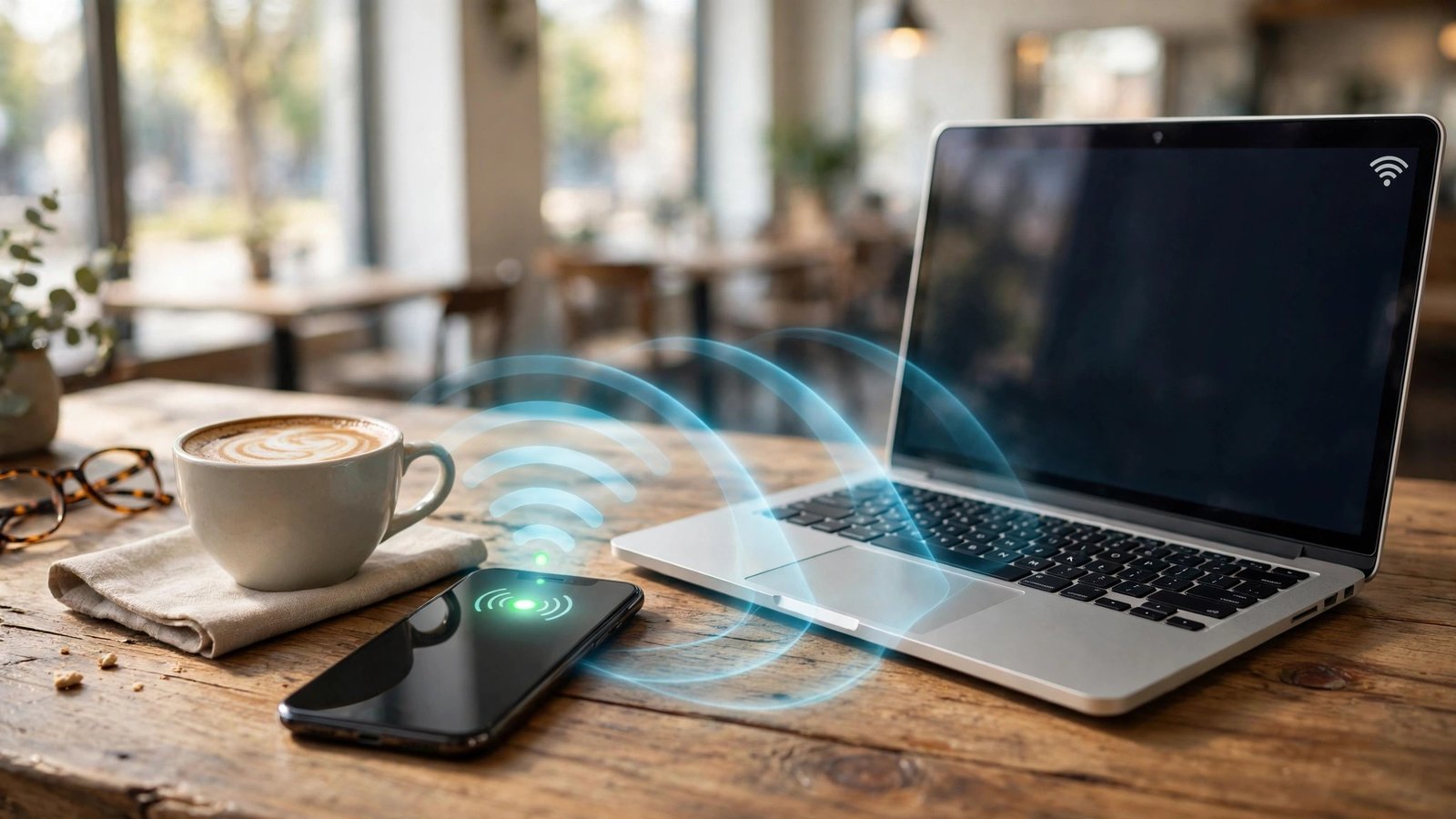
A mobile hotspot turns your phone into a portable Wi-Fi router. Your laptop, tablet, or a friend's phone connects to it just like any other Wi-Fi network, using your phone's mobile data. It is the simplest fix when the Wi-Fi at a cafe is down, when you are working from a car, or when a hotel charges extra for internet.
Setup takes about two minutes on both iPhone and Android, but a few details trip people up: the setting hides in different places, the password matters more than you think, and your carrier plan decides how much hotspot data you actually get. Here is the full walkthrough for phones in the US.
Step 1: Check your plan before you start
A hotspot uses your mobile data, and most US carriers treat hotspot data separately from the data your phone itself uses. Many unlimited plans include a fixed amount of high speed hotspot data each month, often somewhere between a few gigabytes and a larger allowance depending on the plan, and then slow the connection down once that amount is used up.
Before you rely on a hotspot for a workday, check your plan. Open your carrier's app and look for the hotspot allowance in your plan details. If the number is small, plan your usage around it: email and browsing are light, video calls and streaming eat data fast.
Step 2: Turn on the hotspot on iPhone
On iPhone, open Settings, then tap Personal Hotspot. If you do not see it on the main Settings screen, look under Settings, then Cellular, then Personal Hotspot. Turn on Allow Others to Join.
Your iPhone shows a Wi-Fi password on that same screen. That password is the key other devices need to connect, so share it only with people you trust. To change it, tap Wi-Fi Password, type a new one, and tap Done. Pick something long and random rather than a word from the dictionary, and avoid reusing a password you use anywhere else.
Once the hotspot is on, the phone shows a blue banner or a hotspot icon at the top of the screen while a device is connected. Other devices will see your iPhone's name in their list of Wi-Fi networks. Connect, enter the password, and you are online.
Step 3: Turn on the hotspot on Android
On Android, the exact menu names vary a little by phone maker, but the path is similar. Open Settings, then Network and internet, then Hotspot and tethering, then Wi-Fi hotspot. On Samsung phones, the path is Settings, then Connections, then Mobile Hotspot and Tethering, then Mobile Hotspot.
Turn the hotspot on. Before you share it, tap the hotspot name and password settings to check two things. First, the network name, which is usually your phone's model or your name. Second, the password and the security type, which should say WPA2 or WPA3. If it says None or Open, anyone nearby can join without a password, so change it before you turn the hotspot on.
Most Android phones also let you set a data limit and an automatic turn-off timer on the same screen. Turn the timer on if you tend to forget the hotspot running. A hotspot left on all day drains the battery fast and keeps broadcasting your network name to everyone nearby.
Step 4: Connect your other devices
On the device that needs internet, open its Wi-Fi settings and look for your phone's hotspot name in the list of networks. Tap it, enter the password exactly as shown on your phone, and wait a few seconds. If the password fails, check for a typo, and remember that passwords are case sensitive.
Step 5: Keep the hotspot fast and secure
A hotspot shares your phone's connection, so everything you do on the connected device counts against your data. Turn off automatic updates and cloud photo backups on the connected laptop before a long session, since a single update can swallow a whole month of hotspot data. Use standard video quality instead of HD on calls when the connection feels slow.
Security matters more on a hotspot than on home Wi-Fi because the network name is visible to everyone nearby. Use a strong password, keep the security type on WPA2 or WPA3, and turn the hotspot off as soon as you are done.
Battery is the other limit. A hotspot is one of the most power hungry things a phone does. Keep the phone plugged in during a long session, and put it somewhere with good signal, near a window if you are indoors.
Fix it when the hotspot does not work
If other devices cannot see your hotspot, first toggle it off and back on, then restart your phone. That fixes most cases. If the network appears but devices cannot connect, double check the password, and try forgetting the network on the connecting device and joining again.
If the hotspot turns on but nothing loads, check whether you have mobile data at all. Open a web page on the phone itself. If that fails too, you have a signal or plan problem, not a hotspot problem. Try toggling airplane mode on and off to force the phone to reconnect to the nearest tower.
Frequently Asked Questions
How much data does a mobile hotspot use?
It depends on what the connected devices do. Browsing and email use very little, while video streaming and video calls use far more. A one hour video call can use close to a gigabyte, so check your carrier's hotspot allowance before a long session and turn off automatic updates on connected devices.
Is a mobile hotspot safe to use in public?
Yes, as long as it is protected with a strong password and WPA2 or WPA3 security. Never run an open hotspot with no password, since anyone nearby could join it. Turn the hotspot off when you finish, and change the password if you shared it with someone you do not fully trust.
Why does my hotspot keep turning off by itself?
Most phones turn a hotspot off automatically after a few minutes with no devices connected, which is a battery saving feature. On Android you can change the timeout in the hotspot settings. A hotspot can also drop if the phone loses signal, overheats, or runs low on battery, so keep the phone charged and in a spot with good reception.


Post Comment