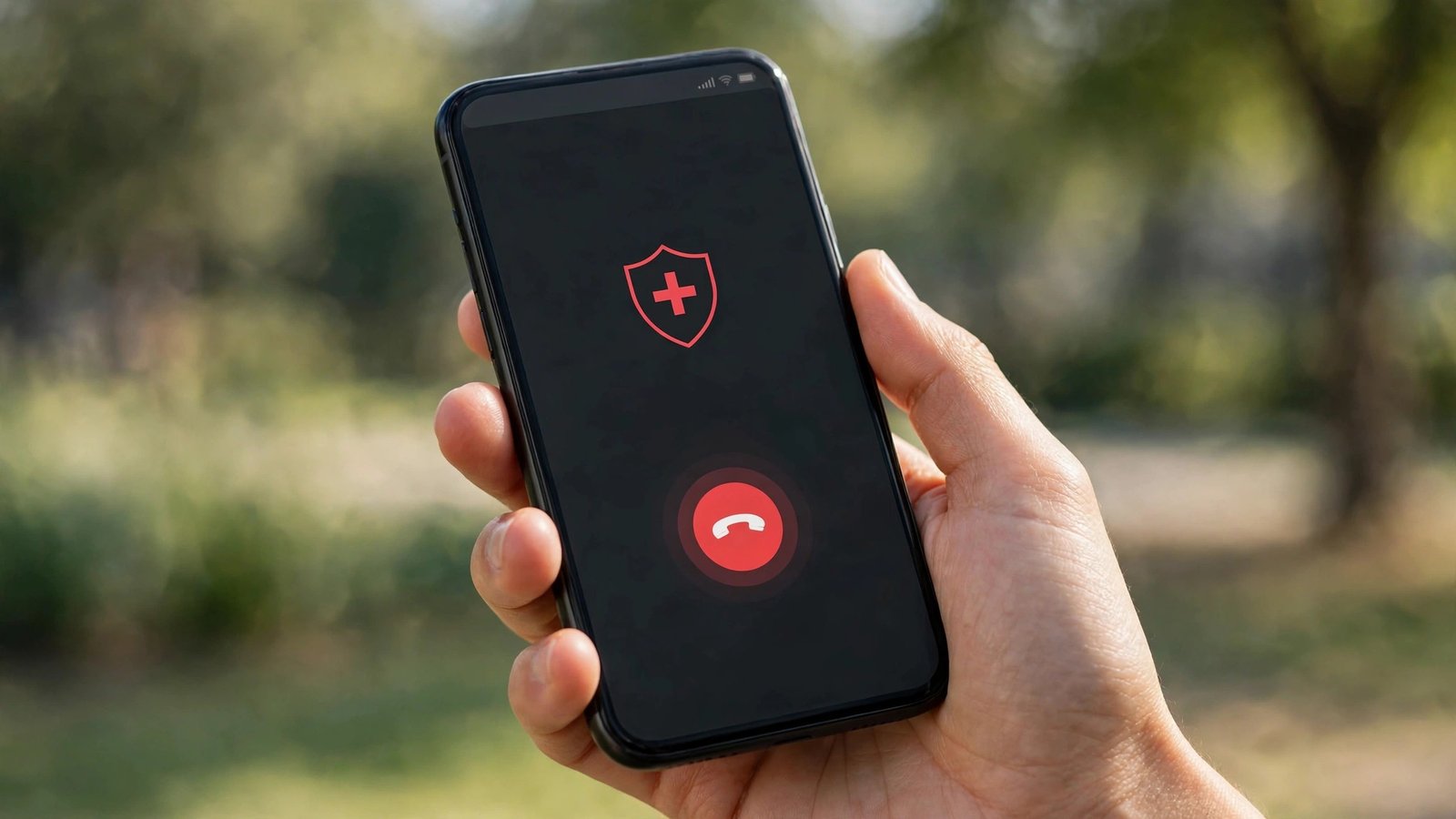
How to Set Up Emergency SOS on iPhone and Android in the US
Emergency SOS is one of those phone features you hope you never need, and one you will be glad you set up if you do. On both iPhone and Android, it lets you call emergency services quickly, even when the phone is locked, and it can alert people you trust. In the US, that call goes to 911. Setting it up takes only a few minutes, but the exact steps differ between iPhone and Android, and Android steps vary a little by phone maker. This guide walks through both, plus the contacts and health details that make SOS more useful.
What Emergency SOS does, in plain terms
On iPhone, Emergency SOS can call 911 when you hold the side button and a volume button, press the side button five times, or use the power menu, depending on the settings you choose. After the call, if you have emergency contacts set up, the phone can send them a text with your location, and it can keep updating that location for a time if you keep moving. On Android, the idea is the same: a quick button press starts an emergency call, and in most recent versions you can also share location and alert emergency contacts. The details, and the names of the settings, depend on whether you have a Pixel, a Samsung Galaxy, or another Android phone.
Do not place a test call to 911 to try SOS out. Learn the steps from the settings screens, without completing a real call. Also be ready to say where you are if you can, because location sharing helps but does not always replace a spoken address.
Step 1: Set up Emergency SOS on iPhone
On iPhone, open Settings, then tap Emergency SOS. You will see options for how SOS is triggered. Call with Hold and Release lets you hold the side button and a volume button, then release to call. Call with 5 Button Presses lets you press the side button five times quickly to start a call. In most recent versions, you can also choose a countdown sound, which gives a warning tone before the call starts. Turn on the trigger method you are most likely to remember under stress, and leave the countdown sound on if it helps you avoid an accidental call.
For emergency contacts, open Health, tap your profile photo, tap Medical ID, then tap Edit, and add contacts from your address book. Pick people who answer reliably, and tell them you have added them.
While you are in Medical ID, fill in the basics: any serious allergies, major medical conditions, and current medicines if you are comfortable sharing them. First responders can view Medical ID from the lock screen without unlocking your phone, which is the whole point. Keep it short and accurate, and update it when your medicines or conditions change.
Step 2: Set up Emergency SOS on Android
On Android, the path depends on your phone. On a Pixel, open Settings, then tap Safety and emergency, then Emergency SOS. On a Samsung Galaxy, open Settings, then tap Safety and emergency, then look for Emergency SOS or Send SOS messages, depending on your model and software version. On other Android phones, search Settings for SOS or Emergency, and follow the on screen path. The setting names vary, but the goal is the same: turn SOS on, choose how many button presses trigger it, and choose whether to share location and alert contacts.
When you set up SOS on Android, add at least two trusted contacts with current numbers, and turn on location sharing if it is offered. After setup, confirm the toggle is on and the contacts are listed.
Step 3: Make SOS useful for first responders
SOS works best when it is paired with a few small details. First, keep your phone charged enough to make a call. A phone at 1 percent is not a reliable safety tool. A portable charger in a bag or car can make a real difference on a long day out. Second, make sure your lock screen allows emergency calls, which is the default on both iPhone and Android. You do not need to change this, but do not install lock screen tools that block the emergency option.
Third, keep Medical ID on iPhone, or the emergency info section on Android, up to date. Paramedics may check the phone when you cannot speak for yourself. Finally, show family members who might use your phone where the SOS trigger is, and explain that it calls 911 in the US.
Step 4: Avoid accidental SOS calls
Accidental SOS calls are common, and they are easy to reduce. On iPhone, the countdown sound is your friend: it gives you a few seconds to cancel before the call starts. On Android, the same idea applies, with a countdown or confirmation step on many models. If your phone is in a tight pocket or a bag with other items pressing the buttons, use a case that protects the side buttons, and avoid setting the trigger to the easiest possible press if you keep getting false alarms.
If an accidental call does go through, stay on the line and tell the dispatcher it was accidental and that you are safe. Hanging up without explanation can lead to a callback.
Emergency SOS will not prevent an emergency, but it can shorten the time between trouble and help. Spend five minutes on it now, while you are calm and at home.
Frequently Asked Questions
Does Emergency SOS call 911 in the US?
Yes. In the US, Emergency SOS calls 911. The exact trigger differs by phone: iPhone offers hold and release or five button presses, while Android phones usually offer a set number of power button presses, depending on the maker. Check your SOS settings to see which trigger your phone uses.
Should I test Emergency SOS by calling 911?
No. Do not place a test call to 911. Learn the steps from the settings screens, and use any on screen explanation your phone offers. If an accidental call goes through, stay on the line and tell the dispatcher it was accidental and that you are safe.
Who gets notified after an SOS call?
On iPhone, emergency contacts from Medical ID in the Health app can receive a message with your location after an SOS call. On Android, contacts you add in the SOS or safety settings can be alerted, depending on your phone model. Add people who answer reliably, and tell them you have added them.




Post Comment