How to Share Your Wi-Fi Password With Guests on iPhone and Android in the US
Guests arrive, phones come out, and someone always asks for the Wi-Fi password. Reading out a long string of letters and numbers is slow, and it often ends with three failed attempts and a request to spell it again. Both iPhone and Android have faster ways to share access, and once you know them, you will never dictate a password out loud again.
The best method depends on what phones you and your guest are using. Apple to Apple sharing is almost automatic, Android to Android works well with a QR code, and a printed QR code covers every other combination. Pick the method that matches your household, and keep a backup ready for visitors whose phones do not support sharing.
Step 1: Share from iPhone to iPhone or iPad
If you and your guest both use Apple devices, sharing takes seconds. Make sure both devices have Wi-Fi and Bluetooth turned on, and that your guest is saved in your contacts with their Apple ID email address. Ask your guest to open Settings, tap Wi-Fi, and select your network name. A share prompt should appear on your phone almost immediately.
Tap Share Password on your device, and your guest’s phone will connect without typing anything. If the prompt does not appear, move the phones closer together, check that both devices are unlocked, and confirm that Personal Hotspot is off on your phone, since that can interfere with the prompt in some versions. Restarting Wi-Fi on the guest’s phone and selecting the network again usually fixes a missing prompt.
Step 2: Share from Android with a QR code
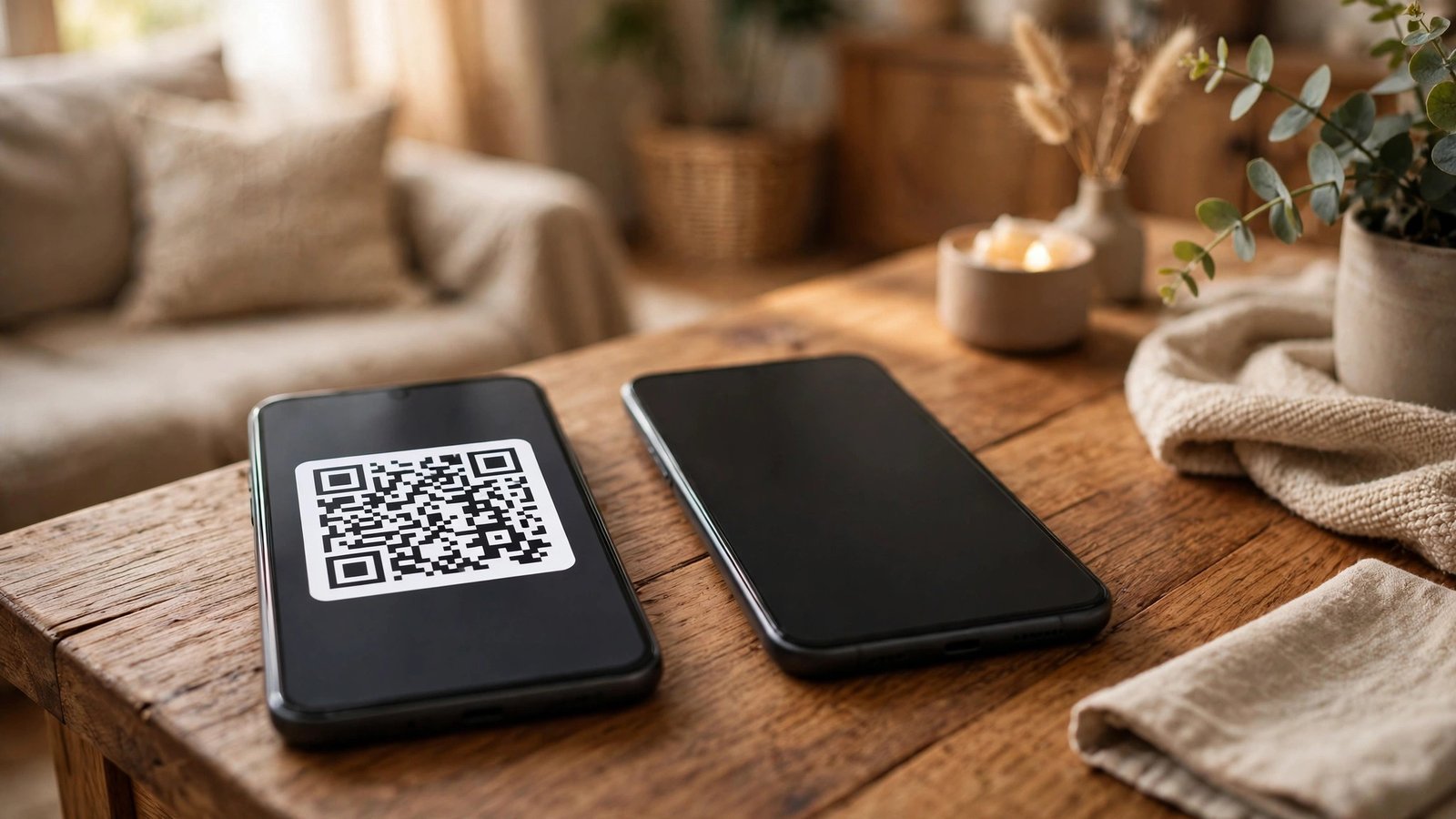
On most recent Android phones, you can share your saved Wi-Fi network as a QR code. Open Settings, tap Network and internet or Connections, then tap Wi-Fi. Tap the network you are connected to, or tap the gear icon beside it, then look for a Share button. You may need to confirm with your fingerprint or PIN, and then a QR code will appear on screen.
Your guest opens their camera app and points it at the code. In most recent versions, the camera will offer a prompt to join the network with one tap. If the camera does not recognize the code, your guest can open Settings, tap Wi-Fi, and use the scan or QR icon near the add network option. Menu names vary slightly by phone maker, but the Share button on a saved network is the key step on nearly all Android phones.
Step 3: Share from iPhone to Android (and the other way around)
Apple’s one-tap sharing only works between Apple devices, so for mixed households the QR code is the answer. If you have an Android phone or tablet on the same network, use its Share button to display the code, as described above. If you only have Apple devices, you can still create a QR code for your network with a free Wi-Fi QR generator in a browser, then print it or save it as a photo.
To make a code by hand, you need three details: your network name, your password, and your security type, which is WPA2 or WPA3 on most home routers in the US. Enter those into a trusted QR generator, check the code by scanning it yourself, and then print it for the fridge or the guest room. Guests scan it with their camera and join without ever seeing the password itself.
Step 4: Share safely and keep control
Sharing access is convenient, but a little care keeps your network safe. Avoid reading the password aloud in a crowded room or posting it where visitors can photograph it and pass it on. A QR code is better, since guests join without learning the password, but it is still wise to change the password occasionally if many people have used it.
If your router supports a guest network, use it for visitors. A guest network keeps guests on the internet without giving them access to shared folders, printers, and smart home devices on your main network. Most routers let you set this up in their app or web settings, with a separate name and password. Turn the guest network off between visits if you prefer, and change its password when you change your main one.
Step 5: Fix it when sharing does not work
If a guest cannot connect after sharing, check the simple things first. Confirm they selected the right network name, especially if your router broadcasts both a 2.4 GHz and a 5 GHz version with similar names. Check that the password has not changed since you last connected, and that your router is not limiting the number of connected devices.
If the QR code will not scan, brighten your screen, clean the camera lens, and hold the guest’s phone steady about six inches away. If the Apple share prompt never appears, confirm both devices have Bluetooth on and are signed in to iCloud with up-to-date software. As a last resort, type the password once by hand, then set up the QR code method so the next guest has an easier time.
Once sharing is set up, welcoming guests gets noticeably smoother. No more spelling out passwords, no more failed attempts, and no more hunting for the router label. A QR code on the fridge and the one-tap Apple prompt cover almost every visitor, and a guest network keeps your home network private at the same time.
Frequently Asked Questions
How do I share my Wi-Fi password from iPhone to iPhone?
Ask your guest to select your network in Settings and Wi-Fi while both phones have Wi-Fi and Bluetooth on and are close together. Tap Share Password on the prompt that appears on your phone, and your guest will connect without typing the password.
How do I share my Wi-Fi password from Android?
Open Settings, tap Wi-Fi, select your connected network, and tap Share to display a QR code. Your guest scans the code with their camera or from their Wi-Fi settings to join the network.
Can I share Wi-Fi from an iPhone to an Android phone?
Apple’s one-tap sharing does not work with Android, so use a QR code instead. Create one from an Android device on the same network or with a Wi-Fi QR generator, then let your guest scan it to connect.



Post Comment