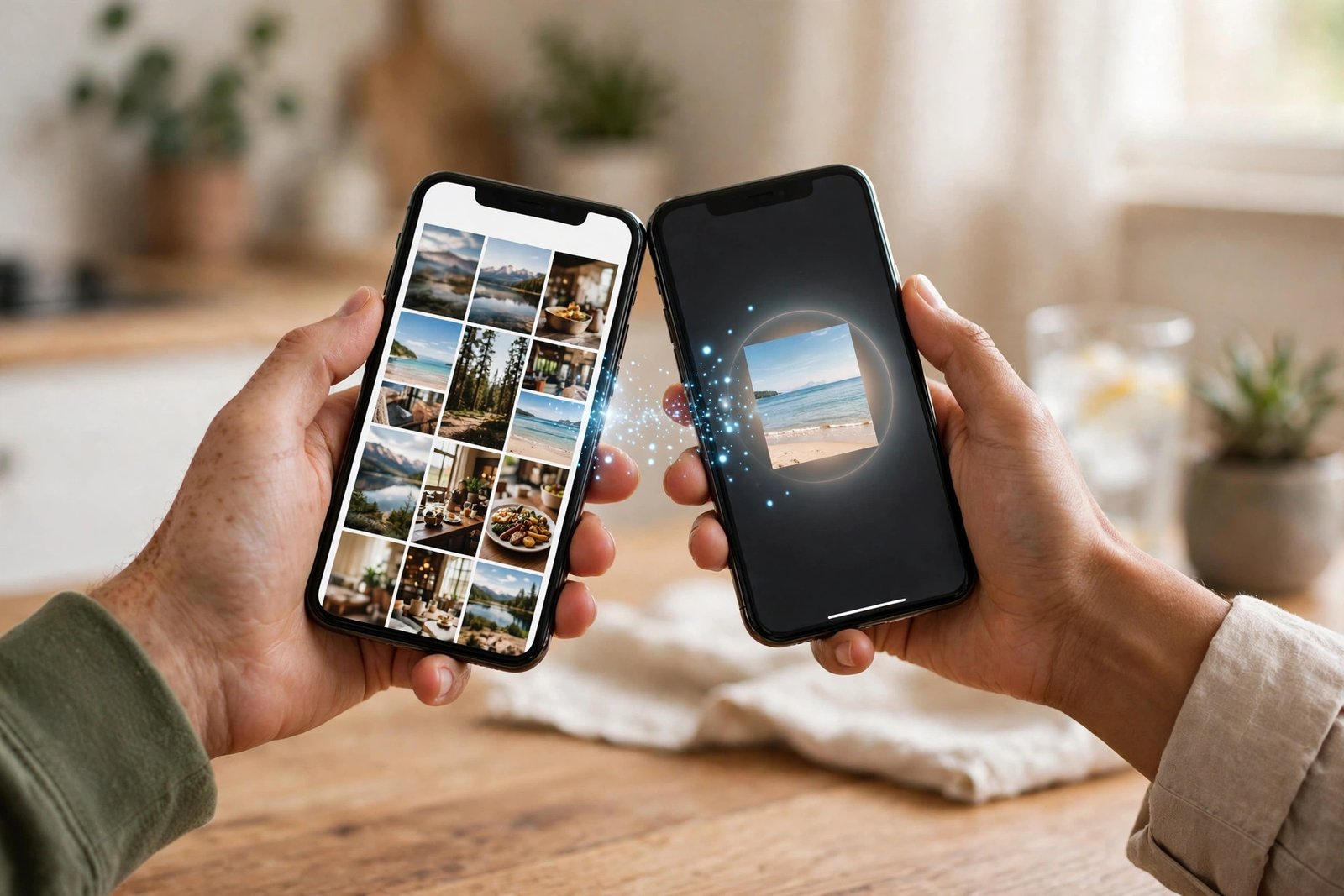
How to Use AirDrop and Quick Share to Share Files Between Phones in the UK
Sending photos to a friend should not need a cable, a cloud upload or a messaging app that shrinks everything. Both iPhone and Android can send files straight from one phone to another over a short range wireless connection, keeping full quality. On iPhone it is called AirDrop. On Android it is called Quick Share, which replaced the older Nearby Share name in most recent versions.
This guide covers both, including iPhone to iPhone and Android to Android sends, and what to do when the two sides do not match. You do not need to install anything extra.
Get ready: the settings that make sharing work
Both systems use a mix of Bluetooth to find nearby devices and Wi-Fi to move the actual files, so both radios need to be on. You do not need to be connected to the same Wi-Fi network, and you do not need mobile data for the transfer itself. Just make sure Bluetooth and Wi-Fi are switched on, and that the two phones are close together, ideally in the same room.
On iPhone, check AirDrop is not set to Receiving Off. Open Settings, tap General, then AirDrop, and choose Contacts Only or Everyone for 10 Minutes. Contacts Only is the safer everyday choice. Everyone for 10 Minutes suits sharing with someone outside your contacts, and it switches back on its own after ten minutes.
On Android, open Settings and search for Quick Share. Check that it is turned on and look at the Who can share with you setting. Choose Your devices or Contacts for everyday use, and switch to Everyone only for a short share with a stranger, then switch it back. In most recent versions you will also see a visibility toggle in the Quick Share panel itself, so you can change it without digging through Settings each time.
Send files with AirDrop on iPhone
Step 1: Open the photo, video, file or link you want to send. Tap the Share button, which looks like a square with an arrow pointing up.
Step 2: Near the top of the share sheet you will see nearby AirDrop devices appear as circles. Wait a moment for the other person's phone to show up. If it does not appear, ask them to check their AirDrop receiving setting and to wake their phone screen.
Step 3: Tap the person's icon. They will see a preview and a prompt to accept or decline. Once they accept, the transfer starts, and a progress ring shows around their icon.
Step 4: When it finishes, photos and videos land in the Photos app, while other files open in the relevant app or land in Files. If you sent several items at once, they arrive as a group, so check the most recent items in Photos to confirm nothing is missing.
Send files with Quick Share on Android
Step 1: Open the photo, video or file you want to send, then tap Share. In the share sheet, look for Quick Share. On some phones it appears as a row of nearby devices at the top of the sheet; on others you may need to tap Quick Share to open its own panel.
Step 2: Wait for the other phone to appear. The receiver needs Quick Share turned on and their phone screen awake. If they are not showing up, ask them to open the Quick Share panel on their phone, which makes their device visible for a short while.
Step 3: Tap the receiver's device name. They will see a prompt showing what you are sending and can accept or decline. Once accepted, the file moves across directly, with a progress bar on both phones.
Step 4: When it completes, photos and videos appear in the gallery, and other files appear in Downloads or the Files app.
What about iPhone to Android, or Android to iPhone?
Here is the honest limit: AirDrop and Quick Share do not talk directly to each other. An iPhone cannot AirDrop to an Android phone, and an Android phone cannot Quick Share to an iPhone, at least not with the built in tools alone.
For a mixed pair, the simplest workaround is still a messaging app or a shared link, but you can protect quality with a little care. Sending through a cloud link, such as a shared album or a drive link, keeps the original file intact, while sending inside a chat app may compress photos and videos. If quality matters, use a link and let the other person download the original.
A USB cable or a trusted file transfer app is another option, but a cloud link is usually faster. Check the link sharing settings so you are not sharing the file with anyone who finds the link.
Fix it when a phone does not show up
This is the most common frustration, and it is usually a visibility setting rather than a broken phone. Work through these checks in order.
First, confirm Bluetooth and Wi-Fi are both on for sender and receiver, and that both phones are unlocked with the screen awake. A sleeping phone often hides itself.
Second, check the receiving setting. On iPhone, AirDrop should be Contacts Only if the sender is in your contacts, or Everyone for 10 Minutes if not. On Android, Quick Share visibility should include the sender, either through Contacts or Everyone for a short window.
Third, move closer and turn off any VPN on either phone for the duration of the transfer, as VPNs can interfere with local discovery in some setups. Airplane mode must be off, since it kills both radios unless you manually re-enable them.


Post Comment