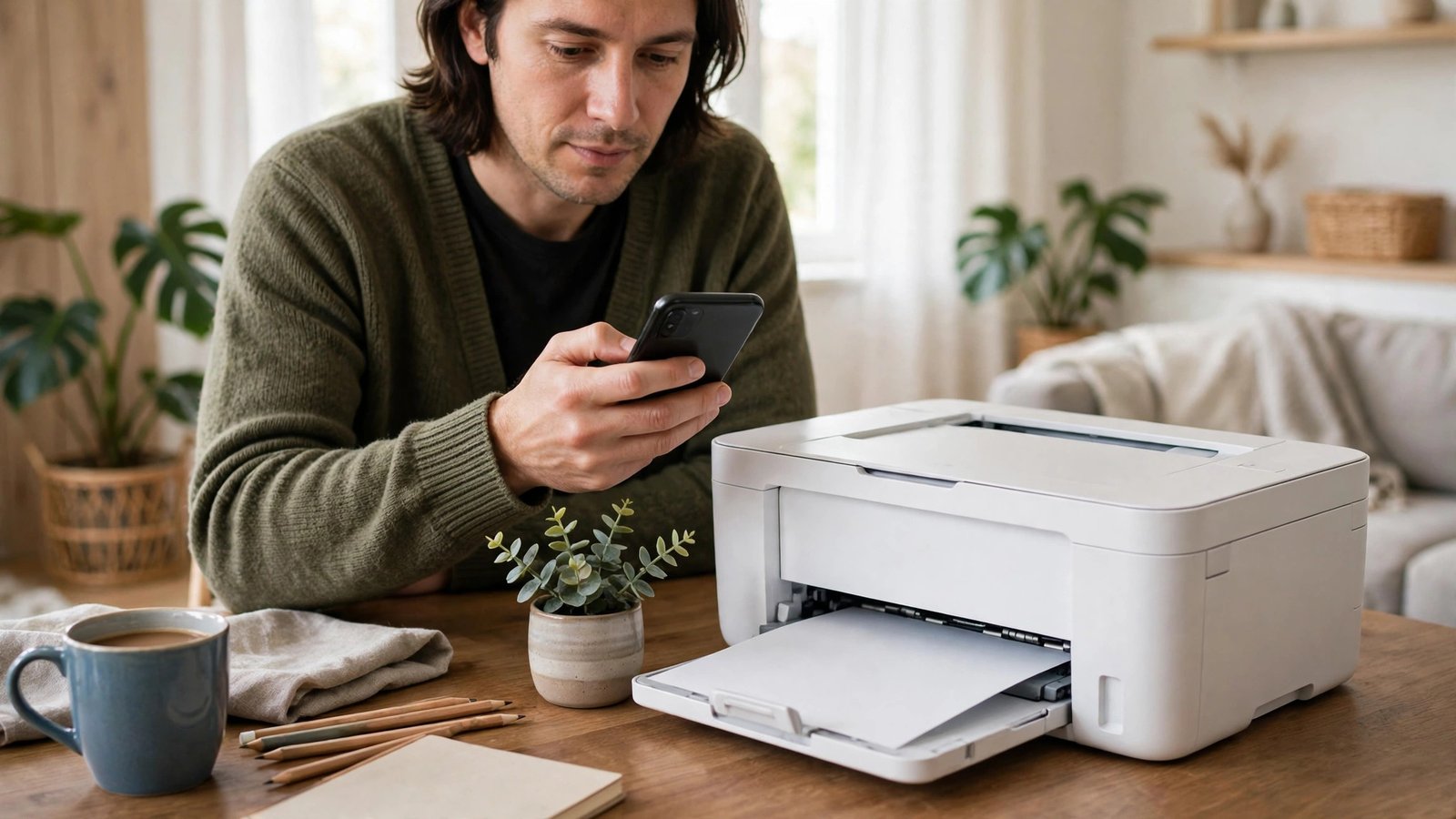
How to Print From Your Phone in Canada: iPhone and Android Made Simple
You do not need a computer to print a boarding pass, a school form, a receipt or a photo. Most modern phones and printers can talk to each other over Wi-Fi, and once you know where the print button lives, the whole process takes less than a minute. This guide walks through printing on iPhone and Android in Canada, including what to check when nothing happens.
Before you start, put your phone and your printer on the same Wi-Fi network. That one step solves most printing problems. If your printer supports Wi-Fi Direct, you can also connect straight to the printer without a home router, but the regular Wi-Fi method is simpler for most people at home or at work.
Step 1: Check that your printer supports phone printing
Most printers sold in the last few years support wireless printing. On iPhone, look for AirPrint support. On Android, look for support for the default print service, Mopria, or the printer maker’s own app. You can usually find this on the box, in the printer manual, or on the maker’s website by searching the model number.
Make sure the printer is turned on, has paper loaded, and shows a steady Wi-Fi light or a connected status on its small screen.
Step 2: Print from an iPhone with AirPrint
AirPrint is built into iPhone, so you do not need to install anything extra for a compatible printer. Open the photo, document, web page or email you want to print. Tap the Share button, which looks like a square with an arrow pointing up. Scroll down and tap Print.
On the print screen, tap Printer and choose your printer from the list. If it does not appear, check that your phone and printer share the same Wi-Fi network, then try again. Choose the number of copies, and change the paper size or page range if you need to. For photos, you can often choose colour or black and white, and single or double sided printing if your printer supports it. Tap Print in the top corner, and the job should start within a few seconds.
Step 3: Print from Android
Android printing works in a similar way, though the exact menu names vary slightly by phone maker. In most recent versions, open the photo, document or web page you want to print. Tap the three-dot menu, then tap Print. If you do not see Print in that menu, look under Share, where some apps place it.
Choose your printer from the list. If no printer appears, tap All printers or Add printer, and make sure your phone is on the same Wi-Fi network as the printer. Your phone may download a small print service for your printer brand the first time, which is normal. Choose copies, colour or black and white, paper size and orientation, then tap the print button.
Step 4: Print a PDF, a photo or a web page
PDF files are the easiest documents to print from a phone, because they keep their layout on any device. Open the PDF in your files app or browser, tap Share or the three-dot menu, then tap Print. Check the preview before you send the job, especially for forms, since a scaled-down page can make small text hard to read. If the preview looks wrong, change the paper size to Letter, which is the standard size used across Canada, or choose Fit to page.
Photos print best when you choose the right paper. Plain paper works for a quick copy, but photo paper gives much better colour for pictures you plan to keep or frame. In the print settings, choose the photo paper size your printer supports, and select high quality if you have time to wait for a slower, sharper print. For everyday documents, standard quality saves ink and time.
Web pages can print with extra clutter, such as menus and ads. Many browsers offer a reader view or a print preview that strips some of that away. If a page still prints badly, try saving it as a PDF first, then printing the PDF. That gives you a cleaner result and lets you check the pages before you use ink.
Step 5: Fix it when printing fails
If your printer does not appear, start with the basics. Confirm both devices are on the same Wi-Fi network, and restart the printer if it has been idle for a long time. Turn Wi-Fi off and on again on your phone, then reopen the print menu. A restart of the phone also clears many temporary connection glitches.
If the printer appears but the job stalls, check for low ink, a paper jam or an empty tray. The printer screen or its app will usually name the problem. Cancel the stuck job from your phone, fix the printer issue, then send the job again. If only one app fails to print while others work, try printing from a different app to narrow down whether the problem is with that app or with the connection.
Printing from your phone should feel boring once it is set up, and that is a good sign. Put your phone and printer on the same network, learn the Share and Print menus for your device, and keep the printer app for your brand handy for ink checks and scans. With those habits in place, you can print what you need without hunting for a computer.
Frequently Asked Questions
Do I need an app to print from my phone?
Not usually. iPhone uses built-in AirPrint, and most recent Android phones have built-in printing. A printer brand app can help with setup, scanning and ink checks, but it is optional for basic printing.
Why does my printer not show up on my phone?
The most common cause is a different Wi-Fi network. Put your phone and printer on the same network, restart the printer, toggle Wi-Fi on your phone, and try the print menu again.
Can I print from my phone without Wi-Fi?
Some printers support Wi-Fi Direct, which lets your phone connect straight to the printer. Otherwise, you need a shared Wi-Fi network, or a computer connected to the printer to act as a bridge.





Post Comment