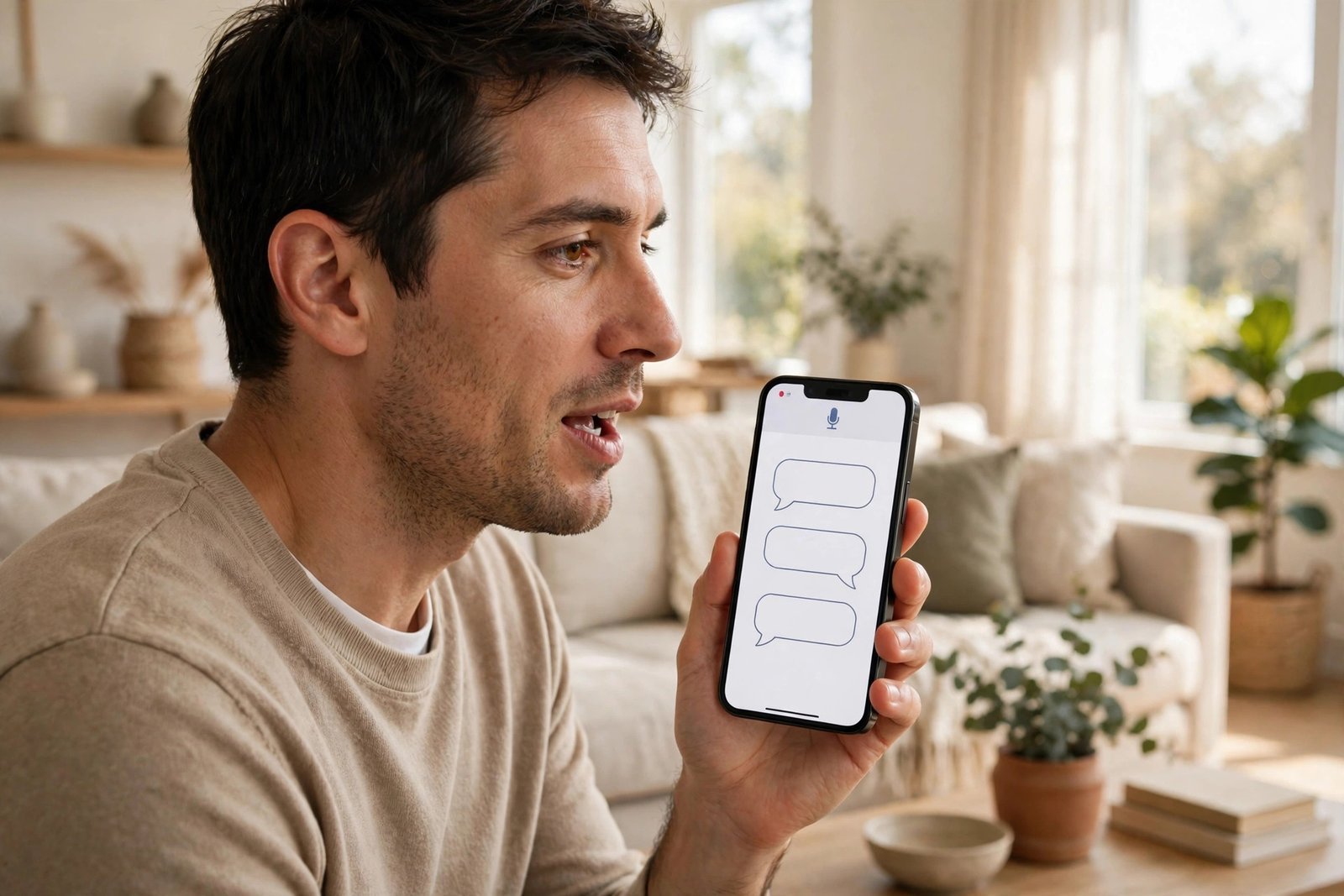
How to Use Voice Typing and Live Captions on iPhone and Android in the UK
Voice typing and live captions are two of the most useful accessibility features on a modern phone, and they are helpful for far more than accessibility alone. Voice typing lets you dictate messages, notes and emails instead of tapping out every word. Live captions turn speech from videos, calls and other audio into readable text on screen. Both are built into iPhone and Android, both are free to use, and both take only a few minutes to set up.
You do not need a new phone or a paid app to start. If your phone runs a reasonably recent version of iOS or Android, the tools are already there. The steps below cover both systems, with notes on where the wording may differ slightly by phone maker.
Step 1: Use voice typing on iPhone
On iPhone, voice typing is called Dictation, and it works in most places where a keyboard appears. Open any app where you can type, such as Messages, Notes or Mail, and tap the text field to bring up the keyboard.
Look for the microphone icon on the keyboard. In most recent versions it sits near the bottom of the keyboard, or in the row above the letters. Tap it, then speak clearly at a normal pace. You can say punctuation out loud, such as full stop, comma or question mark, and the phone will insert it. Say new line or new paragraph when you want to break up a longer message.
If the microphone icon is missing, check Settings, then General, then Keyboard, and make sure Enable Dictation is switched on. Speak in a quiet room for best results, and keep sentences fairly short at first. If a word is misheard, tap it and choose the correction.
Step 2: Use voice typing on Android
On Android, voice typing usually runs through the keyboard app, most often Gboard on many phones. Open a text field, tap the microphone icon on the keyboard, and start speaking. As on iPhone, you can say punctuation words aloud, and the phone will convert them into punctuation marks.
If you do not see a microphone icon, check your keyboard settings. In Gboard, go to Settings, then Voice typing, and make sure it is switched on. Some phone makers use their own keyboard, in which case the microphone may sit in a toolbar above the keyboard, or inside the keyboard settings menu.
For longer notes, dictating in chunks works better than trying to speak a whole document in one go.
Step 3: Turn on live captions on iPhone
On iPhone, live captions appear under a different name. Go to Settings, then Accessibility, then Hearing, and look for Live Captions. Switch it on, and your phone will show captions for audio playing on the device, including videos and some calls, in a floating caption box.
You can move the caption box, change its size, and in most recent versions choose whether captions appear for phone calls and video calls as well. Live captions are processed on the device in many cases, which helps with privacy, though availability can vary by language and region. English captions are widely supported in the UK.
Step 4: Turn on live captions on Android
On Android, live captions are usually found in Settings, then Accessibility, then Live Caption, though the exact path can vary by maker. Switch Live Caption on, and a caption box will appear whenever media with speech plays. You can drag the box to a comfortable spot, and adjust text size in the caption settings if needed.
Some Android phones also offer a volume shortcut for live captions. Pressing a volume button may show a caption icon below the volume slider, letting you switch captions on and off quickly. If you cannot find that shortcut, the main Settings route will still work.
Step 5: Get better results from both tools
A few habits make a big difference. For voice typing, speak at a natural speed, avoid mumbling, and reduce background noise where you can. Short, clear sentences are recognised more reliably than long, rambling ones. For live captions, use a stable internet or media connection where possible, since poor audio quality makes captions less accurate.
Check your language setting if results look odd. Both iPhone and Android let you choose a dictation or caption language, and a mismatch can cause frequent errors. In the UK, English (UK) is usually the best choice for everyday use, though other English variants may work almost as well.
Finally, remember that captions and dictation are aids, not perfect transcripts. For important messages, read the text back before sending. For captions, use them alongside the audio where you can, especially for names, numbers and technical terms that automated systems sometimes get wrong.
Frequently Asked Questions
Do I need to download an app to use voice typing or live captions?
No. Both features are built into iPhone and Android in most recent versions. You may need to switch them on in Settings, but you do not need a paid app to start.
Will voice typing work without an internet connection?
It depends on your phone and settings. Some dictation is processed on the device, while other dictation sends audio for processing. If you are offline and dictation does not start, that is usually why, so try again when you are connected.
Can live captions help if I am hard of hearing?
Yes, that is one of their main purposes. Live captions turn spoken audio into on-screen text, which can help you follow videos, calls and other media. They are not a replacement for hearing support, but they are a useful everyday aid.





Post Comment