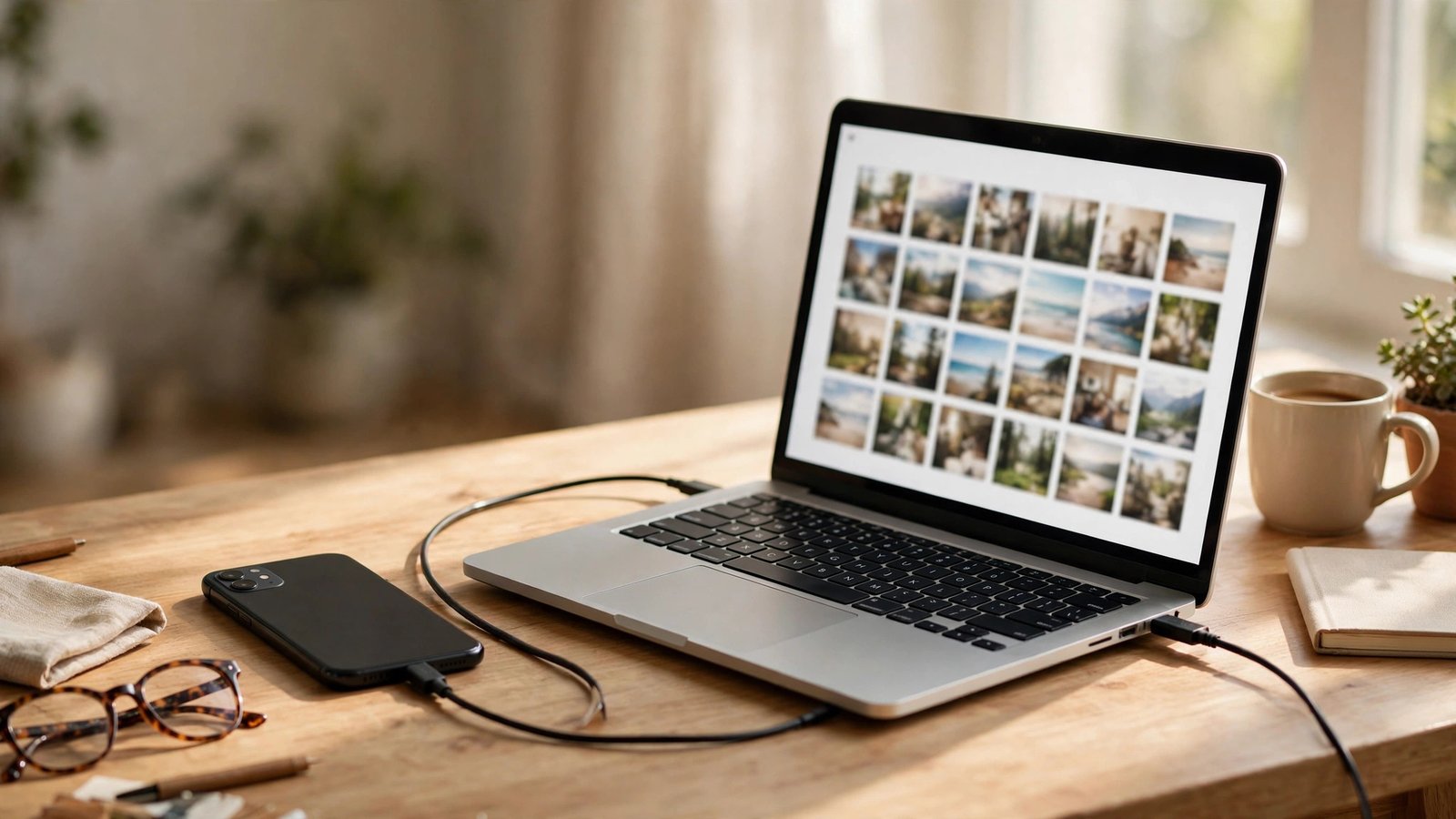
How to Transfer Photos From Your Phone to Your Computer in the UK
Your phone fills up fast, and photos are usually the reason. Moving them to a computer gives you a proper backup, frees up space, and makes editing and printing far easier. You do not need special software: a cable, a cloud account, or a wireless transfer will do the job.
Before you start, check your computer has enough free space, and plug your phone in to charge.
Method 1: Transfer with a cable (the most reliable route)
A cable transfer is the fastest option for large photo libraries, and it works without Wi-Fi.
On a Windows PC.
Step 1: Connect your phone to the PC with a USB cable. On an Android phone, tap the USB notification and choose File Transfer. On an iPhone, tap Trust when asked whether to trust the computer, and unlock the phone.
Step 2: Open File Explorer and find your phone under This PC. For Android, open the DCIM folder, then Camera, where most photos live. For iPhone, open the phone, then Internal Storage, then DCIM.
Step 3: Select the photos you want, or press Ctrl and A to select everything in a folder. Copy them with Ctrl and C, then paste with Ctrl and V into a folder on your PC, such as Pictures, with a dated subfolder like 2026-11-photos.
Step 4: Wait for the copy to finish, then open a few photos to check they display correctly. Only delete from the phone once the copies open and another backup exists.
On a Mac.
Step 1: Connect your iPhone with a cable. It should appear in Finder in the sidebar, or open the Photos app, which can import directly.
Step 2: In Photos, select your phone, choose the photos to import, and click Import Selected, or Import All New Items for everything not yet copied.
Step 3: For Android on a Mac, look for the phone in Finder. If it does not appear, the free Android File Transfer tool is the usual workaround in most recent versions. Then open DCIM, then Camera, and drag photos to a folder.
Step 4: Check a sample of imported photos, then decide whether to keep the originals on the phone as well. Keeping both copies until you have a second backup is the safest habit.
Method 2: Transfer wirelessly with cloud services
If you would rather skip cables, cloud services move photos over Wi-Fi in the background.
Step 1: On iPhone, check Settings, then your name, then iCloud, then Photos, and confirm iCloud Photos is on if you want full-resolution copies in iCloud. On a computer, sign in at icloud.com, open Photos, select images, and download them to a local folder.
Step 2: On Android, open Google Photos, tap your profile picture, then Photos settings, then Backup, and confirm backup is on. On a computer, visit photos.google.com, select photos, and download them.
Step 3: For a one-off move rather than ongoing backup, pick a smaller set in the web gallery and download that selection, rather than exporting your whole library at once. Large exports can take a long time and may time out on slower connections.
Step 4: Once downloaded, move the files into a named folder and check a few open correctly.
Method 3: AirDrop and nearby sharing for quick moves
For a handful of photos rather than a whole library, wireless sharing is the quickest route.
Step 1: On iPhone to Mac, open Photos, select the images, tap Share, then AirDrop, and choose your Mac. On the Mac, accept the transfer and find the photos in Downloads.
Step 2: On Android to Windows, use Quick Share from the share menu in most recent versions, and accept the transfer on the PC. On Samsung phones, the same feature may appear under the Quick Share or Nearby Share name depending on the model.
Step 3: Keep the devices close together and awake during the transfer. Wireless transfers are convenient, but they slow down sharply with distance or a weak signal.
Step 4: After the transfer, check the photos on the computer before deleting anything from the phone.
Organise, check and free up space
Moving photos is only half the job. A little organisation now saves hours of searching later.
Step 1: Sort photos into folders by year and month, or by event for holidays and family occasions. A simple system you actually use beats a perfect system you abandon.
Step 2: Watch out for HEIC files from iPhones. Most recent versions of Windows and Mac open them fine, but if an older program cannot read them, export or convert copies to JPEG from the Photos app before sharing them widely.
Step 3: Verify the transfer: compare file counts on phone and computer, and open photos from the start, middle and end of the batch.
Step 4: Only then free up space on the phone. Delete in small batches, and keep another backup, such as an external drive or cloud copy, for photos you cannot replace.
Troubleshooting common problems
If your computer does not see the phone, try a different USB port or cable first, since many cables only charge and do not carry data. Unlock the phone, check for a Trust prompt on iPhone or a File Transfer option on Android, and restart both devices if the phone still does not appear.
If transfers are very slow, a cable beats Wi-Fi for thousands of photos, and moving in smaller batches helps cloud downloads complete cleanly. If some photos will not open on the computer, they may be in HEIC format or may have copied incompletely, so try importing those few again rather than the whole library.
Frequently Asked Questions
Is a cable or cloud transfer better for photos?
A cable is usually faster and more reliable for large libraries, while cloud backup is better for automatic ongoing protection. Many people use both: cloud for day-to-day safety, and a cable copy to a computer for a full local backup.
Will transferring photos reduce their quality?
Cable transfers, AirDrop, and full-resolution cloud downloads keep original quality in most cases. Watch out for messaging apps, which often compress photos, and for cloud settings that store smaller optimised versions instead of originals.
Can I delete photos from my phone straight after transferring them?
Wait until you have checked the copies open on the computer and you have a second backup for anything irreplaceable. Once both checks pass, deleting from the phone is safe and will free up a useful amount of space.





Post Comment