How to Set Up Emergency SOS on iPhone and Android in Australia
Emergency SOS is one of those phone features you hope you never need, but it is worth setting up while you are calm and at home. Once it is switched on, your phone can call Triple Zero, alert your emergency contacts and share your location, even when you cannot unlock the screen or explain where you are. This guide walks through the setup on iPhone and Android, with the Australian details that matter, such as calling 000 and adding contacts who can actually help.
Take five minutes to do this now, then test the steps on screen without placing a real call. A quick setup today can save precious time in a stressful moment later.
Step 1: Add emergency contacts first
Start with the people you want notified. On an iPhone, open Contacts, pick a person, scroll down and tap Add to Emergency Contacts, then choose their relationship to you. On most Android phones, open Settings, then Safety and emergency, then Emergency contacts, and add the people you trust most.
Pick contacts who answer their phone reliably. A partner, close family member or trusted friend is usually a better choice than someone who travels often. Tell them you have added them, so a sudden alert does not confuse them.
Step 2: Set up Emergency SOS on iPhone
On an iPhone, go to Settings, then Emergency SOS. Turn on Call with Hold and Release if you want to start a call by holding the side button and a volume button together. You can also turn on Call with 5 Button Presses, which starts a call after you press the side button five times in a row.
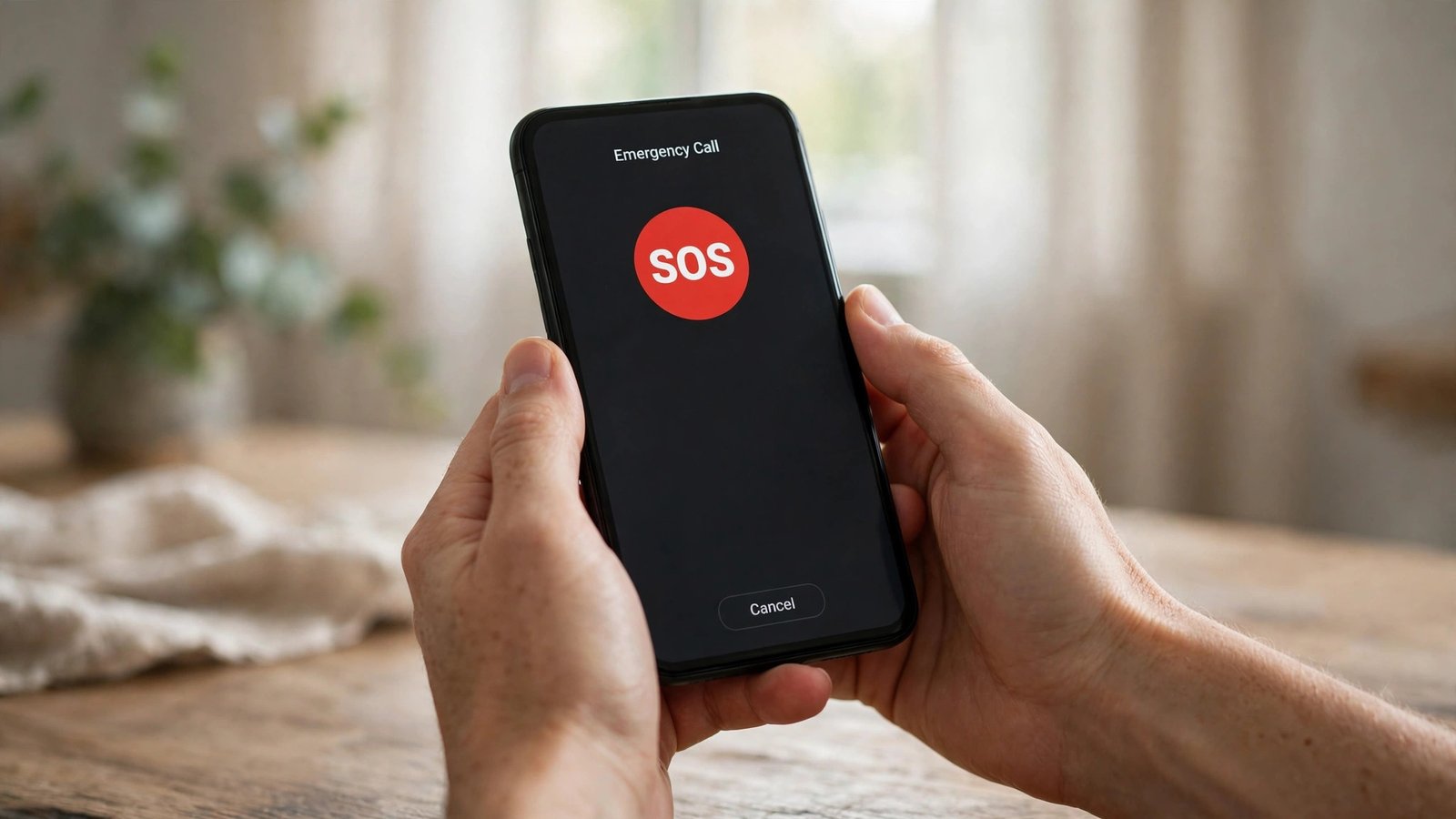
Below those options, check the countdown sound setting. A loud countdown can be useful if you are in danger and want attention, but it can also be a problem if you need to stay quiet. Choose the setting that fits your situation, and remember you can change it later. In most recent versions, the iPhone will also show a slider on screen so you can cancel the call before it connects. Do not practise by completing a real call to Triple Zero, as that ties up emergency lines.
Step 3: Set up Emergency SOS on Android
Android steps vary a little by brand, but the path is similar. On a Samsung phone, open Settings, then Safety and emergency, then Emergency SOS, and turn it on. You can choose how many presses of the side key start the call, and add an option to send a message to your emergency contacts. On a Google Pixel, open Settings, then Safety and emergency, then Emergency SOS, and follow the on screen prompts to choose your settings.
On either brand, check whether your phone is set to share your location with emergency contacts when SOS starts. Location sharing helps rescuers and family find you, especially if you are away from home or on a road trip. If you use a different Android brand, search Settings for “Emergency SOS” and you will usually find the same options under a safety menu.
Step 4: Add medical details rescuers can see
Emergency SOS works best when it is paired with medical information that first responders can read from your lock screen. On an iPhone, open the Health app, tap your profile picture, then Medical ID, and add allergies, medications, medical conditions and blood type if you know them. Turn on Show When Locked so the details are visible without your passcode.
On Android, open Settings, then Safety and emergency, then Medical information, and fill in the same kind of details. Keep this information short and current. List only what a paramedic would need in the first few minutes, such as a serious allergy or a condition that changes treatment. Update it when a medication changes, and remove anything out of date.
Step 5: Know how Triple Zero works from a mobile
In Australia, Emergency SOS calls Triple Zero (000). You can also call 112 from a mobile, which will connect to Triple Zero even if your phone has no SIM or is outside your normal coverage in some cases. Stay on the line if you can, and answer the operator’s questions about your location and what has happened. If you cannot speak, stay connected if it is safe to do so, because the call itself can help locate you.
If you trigger SOS by accident, do not just hang up. Stay on the line and tell the operator it was a mistake, so they do not send help unnecessarily. Accidental calls happen often, and operators would rather hear a quick explanation than wonder whether someone is in trouble. After any accidental trigger, check your settings and adjust the button presses so it is less likely to happen again.
Step 6: Test the setup without calling for help
You can check your setup without placing a real emergency call. On iPhone, hold the side button and a volume button and look for the Emergency SOS slider, then release or tap Cancel before the countdown ends. On Android, open the Emergency SOS settings screen and confirm your contacts, message options and location sharing are all correct.
Also check the lock screen path: on iPhone, Medical ID appears on the passcode screen under Emergency, and on Android it is usually reached from the lock screen emergency call screen. Show a family member how to find it.
Frequently Asked Questions
Will Emergency SOS call Triple Zero automatically in Australia?
Yes, when it is set up and triggered, Emergency SOS calls Triple Zero (000) in Australia. Your phone may also send a message with your location to your emergency contacts if you have turned that option on. Check your settings after setup so you know exactly what your phone will do.
Does Emergency SOS work without a SIM card?
In many cases, yes. A mobile phone can usually call emergency numbers such as 000 or 112 even without an active SIM, subject to coverage from a compatible network. Location sharing to contacts, however, needs a data or messaging connection, so it may not work in the same way without service.
What should I do if I trigger Emergency SOS by accident?
Stay on the line and tell the operator it was an accident, then hang up only when they confirm it is fine. Afterward, review your button press settings and consider changing the number of presses or turning off a trigger method that you keep hitting by mistake.




Post Comment