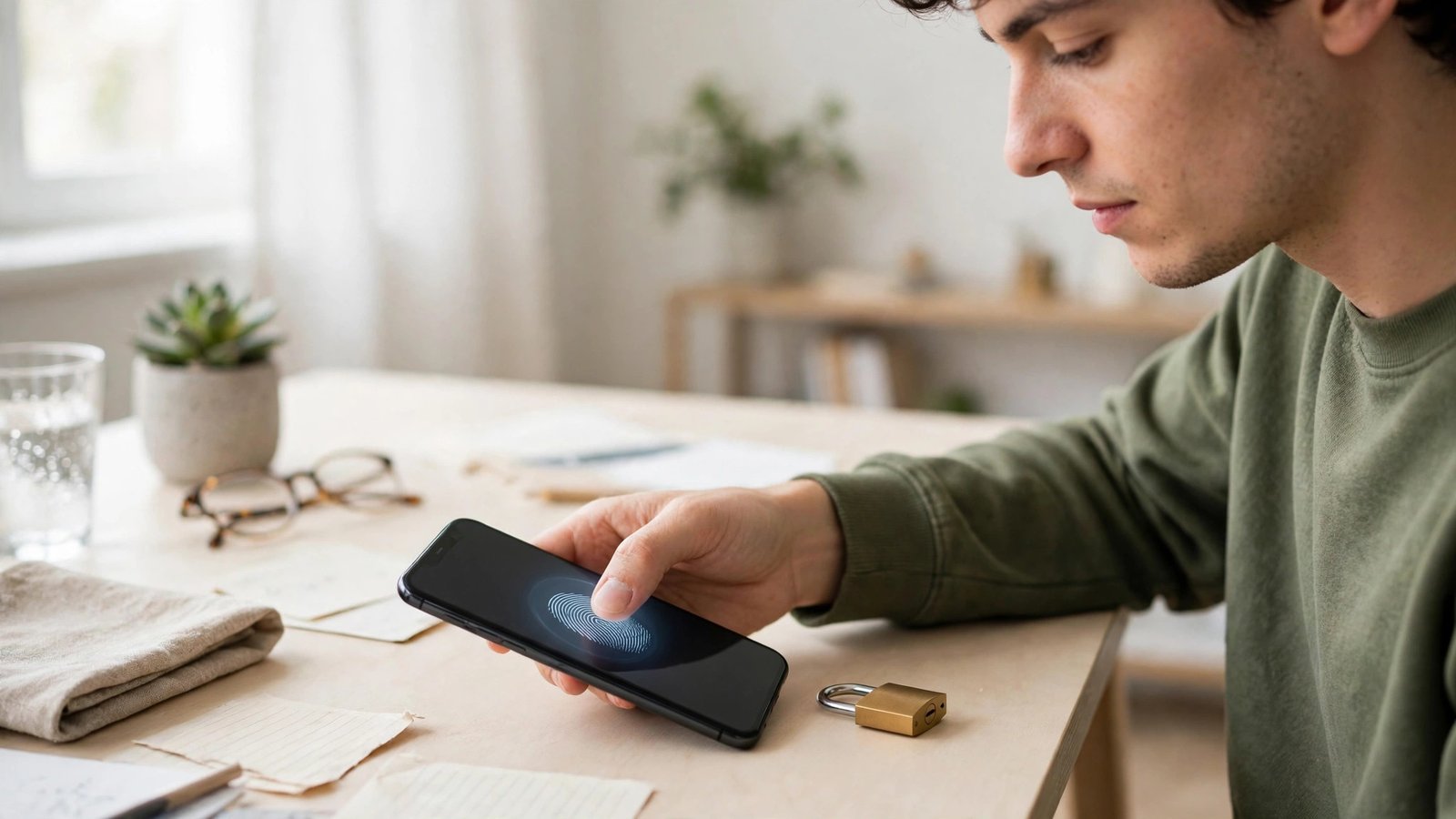
How to Lock Apps With Face ID, Fingerprint and PIN on iPhone and Android in Canada
Most phones are locked at the front door, yet wide open once they are unlocked. Hand your phone to a friend to show a photo, and they can often open your messages, banking app, or email with one more tap. Locking individual apps adds a second door inside the phone, so a borrowed phone or a quick glance does not turn into access to your private accounts.
This guide covers the built-in options on iPhone and Android, plus the app-level PINs many Canadian banks and messaging apps already offer. You do not need a special security app to get most of the benefit. Start with the apps that matter most, such as banking, email, photos, and messaging, and leave low-risk apps unlocked so daily use stays smooth.
Step 1: Make sure the phone lock itself is strong
App locks work best on top of a strong phone lock. Use a six-digit passcode or longer on iPhone, or a strong PIN, pattern, or password on Android, rather than a short code that is easy to guess or watch. Turn on Face ID or fingerprint unlock as well, since biometrics make a strong lock fast to use.
Check the auto-lock time too. On iPhone, go to Settings, Display and Brightness, Auto-Lock, and pick a short time such as 30 seconds or one minute. On Android, look under Settings, Display, Screen Timeout, and pick a similar short interval. A phone that stays unlocked on a table for five minutes gives away most of the benefit of app locks.
Step 2: Lock apps on iPhone with Face ID
On recent iOS versions, you can lock many apps with Face ID directly from the home screen. Press and hold the app icon, then choose Require Face ID, and confirm. The next time you open that app, the phone will ask for Face ID before showing anything inside. This works for many built-in and third-party apps, though some apps, such as a few system apps, cannot be locked this way.
Step 3: Lock apps on Android with built-in tools and PINs
Android does not have one single app lock that works the same on every phone, so the best path depends on your maker. Samsung phones offer Secure Folder, which can hold a second copy of an app behind its own lock. Pixel and many other Android phones rely more on in-app locks and screen pinning, which is covered below.
Start with in-app locks, since they are the most reliable across brands. Open the app you want to protect, look for Settings, Privacy, Security, or a lock option, and switch on fingerprint unlock, face unlock, or a PIN. Banking apps in Canada commonly offer this, as do WhatsApp, Signal, and most password managers. Set the lock to engage at once, not after a delay, if the app offers a timeout choice.
If your phone maker offers an app lock in Settings, such as under Biometrics and Security or Privacy, you can add apps there too. The label varies, so search Settings for the word lock or app lock if you cannot find it. Avoid installing a random third-party app locker from an app store unless you have checked its maker, reviews, and permissions, since a poor locker can itself become a privacy risk.
Step 4: Use screen pinning when you hand over your phone
Screen pinning is a handy trick for the moment you hand your phone to someone. On Android, open the app you want to share, open the recent apps view, tap the app icon at the top, and choose Pin. The phone will stay in that one app until you unpin it with a gesture and your lock method. On iPhone, the closest built-in option is Guided Access, found under Settings, Accessibility, Guided Access. Turn it on, open the app, triple-click the side button, and start Guided Access to keep the phone in that app.
Step 5: Protect photos, messages and banking in particular
Give extra attention to three groups of apps. First, banking and payment apps: turn on biometric unlock inside each one, and check whether the app offers a separate app PIN. Second, messaging apps: turn on biometric or PIN locks where offered, and hide message previews on the lock screen. Third, photos: on iPhone, you can hide sensitive photos in the Hidden album and lock that album with Face ID under Settings, Photos, or through the Photos app itself in recent versions. On Android, many gallery apps offer a locked folder for the same purpose.
Step 6: Test the locks and keep a backup way in
After setting locks, test them the way someone else would. Lock the phone, unlock it, then open a locked app and confirm it asks for Face ID, fingerprint, or PIN before showing content. Lock the phone again, wait a minute, and repeat the test. If an app opens without asking, check whether you set a delay inside the app, or whether the lock only applies after the app has been closed fully.
Frequently Asked Questions
Can I lock any app on iPhone with Face ID?
Many apps can be locked from the home screen with Require Face ID on recent iOS versions, but not every app offers it. If the option is missing, check the lock setting inside the app itself, since banking, messaging, and password apps often have their own Face ID toggle.
Does Android have a built-in app lock for all phones?
No single lock works the same on every Android phone. Samsung offers Secure Folder, and many other phones rely on in-app fingerprint or PIN locks. Start with the lock inside each important app, since that method works across brands and stays with the app.
What should I do if I forget an app PIN?
Use the reset or forgot PIN option inside the app, which usually asks you to sign in again or verify your identity. Keep your account password and recovery options current, and store app PINs in a password manager so you can recover them without guessing.



Post Comment