How to Set Up Wi-Fi Calling on iPhone and Android in the UK
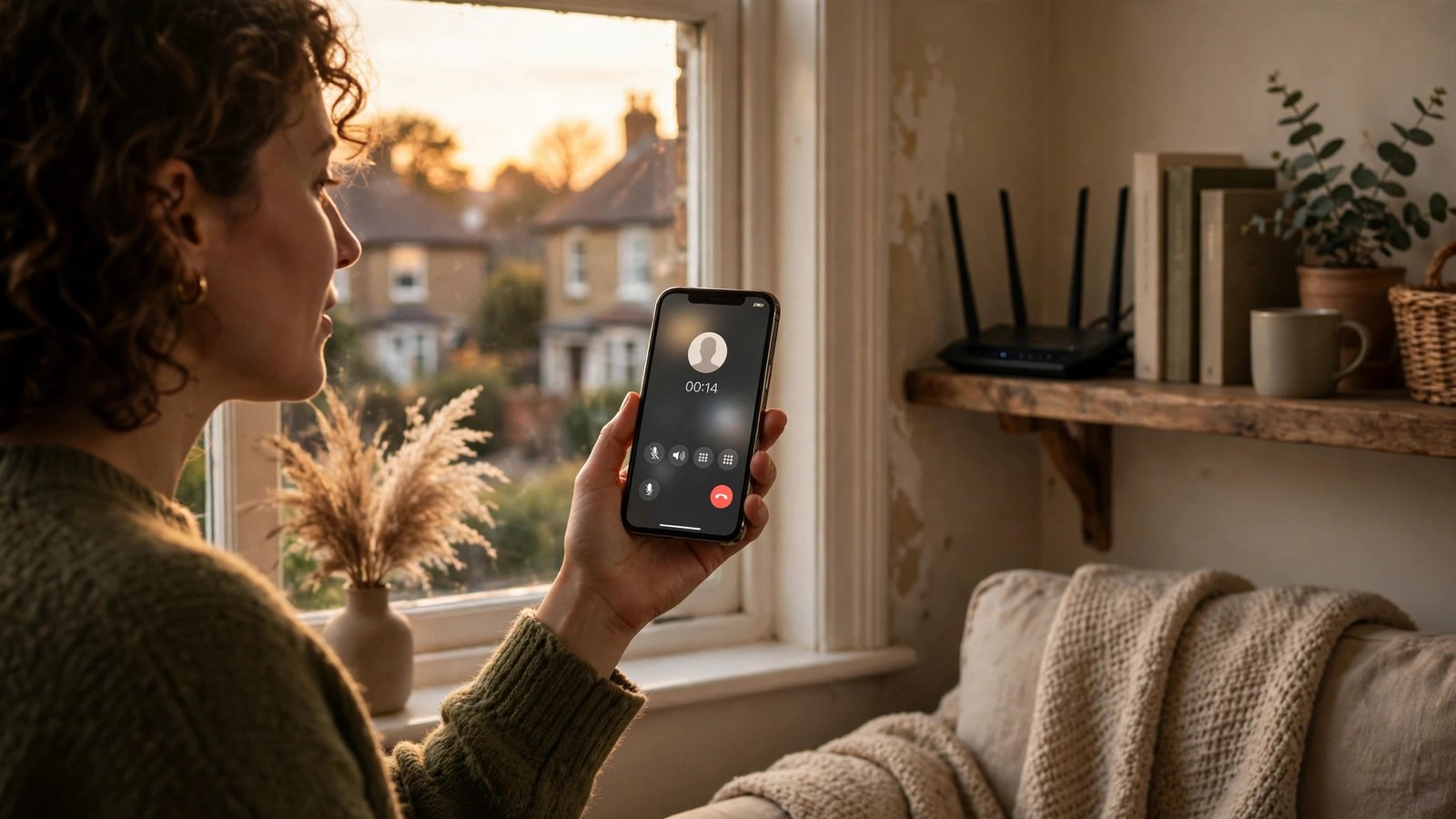
If your mobile signal drops at home or in the office, Wi-Fi calling can save the day. It lets your phone make and receive normal voice calls over a Wi-Fi network instead of a mobile mast, using your usual phone number. The person you call does not need any special app, and the call looks and feels like any other call. This guide walks you through setup on iPhone and Android, plus the checks that fix most problems.
Before you start, it helps to know two things. First, Wi-Fi calling needs support from your mobile network as well as your phone, so it is worth checking your network first. Second, you need a stable Wi-Fi connection and a phone that is signed in with your normal mobile plan. In most recent versions of iOS and Android, the setting is only a few taps away once those basics are in place.
Step 1: Check that your network and phone support Wi-Fi calling
Most large UK networks offer Wi-Fi calling, including EE, O2, Three and Vodafone, along with many smaller providers that run on their networks. Support can vary by plan, phone model and whether you bought the phone directly from the network, so do not assume it is turned on by default.
The quickest check is on your network's website or in its app, where Wi-Fi calling is usually listed under network features or help pages. You can also search for your network name plus Wi-Fi calling to see its current list of supported phones. If your network does not support it, the setting may be missing from your phone entirely, which is a sign to contact the network rather than keep hunting through menus.
Your phone also needs to be fairly recent. Most iPhones from the last several years support Wi-Fi calling, and most Android phones sold in the UK in recent years do too.
Step 2: Turn on Wi-Fi calling on iPhone
On iPhone, open Settings, then tap Mobile Service or Cellular, depending on your iOS version. Tap Wi-Fi Calling, then switch it on. You may be asked to confirm an emergency address, which helps emergency services find you if you call 999 over Wi-Fi. Enter the address where you most often use Wi-Fi calling, such as your home address, and confirm it.
Once the setting is on, your phone will use Wi-Fi for calls when the mobile signal is weak and a known Wi-Fi network is available. In the status bar, you may see your network name followed by Wi-Fi Calling, or a similar label. That label is a useful sign that the feature is active. If you do not see it, make sure you are connected to Wi-Fi and that the mobile signal is weak enough for the phone to prefer Wi-Fi, since the phone will often stay on a strong mobile signal when one is available.
If the Wi-Fi Calling option does not appear, check that your iPhone software is up to date under Settings, then General, then Software Update.
Step 3: Turn on Wi-Fi calling on Android
On Android, the exact menu names vary by brand, but the path is similar. Open Settings, then tap Network and Internet, or Connections on Samsung phones. Look for Calls, Mobile Network, or Wi-Fi Calling. Tap Wi-Fi Calling and switch it on.
On Samsung phones, you can often find it under Settings, then Connections, then Wi-Fi Calling. On Google Pixel phones, it is usually under Settings, then Network and Internet, then SIMs, then your mobile network, then Wi-Fi Calling. On other Android phones, try searching for Wi-Fi calling in the Settings search bar at the top of the screen, which is usually the fastest route.
Some Android phones also let you choose when to prefer Wi-Fi. If you see an option such as Wi-Fi Preferred, choose it if your home signal is poor.
Step 4: Test a call and check the basics
Once Wi-Fi calling is on, make a test call to a friend or family member while connected to Wi-Fi. Ask them if the sound is clear and if your number shows up as normal. Then try receiving a call the same way. A short test at home will tell you more than any settings screen.
If the call connects over Wi-Fi, you are done. If it still uses the mobile network, check that Wi-Fi is actually connected and that the signal is weak enough for the phone to switch.
Step 5: Fix common Wi-Fi calling problems
If Wi-Fi calling will not turn on, restart your phone first, then check for software and carrier updates as described above. If it turns on but calls fail, restart your router as well, since a router problem can block calls even when web browsing works.
If calls drop when you leave Wi-Fi range, that is often normal: the phone needs a moment to hand over to the mobile network, and a very weak mobile signal can break the handover. Staying on Wi-Fi until the call ends is the simplest fix.
If nothing works, contact your network and ask them to check that Wi-Fi calling is enabled on your account. Some accounts need the feature switched on by the network before the phone setting will work. Give them your phone model and software version, since that helps them check support quickly.
Frequently Asked Questions
Does Wi-Fi calling cost extra in the UK?
In most cases, no. Calls made over Wi-Fi calling usually come out of your normal minutes allowance, just like a standard call. If you have no minutes left, your network's usual out of allowance charges may apply, so check your plan if you are unsure.
Can I use Wi-Fi calling abroad?
Many UK networks allow Wi-Fi calling abroad, but charges and rules vary. Some networks treat Wi-Fi calls abroad as if you were at home, while others charge roaming rates. Check your network's roaming page before you travel, and turn the feature off if you want to avoid surprises.
Will Wi-Fi calling work if my broadband goes down?
No. Wi-Fi calling needs a working internet connection, so it will stop if your broadband fails. In that case, your phone will fall back to the mobile network if a signal is available. Keep that in mind during a broadband outage, and move near a window or outside if you need a stronger mobile signal.



Post Comment