How to Transfer WhatsApp From Android to iPhone Easily
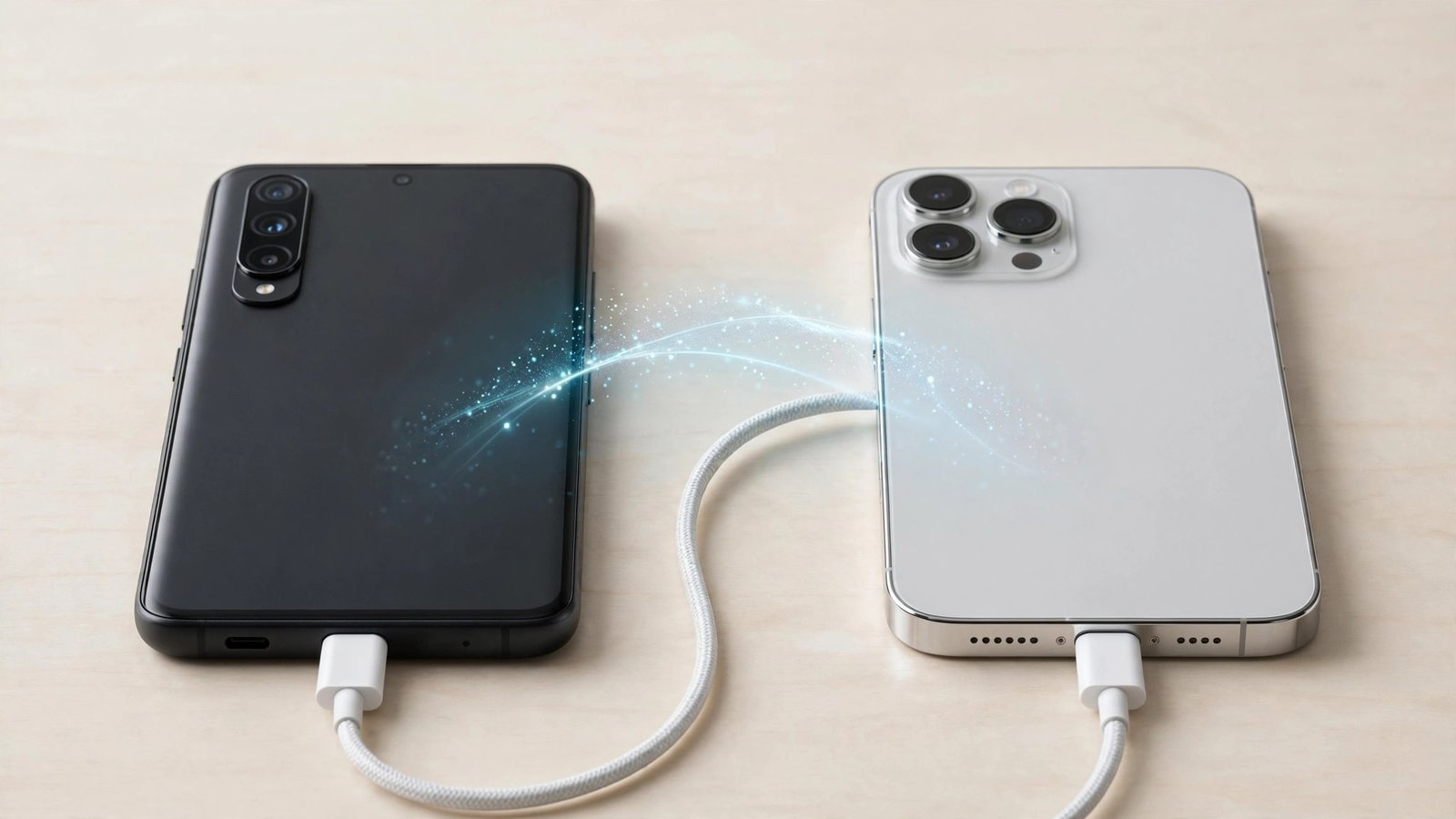
Switching from Android to iPhone is exciting until you realize years of WhatsApp conversations are about to be left behind. The good news is that moving everything over is now officially supported and genuinely straightforward, as long as you do it during the initial iPhone setup. Here is how to transfer WhatsApp Android to iPhone without losing your chats, photos, or voice notes.
Before You Start: The Checklist
Meet the requirements first. You will need Android 5 or newer on the old phone and iOS 15.5 or newer on the new iPhone. Both phones need the latest version of WhatsApp installed, and both must use the same phone number. Your iPhone must be new or factory-reset, because the transfer happens through Apple's Move to iOS app during initial setup. If you already set up the iPhone, you will need to erase it and start over, so do this step first.
Charge both phones and connect to Wi-Fi. The transfer moves a lot of data, especially if you have years of photos and videos. Plug both phones into chargers and join the same Wi-Fi network. Also make sure the iPhone has enough free storage for everything coming over. There is nothing worse than a transfer failing at 90 percent.
The Transfer: Step by Step
1. Start your iPhone setup. Power on the new iPhone (or begin the erase-and-restore if it is already set up) and proceed through the initial screens until you reach Apps and Data. Choose "Move Data from Android." This is the only window where the transfer works, so do not skip past it.
2. Install Move to iOS on your Android. On your Android phone, download Apple's Move to iOS app from the Play Store and open it. Tap through the prompts until it asks for a code.
3. Pair the phones. Your iPhone will display a six- or ten-digit code. Enter it on the Android phone. The iPhone creates a temporary Wi-Fi network for the transfer; join it when prompted on the Android side.
4. Select WhatsApp. On the transfer-data screen, you will see a list of what can move over. Make sure WhatsApp is checked, along with anything else you want. Tap Continue and let the phones work. This is the coffee-break step: depending on how much chat history you have, it can take anywhere from a few minutes to over an hour.
5. Finish WhatsApp setup on the iPhone. Once the transfer completes and your iPhone finishes setting up, download WhatsApp from the App Store. Open it, verify the same phone number, and when prompted, tap Start to import your chat history. Your conversations, photos, videos, and voice messages should appear as if they never left.
What Transfers and What Does Not
What comes over: your individual and group chats, photos, videos, voice messages, and documents. The important stuff, in other words.
What does not: your WhatsApp call history and your display name do not transfer. Peer-to-peer payment history does not either, where applicable. These are minor losses for most people, but worth knowing so nothing surprises you.
Your old phone keeps its data. The transfer copies rather than moves, so your Android still has everything afterward. Do not wipe it until you have confirmed the iPhone looks right. Open a few old group chats, check that photos load, and play one voice note before you factory-reset anything.
If Something Goes Wrong
The most common failure is an interrupted transfer. If the phones disconnect mid-move, restart both and begin again from the Move to iOS step. Keep the phones close together and do not use either one during the transfer. Switching apps on the Android phone is the usual culprit behind mysterious stalls.
Already set up the iPhone? Unfortunately there is no supported way to inject the transfer afterward. Your options are erasing the iPhone and starting over, or using a paid third-party transfer tool. The free official method requires the fresh-setup window, which is why timing matters. Some people keep WhatsApp running on the old Android while they decide, but that splits your history across two devices and gets confusing fast. Better to redo the setup properly once.
Moving the other direction later? iPhone to Android transfers are also officially supported now through a similar process during Android setup. The ecosystem walls are lower than they used to be, at least for WhatsApp.
Do the transfer during initial setup, keep both phones charged and close, and verify before wiping the old device. Follow that order and your chat history survives the platform jump intact.
Can I transfer WhatsApp from Android to iPhone after setup?
Not with the free official method. Apple's Move to iOS transfer only works during the iPhone's initial setup. If you already finished setup, you would need to erase the iPhone and start over, or use a paid third-party tool.
Do I need the same phone number?
Yes. The transfer ties to your phone number, so both devices must use the same number in WhatsApp. If you are also changing numbers, change the number on the Android phone first, then do the transfer.
Will my WhatsApp media quality stay the same?
Your photos and videos transfer as they exist in your chats. WhatsApp compresses media when originally sent, so transferred files match what you already had, no better and no worse. Nothing is re-compressed in the move.