How to Use Your Phone as a Webcam: Complete 2026 Guide
Your phone's camera embarrasses your laptop's webcam. That grainy 720p pinhole above your screen was an afterthought; the camera in your pocket is a precision instrument. Using it for video calls is one of the easiest quality-of-life upgrades in tech, and it costs nothing. Here is how to use phone as webcam on both iPhone and Android, wired and wireless.
iPhone: Continuity Camera (The Easy Way)
If you own a Mac, this is nearly effortless. Apple built Continuity Camera into macOS Ventura and later, and it turns a nearby iPhone into your Mac's webcam automatically. Mount your iPhone near your Mac, make sure both devices are signed into the same Apple ID with Wi-Fi and Bluetooth on, then open FaceTime, Zoom, or Teams and select your iPhone as the camera. That is genuinely the whole setup.
The bonus features are surprisingly good. Continuity Camera includes Desk View (a top-down view of your desk, handy for demos), Center Stage (which keeps you framed as you move), and Portrait mode for pleasantly blurred backgrounds. Your iPhone needs to be running iOS 16 or later. A little magnetic mount that clips to your laptop lid makes positioning painless, and they cost less than a decent lunch.
No Mac? Use a third-party app. Continuity Camera is Apple-ecosystem only. If your computer runs Windows, skip to the app section below, since apps like EpocCam work fine with iPhones on Windows too.
Android: Apps That Do the Heavy Lifting
DroidCam is the most popular option. Install DroidCam on your Android phone and the companion client on your computer (Windows or Linux; Mac support is limited). Connect over Wi-Fi by entering the IP address shown on your phone, or over USB for lower latency. Then select DroidCam as your camera in Zoom, Teams, or your browser. The free version works well; the paid version removes watermarks and enables HD.
EpocCam covers both platforms. Elgato's EpocCam works with iPhone and Android and pairs with Windows and Mac. The setup mirrors DroidCam: install the phone app and the desktop driver, connect over Wi-Fi or USB, and select it as your camera source. USB connections are worth the cable for important meetings, since Wi-Fi can stutter if your network is congested.
Your video app probably has its own option now. Zoom, Teams, and Google Meet have all added smoother phone-as-camera integrations over the past couple of years. Before installing anything, check your app's camera settings; the native option is usually the most reliable when it exists.
Check for manufacturer built-in features too. Some Android makers now include their own phone-as-camera modes. Samsung phones, for example, offer continuity features through their link with Windows. These native integrations tend to be more stable than third-party apps, so glance through your phone's settings and your computer's companion app before installing anything new.
Getting a Picture Worth the Effort
Wired beats wireless for important calls. Wi-Fi connections work fine for casual chats, but they can lag or drop frames when the network gets busy. For job interviews, presentations, or anything you cannot afford to glitch, plug in with USB. It is the difference between "mostly fine" and "rock solid."
Light yourself like you mean it. A great camera with terrible lighting still looks terrible. Face a window or put a lamp behind your monitor pointing at you, and avoid bright windows behind you, which turn you into a silhouette. This single change improves your video more than any camera upgrade ever will.
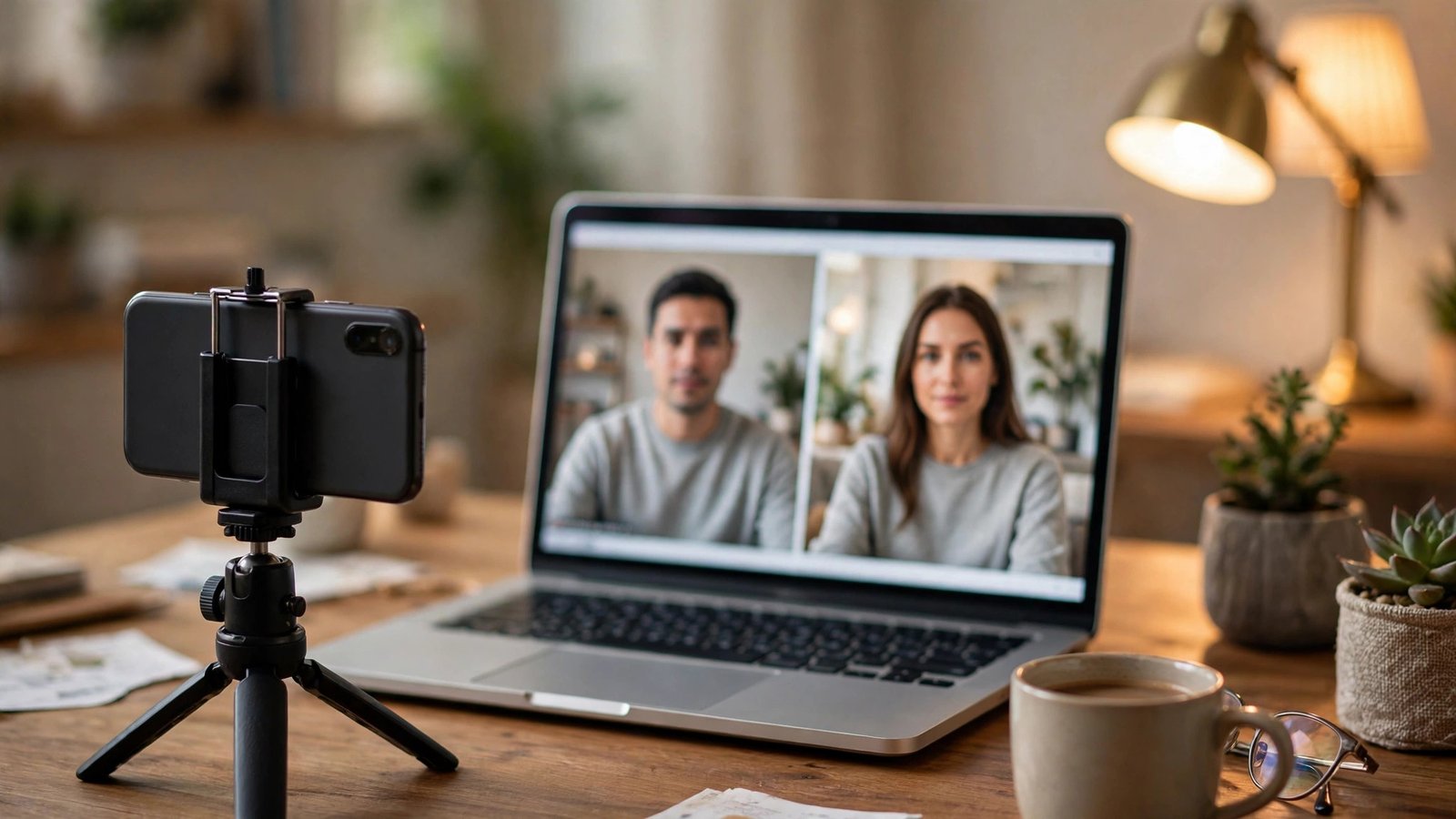
Mind the framing and the battery. Prop the phone at eye level rather than looking down at it on the desk; a stack of books works in a pinch. Keep the phone plugged in during long calls, since camera streaming drains batteries fast and a dead phone mid-meeting is its own special embarrassment. And do a quick test call first to check your audio, because the phone's microphones are close to the speakers and can echo.
Use the rear camera for the best quality. This is the move most people miss. Your phone's rear cameras are dramatically better than the selfie camera. Framing yourself without seeing the screen takes a little trial and error, but a mirror behind your monitor or one quick test recording solves it. The quality jump is immediately obvious to everyone on the call.
Once you have done this setup a single time, it becomes a two-tap habit. Your colleagues will notice the difference immediately, even if they cannot quite name it. You will just look sharper, clearer, and more professional, all from hardware you already owned.
Does using my phone as a webcam drain the battery?
Yes, camera streaming is power-hungry, and an hour-long call can eat a serious chunk of battery. Keep the phone plugged into a charger during calls. This matters doubly for wireless connections, which use more power than USB.
Can I use my phone as a webcam wirelessly?
Absolutely. Both built-in options like Continuity Camera and third-party apps like DroidCam support Wi-Fi connections. Just keep your phone and computer on the same network, and expect slightly more latency than a USB connection.
Will this work with Zoom, Teams, and Google Meet?
Yes. Once your phone is set up as a camera source, it appears in the camera dropdown of virtually every video app, including Zoom, Teams, Meet, Skype, and browser-based tools. If it does not appear, restarting the video app usually fixes it.