How to Speed Up a Slow Laptop: 12 Proven Fixes That Work
A laptop that took thirty seconds to boot when it was new should not take five minutes three years later. Slowdowns creep in quietly: a few extra startup programs here, a nearly full drive there, until one day everything feels like wading through mud. The good news is that most of the fixes for how to speed up slow laptop performance are free and take minutes. Here are twelve that actually work, ordered from easiest to most involved.
Quick Wins: Settings and Startup
1. Trim your startup programs. This is the single biggest culprit behind slow boot times. On Windows, open Task Manager with Ctrl+Shift+Esc, click the Startup tab, and disable anything you do not need the second your computer turns on. Spotify, Discord, and a dozen updaters do not need to launch at boot. On Mac, go to System Settings, then General, then Login Items, and remove the hangers-on.
2. Uninstall the bloatware. That trial antivirus from 2022, the three photo editors you opened once, the game launcher you forgot about: they eat disk space and sometimes run background processes. On Windows, Settings then Apps gives you the full list sorted by size. On Mac, drag unused apps from Applications to the Trash, then empty it. Be a little ruthless here.
3. Free up disk space. When your drive drops below about 15 percent free space, everything slows down because the system has nowhere to work. Run Windows Disk Cleanup or Mac's built-in storage manager (Apple menu, About This Mac, More Info, Storage Settings) to clear caches, old downloads, and forgotten installers. Moving big video files to an external drive or cloud storage helps enormously.
4. Restart it properly. We know, we know. But a surprising number of "slow laptop" complaints come from machines that have not had a real restart in weeks, just sleep cycles. Sleep keeps everything in memory, including the leaky background processes. A full restart once a week clears the decks.
Digging Deeper: System Health
5. Update everything. Operating system updates include performance fixes, not just security patches. On Windows, check Settings then Windows Update. On Mac, System Settings then General then Software Update. While you are at it, update your drivers on Windows through Device Manager or your manufacturer's support app, since old graphics and Wi-Fi drivers cause more slowdowns than people realize.
6. Scan for malware. Malware does not always announce itself with pop-ups anymore. Modern junkware quietly mines crypto or serves ads in the background, eating your CPU. Windows Security (built in and free) does a solid job; run a full scan. Mac users are less exposed but not immune, so a scan with a reputable tool once in a while is cheap insurance.
7. Tame your browser. Chrome with forty tabs open is practically a second operating system. Each tab eats RAM, and extensions pile on. Close tabs you are not using, remove extensions you forgot you installed, and consider whether you need three ad blockers running at once. If your laptop has 8GB of RAM or less, browser discipline alone can transform how it feels.
8. Check for overheating. A laptop full of dust runs hot, and hot processors deliberately slow themselves down to avoid damage. If your fan sounds like a jet engine during light work, the vents may be clogged. A can of compressed air through the vents (with the machine off) works wonders. Using the laptop on a bed or couch smothers the intakes, so a hard flat surface or a cheap cooling stand helps too.
The Bigger Moves: Hardware and Fresh Starts
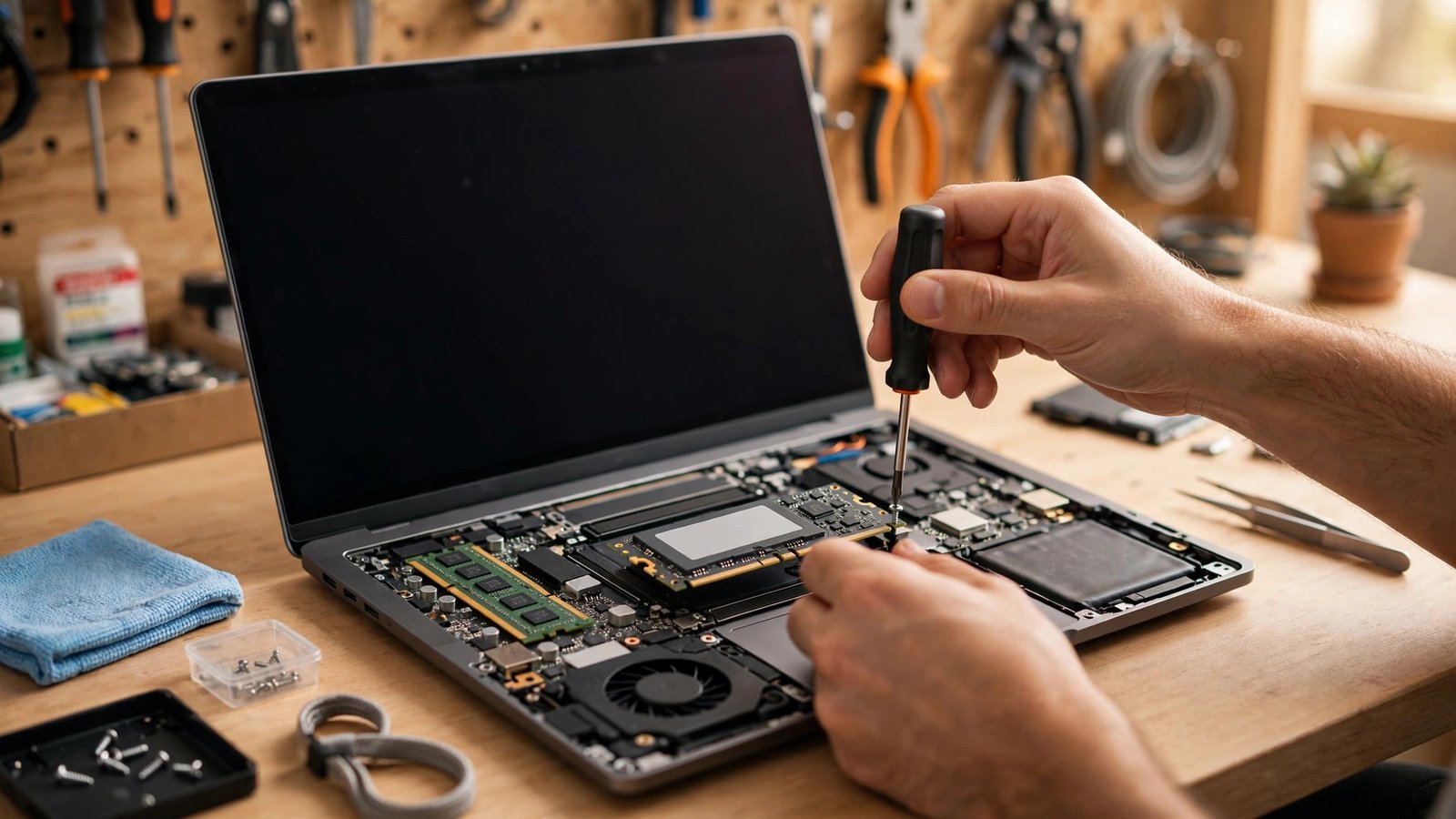
9. Upgrade to an SSD. If your laptop still has an old spinning hard drive, this single upgrade will make it feel like a new machine. Boot times drop from minutes to seconds. SSDs are inexpensive now, and many laptops let you swap the drive with just a screwdriver. Check your model's manual first, since some ultra-thin laptops have soldered storage.
10. Add more RAM. Eight gigabytes was comfortable a few years ago; today it is the minimum for smooth multitasking. If your laptop supports it, jumping to 16GB is one of the best value upgrades in computing. Like SSDs, many (not all) laptops have accessible RAM slots, so verify before buying.
11. Tone down the visual effects. Windows loves its animations and transparency, and each one costs a little performance. Search for "Adjust the appearance and performance of Windows" and select "Adjust for best performance," or pick Custom and keep only smooth fonts. On Mac, reducing motion and transparency in Accessibility settings gives older machines welcome breathing room.
12. Reset as a last resort. When nothing else works, a fresh start does. Both Windows ("Reset this PC") and Mac ("Erase All Content and Settings") offer built-in options that reinstall the operating system cleanly. Back up your files first, obviously. People are often shocked at how fast their laptop feels afterward, which tells you how much digital cruft had accumulated.
Most slow laptops do not need replacing; they need an afternoon of maintenance. Start with the startup programs and disk space, work your way down the list, and you will probably recover most of the speed you thought was gone for good.
Why is my laptop suddenly slow?
A sudden slowdown usually means something changed: a recent update, a new program running in the background, malware, or a drive that just filled past the comfort zone. Check Task Manager or Activity Monitor first to see if one process is hogging your CPU or memory.
Does adding RAM really speed up a laptop?
Yes, if RAM is your bottleneck. When the system runs out of memory, it starts using your much slower drive as overflow, and everything crawls. Going from 8GB to 16GB makes a real difference for multitasking. But if your laptop already has plenty of RAM and is still slow, the problem is elsewhere.
How often should I restart my laptop?
A full restart once a week is a good habit. It clears temporary files, finishes pending updates, and kills runaway background processes. Shutting down nightly works too, though modern laptops handle sleep fine between restarts.